
Last updated: 2026-09-01
Best Figma-to-Code AI Tools for UI Designers
Related pack: View Pack
Your Figma file is already the source of truth—Auto Layout, components, variants—and engineering wants code, not another annotated PNG. Most “Figma to code” roundups mix prompt-to-app sandboxes, marketing-site builders, screenshot-to-HTML toys, and in-file Figma AI on one page. They rarely answer the job this article is about: finished (or near-finished) design frames → editable or shippable code.
This shortlist is for UI and product designers (and the front-end-adjacent people in the same review) who need a design-file → code bridge: multi-framework handoff, React inside your repo, or native mobile. Five tools. Not every chat-to-app product that happens to mention Figma in a feature list.
Honest boundary up front: converters are fast at first code. Tokens, a11y, real data, auth, and production QA still land with you and eng. Clean Auto Layout and component structure in Figma still matter—garbage frames in, messy trees out.
This piece is the Figma-to-code slice. It is not Figma AI vs v0 (in-file AI vs prompt spike). It is not Best Text-to-UI AI Tools (prompt → screens). Workflow neighbors without a converter duel: AI Tools That Work with Figma. Living list: UI / Product Designer Pack. Selection bar: How we evaluate AI design tools.
How we pick
Same site-wide bar, weighted for design file → code jobs:
- Fit — Primary path starts from Figma (or a design file / frame), not “prompt a whole app and maybe import Figma later.”
- Delivery — Editable HTML/React (or multi-stack / native) you can hand toward eng—not PNG-only previews or locked black-box hosting with no export story.
- Workflow — Clear next step after conversion (preview, GitHub, repo sync, store build)—without pretending the tool replaced your design system.
- Cost — A solo designer or small team can try before standup; trial, credit, and free-tier gates are checkable.
- Trust — Still maintained; commercial / ownership terms checkable before client work.
We do not rank a #1 overall winner. Pick by multi-stack handoff, React playground, vision reconstruct, native mobile, or codebase-native React.
Where to reach first
| If you need to… | Start with | Also consider |
|---|---|---|
| Figma → multi-framework code (React, Next, Flutter…) for eng handoff | Locofy | Codia AI |
| Figma → editable HTML / React with a playground loop | Anima | Locofy |
| Figma or screenshot → framework code via vision / layer rebuild | Codia AI | Anima |
| Figma → native iOS / Android (not web React only) | Bravo Studio | Codia mobile targets |
| Figma → React inside your existing codebase | Plasmic | — |
| Prompt → clickable React / app spike (file of record is not “convert this frame”) | v0 | Bolt · Rocket — see Figma AI vs v0 |
Most teams need one converter path—not all five. Keep v0/Bolt/Rocket for spikes when a static frame cannot prove interaction.
The shortlist
 Locofy — Figma → multi-stack code for eng handoff
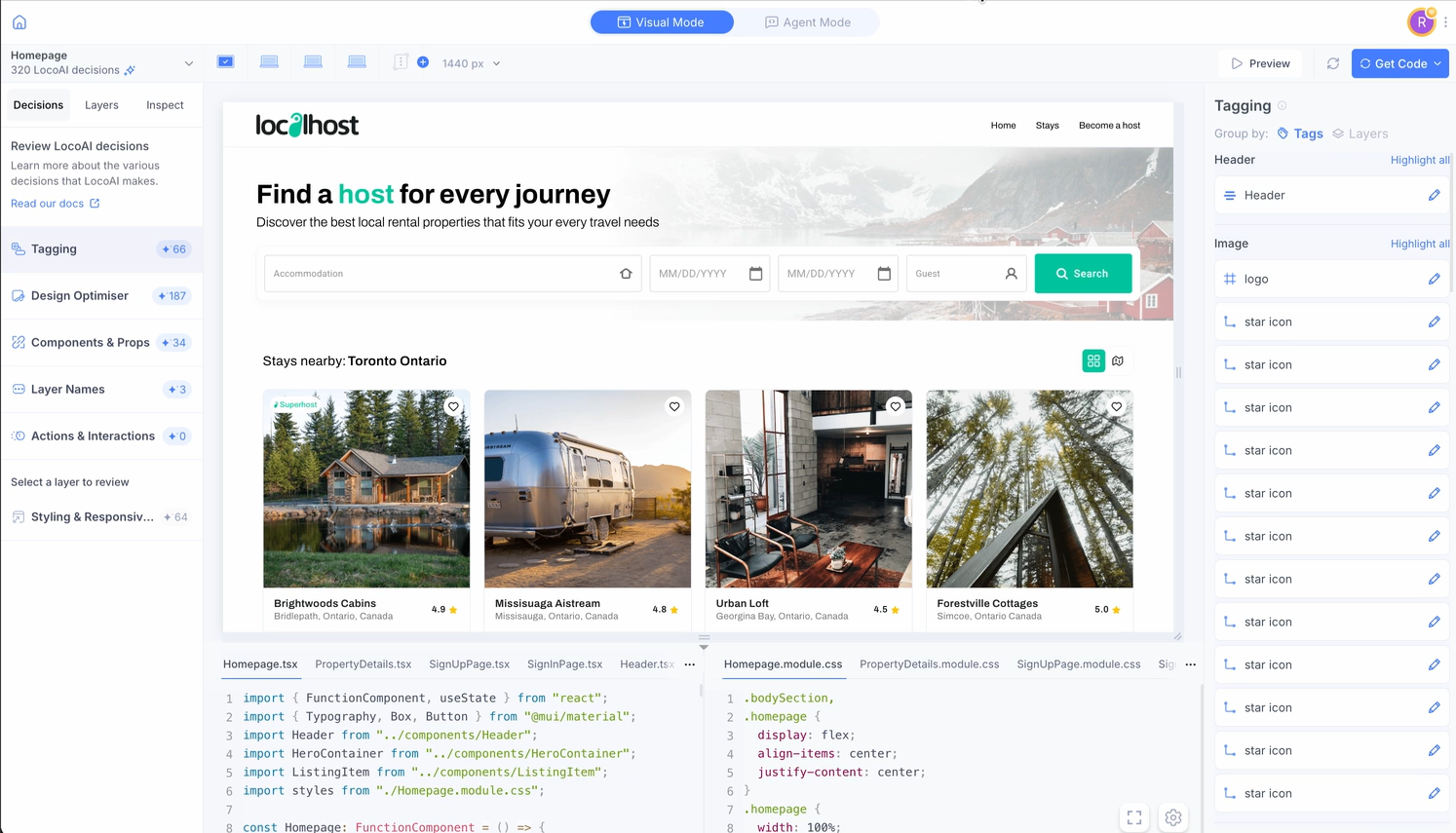
Locofy is the design-to-code handoff seat when the brief is “these Figma frames need to become real front-end (or multi-stack) code eng can continue.” Lightning converts from Figma (and related design sources) toward React, Next, Vue, Angular, React Native, Flutter, HTML, and neighbors—with layout, responsiveness, and live preview in the loop. Agent Mode can prompt-refine the generated code while the preview updates.
- Best for: Product teams whose file of record is Figma and who need exportable, multi-framework UI code—not a marketing-site CMS.
- Strongest use: Clean Auto Layout / components in Figma → Lightning convert → preview → Agent refine if needed → hand code toward eng. Quality tracks how disciplined your Figma file already is.
- Don’t use if / Watch outs: You only need light AI inside Figma—Figma AI / Figma AI vs v0. You want prompt-first runnable apps with optional Figma import—Bolt, v0, or Rocket. Free is a 7-day Hobby trial (2,000 LDMtokens) that auto-converts to paid Hobby—cancel before day 7 if you are only evaluating. Lightning / regenerate burns 1 LDMtoken per Figma layer; Agent Mode adds LLM cost. Export, GitHub sync, VS Code pull, and most review/fix steps are free once code exists. Hobby caps (1 frame at a time, 10 frames/project) are easy to hit on multi-screen apps. Expect eng review on components, a11y, and stack conventions.
- Pricing snapshot: Freemium — Free: 7-day Hobby trial + 2,000 LDMtokens (then auto→Hobby). Hobby ~$40/mo · Pro ~$80/mo (higher LDM + frame caps; Pro keeps content off training). Enterprise: custom. Details: Locofy pricing.
 Anima — Figma → editable HTML / React playground
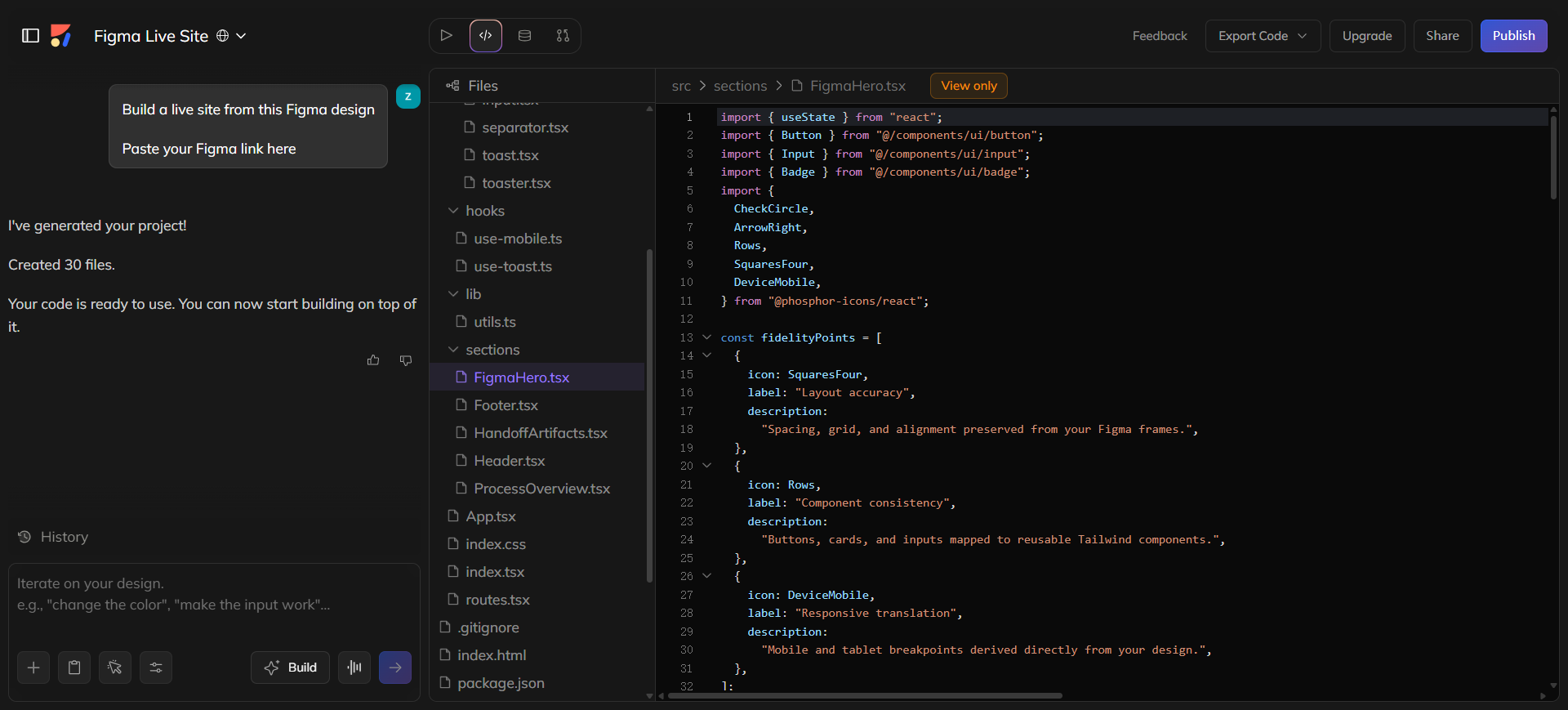
Anima sits on the editable web code side of handoff: pull from Figma (also URL, image, or prompt paths) into HTML/React-style output you iterate in a playground, then publish or hand toward eng. Useful when the job is “make this frame a living page or React starting point,” not “dump every platform SDK.”
- Best for: Designers and front-end-adjacent teammates who want Figma → editable web UI with a short iterate/publish loop.
- Strongest use: Select frames in Figma → generate code → refine in Anima’s playground → export or share → finish tokens and data binding in the real stack.
- Don’t use if / Watch outs: You need native iOS/Android store builds as the main deliverable—Bravo Studio. You need Figma content living inside your existing React design system—Plasmic. Free is explore-only: 5 monthly chats + 5 code generations—not a sprint runway. Figma ⇄ Code both ways starts at Starter. Not a replacement for design QA in Figma.
- Pricing snapshot: Freemium — Free: 5 chat · 5 generations / mo. Starter ~$20/seat/mo (annual) unlocks Figma⇄Code volume; Pro / Business raise caps and seats—check Anima pricing.
 Codia AI — Figma / screenshot → framework code via vision
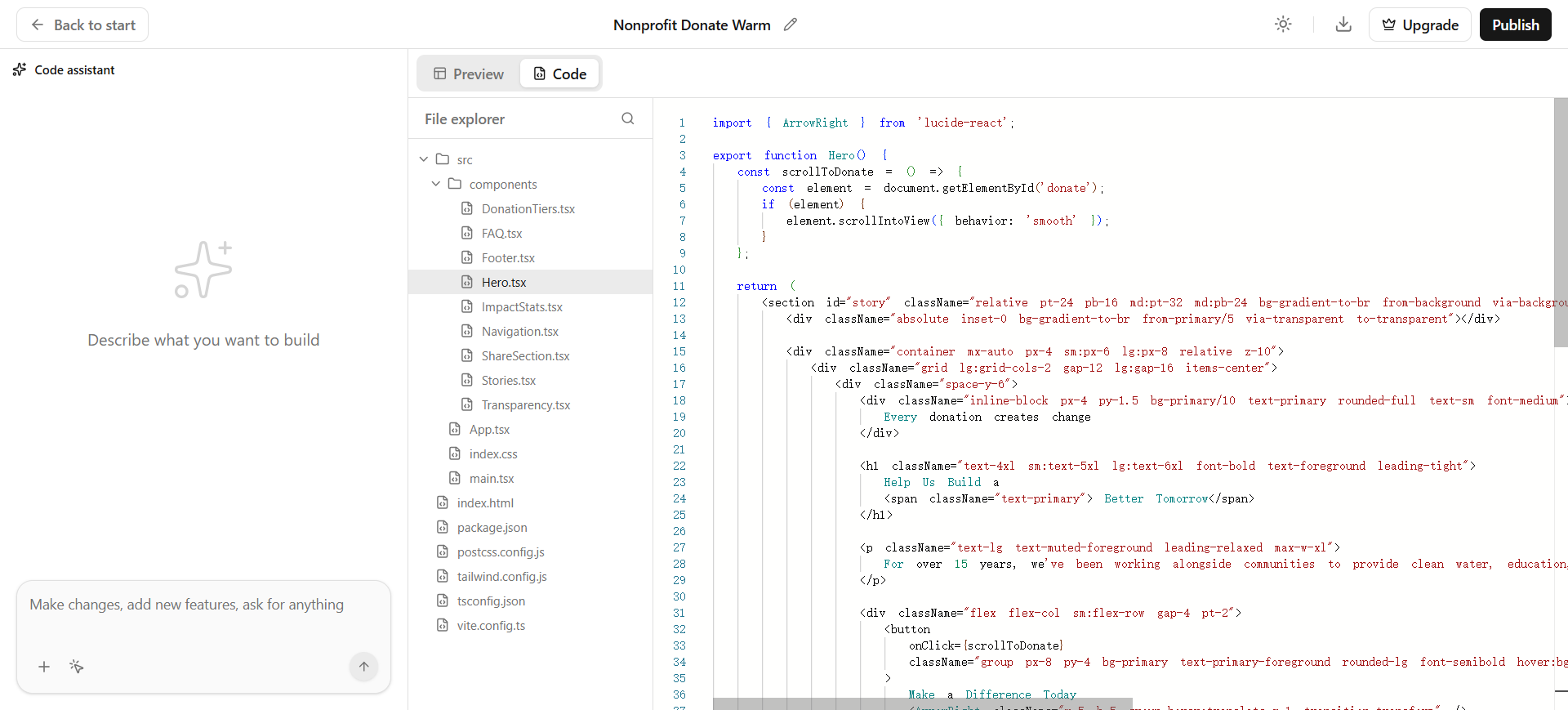
Codia AI targets visual reconstruction into code: Figma or screenshots toward React, Vue, HTML/Tailwind, and mobile-oriented stacks (Swift / Kotlin / Flutter paths on the product). The pitch is closer to rebuild the UI as code with structure, not flatten a PNG into dead markup.
- Best for: Teams that have frames or captures and need framework-shaped starting code across web and mobile targets.
- Strongest use: Figma (or a clean screenshot) → transform → review generated structure → pull into the repo → eng passes for architecture and a11y.
- Don’t use if / Watch outs: Free is credit-metered and tight—10 monthly credits (edu accounts +20)—not a production runway. Messy screenshots and non-Auto-Layout Figma still produce noisy trees. You only need a prompt → Vercel spike—v0.
- Pricing snapshot: Freemium — Free: 10 monthly credits. Starter / Pro raise pools (yearly cards around ~$17 / ~$29 per mo when we checked)—opt out of data training on paid. Details: Codia AI Code pricing.
 Bravo Studio — Figma → native iOS / Android
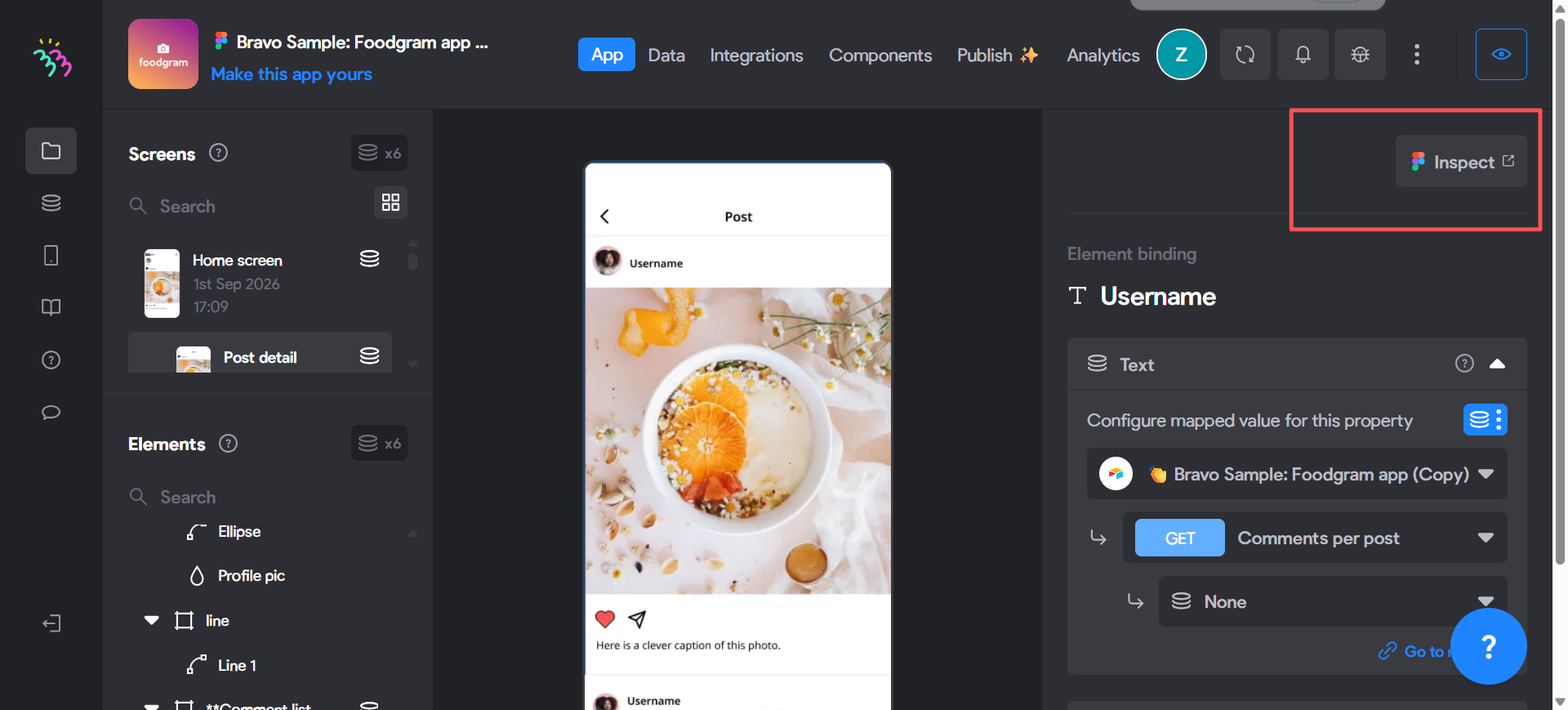
Bravo Studio is the mobile-native seat: design in Figma, then ship toward iOS / Android—preview on device free, realtime Figma sync, store builds, and React Native output on paid Solo via Bravo MCP. Use it when eng’s next step is a native app, not a Next.js page.
- Best for: Product designers owning mobile app UI in Figma who need device preview → store publish, or RN source via MCP.
- Strongest use: Structure screens in Figma → connect Bravo → Vision preview → Solo for realtime sync / store builds / MCP (Claude, Cursor, ChatGPT) → clarify Studio build packages vs MCP React Native before promising eng full repo ownership.
- Don’t use if / Watch outs: Your deliverable is web React only—Locofy, Anima, or Plasmic. Starter (Free) caps at 15 screens/app—Vision preview only: no store builds, no realtime Figma sync, no MCP. Solo unlocks 30 screens, unlimited store builds, realtime Figma sync, and Bravo MCP (React Native + Convex; works inside Claude / Cursor / ChatGPT). Check Bravo To Go if you need a different source/ownership path.
- Pricing snapshot: Freemium — Starter $0: unlimited apps · 15 screens/app · Vision. Solo ~$22/mo: store publishing + MCP + integrations (Stripe, OAuth, Firebase…). Details: Bravo pricing.
 Plasmic — Figma → React inside your codebase
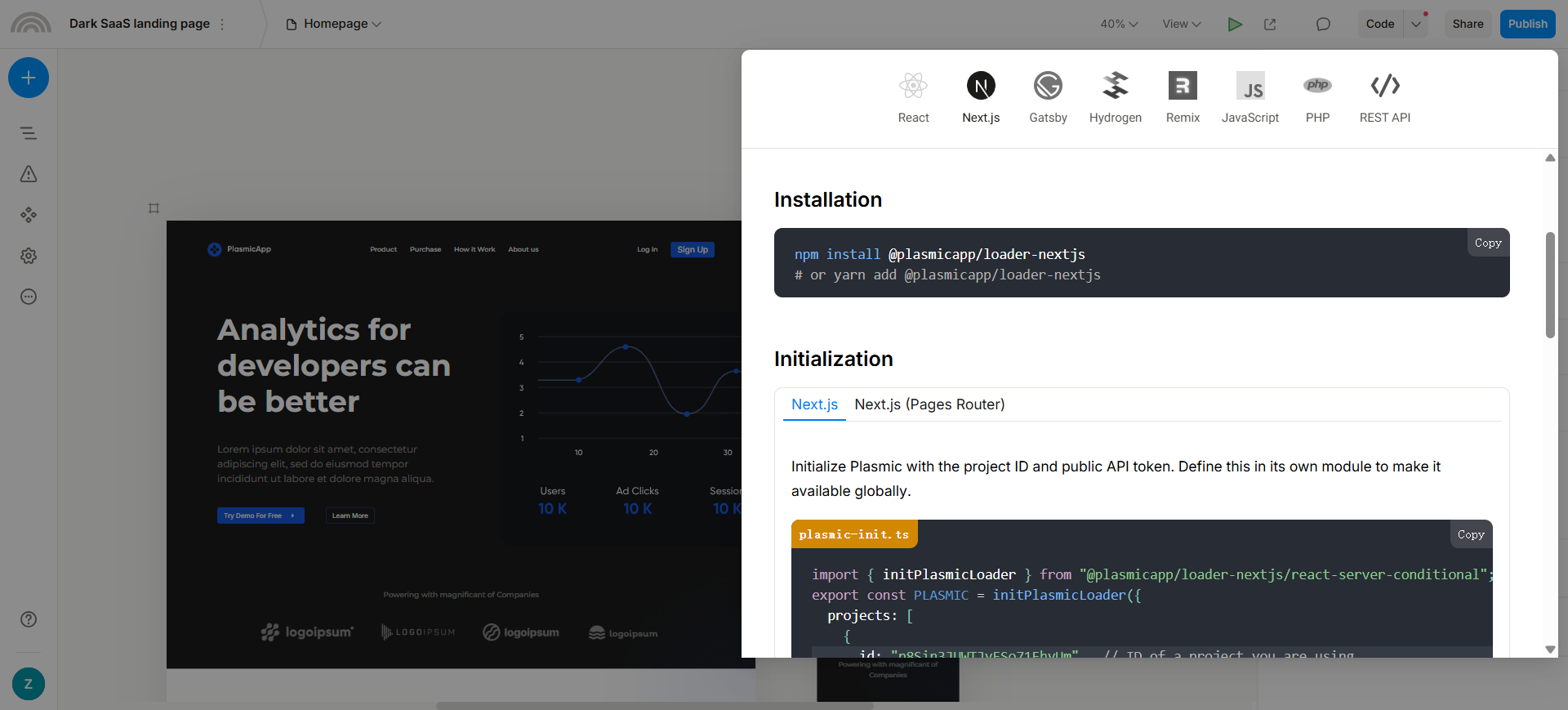
Plasmic is the codebase-native option: import from Figma into a visual React builder that connects to your components, CMS, and APIs—not a one-shot “download a ZIP and ghost the repo.” Reach for it when design iterations must land in the same React system eng already ships.
- Best for: Teams with an existing React (or React-like) product who want designers to push UI through Figma → Plasmic without a throwaway code dump.
- Strongest use: Import frames → map to code components → compose in Studio → publish into the app → keep tokens and business logic in eng-owned code.
- Don’t use if / Watch outs: You need a quick multi-framework ZIP for a freelance handoff—Locofy. You need native mobile store builds—Bravo. You only want a prompt → preview spike—v0. Free works for real exploration (3 collaborators; unlimited projects, Figma import, codebase integrate, publishes)—but Plasmic-hosted sites keep the badge until Starter. Plasmic AI (Beta) starts at Pro. Localization, A/B, and team roles land on Scale+. Setup cost is higher than a converter plugin; worth it when the repo is the long-term home.
- Pricing snapshot: Freemium — Free $0 (3 collaborators). Starter / Pro / Scale raise seats and growth features (yearly cards ~$39 / ~$103 / ~$399 per mo when we checked); Enterprise custom. Details: Plasmic pricing.
Don’t use this list if…
- You need Figma AI vs v0 as a head-to-head (stay in-file vs spike in React). Use Figma AI vs v0 for UI Designers.
- Your job is prompt → UI screens with no finished Figma file. Use Best Text-to-UI AI Tools.
- You need the full Figma workflow map (in-file, into Figma, past a frame)—not a converter bake-off. Use AI Tools That Work with Figma.
- You’re still on lo-fi structure before polish. Start with Best AI Wireframe Generators for UI Designers.
- You want a marketing site builder with CMS/hosting as the product (not app UI handoff). Framer and neighbors—wrong center for this list.
- You expect pixel-perfect production code with zero eng review. No converter on this list replaces design QA or code review.
Start from the Pack
For a maintained path across flows → wireframes → UI (Figma) → handoff:
This article is the Figma → code task narrative. The Pack’s prototype-handoff stage also keeps v0 and Bolt as living neighbors for prompt → runnable UI—different job than converting a finished frame. Prompt-first builders like Rocket sit in that neighbor lane on this site, not in this converter shortlist. Use both layers: Pack for the occupation path, this piece when the search intent is specifically design-to-code.
What’s next
- Figma AI vs v0 for UI Designers — in-file AI vs code spike when you are not converting frames in batch.
- AI Tools That Work with Figma — six tools mapped to in / into / past Figma.
- Best Text-to-UI AI Tools — prompt → screens when Figma is not the starting file.
- How we evaluate AI design tools — same selection bar, expanded.
- Best AI Tools for UI/Product Designers — occupation overview.
Missing a Figma-to-code tool that belongs in real handoff workflows? Submit it.