
Last updated: 2026-08-20
AI Tools That Work with Figma for UI Designers
Related pack: View Pack
If your team’s source of truth is already a shared Figma file, most “AI for Figma” lists miss the point. They mix in-file assistants, random UI generators, and code builders—then never say which relationship to Figma they actually have.
This shortlist is for UI and product designers who need AI that works with a Figma-centered workflow: inside the file, cleanly into Figma, or deliberately past a static frame when interaction needs code. Six tools. Not every plugin that mentions “export.”
Honest boundary up front: Figma remains the file of record for systems work. AI here either helps you move faster in that file, lands editable work into it, or spikes what a frame cannot prove. It does not replace components, review, or craft.
Upstream structure (flows and wireframes before polish): Best AI Wireframe Generators for UI Designers. Living kickoff set: UI / Product Designer Pack. Occupation overview: Best AI Tools for UI/Product Designers. Selection bar: How we evaluate AI design tools.
How we pick
Same bar we use across the site, weighted for Figma workflows:
- Workflow — Is the relationship clear: in Figma, into Figma, or past a static frame?
- Fit — Does this serve UI/product delivery, or generic AI art / unrelated makers?
- Delivery — Can you continue with editable design (or honest code), or only a screenshot?
- Cost — Can a solo or small team try without an enterprise deal?
- Trust — Still maintained; credits and plan gates checkable before you promise the stack in standup.
We do not rank a #1 overall winner. Pick by where you are relative to the Figma file.
Where to reach first
| If you need to… | Start with | Also consider |
|---|---|---|
| AI inside the shared Figma file | Figma AI | — |
| Prompt → product UI that hands off toward Figma | Magic Patterns | Google Stitch |
| Fast hi-fi concepts → export into Figma | Google Stitch | Magic Patterns |
| Multi-screen flow → Copy to Figma | Flowstep | — |
| Marketing-site wireframes → Export to Figma | Relume | — |
| Static frame isn’t enough → clickable React spike | v0 | (later: dedicated figma-to-code guide) |
Most teams need one in-file option (Figma AI) plus one into-Figma path—not all six.
The shortlist
 Figma AI — AI inside the source-of-truth file
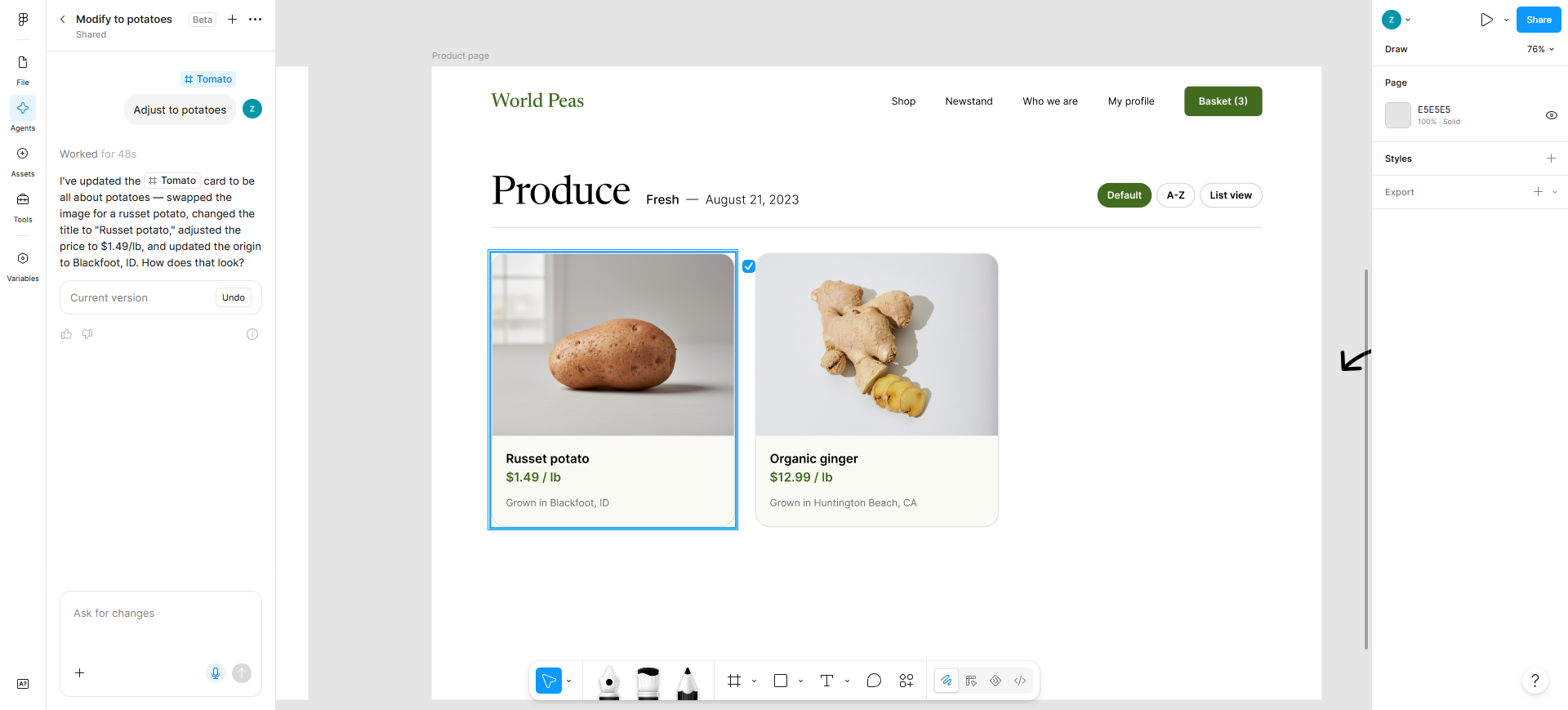
Figma AI is the answer when the team already lives in Figma and you want exploration, asset help, and iteration next to components—not a second canvas you will redraw later. Agent features, Make, and MCP bridges evolve quickly; treat capabilities as current-product, not a frozen brochure.
- Best for: Designers whose file of record is already Figma and who need AI without leaving the shared file.
- Strongest use: Explore or remix on the canvas → refine with teammates in-file → optionally push toward prototypes / Make / external agents via MCP when your stack supports it.
- Don’t use if / Watch outs: The team does not use Figma. You expect unlimited free AI—every seat gets a monthly AI credit allocation that resets and does not roll over, and credits can’t be shared between users. Starter (and View seats) also hit a daily cap of 150 credits inside a 500 credits/mo ceiling. Paid Full seats include more monthly credits (Professional 3,000 / Organization 3,500 / Enterprise 4,250); Dev and Collab seats stay at 500/mo. After seat credits run out, admins on paid plans can add an ongoing credit subscription and/or pay-as-you-go—check current rules on Figma. Many generative surfaces are still evolving; don’t bet a hard ship date on a Beta-only path alone.
- Pricing snapshot: Freemium seat model — Starter: 150 AI credits/day, up to 500/mo. Paid plans raise Full-seat monthly credits as above; extra usage is admin-purchased subscription pool and/or pay-as-you-go. Details: Manage AI credits (confirm on Figma if numbers move).
 Magic Patterns — Design-system-aware UI that hands off toward Figma
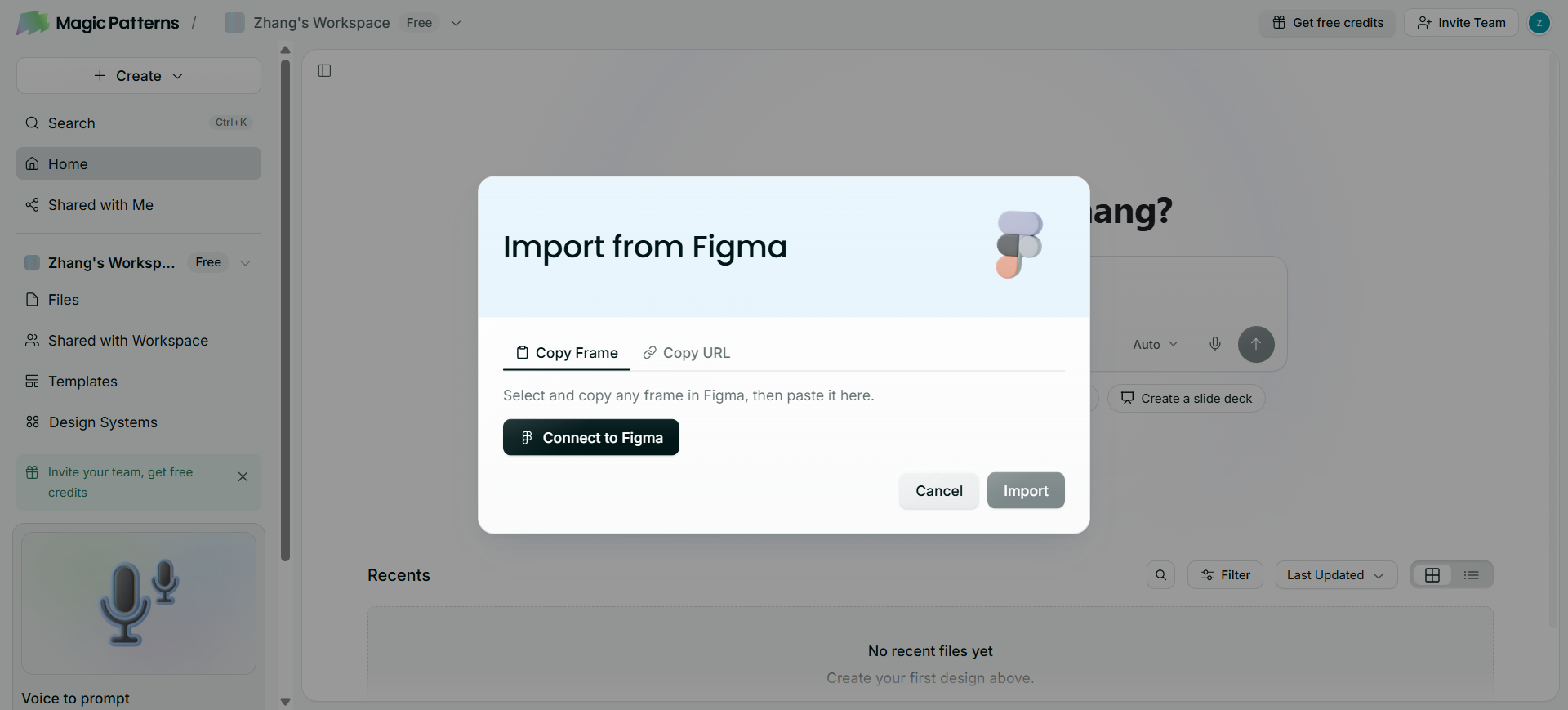
Magic Patterns is for prompt-driven product UI that stays closer to a component system—then continues via Figma, GitHub, or MCP, not only a pretty preview. Official docs cover both directions: import from Figma (connect account, paste a frame/URL) and Export to Figma (copy → paste into the canvas as a static snapshot—not a live two-way sync). On this list its job is that into/from-Figma bridge, plus code-oriented handoff—not “another wireframe toy.”
- Best for: Product teams generating multi-screen UI with system context, then landing work in Figma or the repo where design/eng continues.
- Strongest use: Prompt or import system context (including from Figma) → generate → refine (manual / Fix paths that spare credits) → Export to Figma for further craft, and/or GitHub / MCP on paid plans → finish polish in your real design system.
- Don’t use if / Watch outs: Free is trial-shaped: 100 monthly credits and watermarked previews—Remove watermark on preview starts at Starter. You only need design-to-code conversion from a finished Figma file—that’s a different article. You mainly want wireframe exploration without a code-oriented loop—see Best AI Wireframe Generators for UI Designers instead.
- Pricing snapshot: Freemium — Free $0: 100 monthly credits. Starter unlocks 1,000 credits/mo, watermark removal, on-demand usage, MCP, and GitHub sync; Business raises credits and adds SSO/reporting—check current tiers on Magic Patterns. Figma import/export: see their Figma docs.
 Google Stitch — Labs concepts into Figma (and build tools)
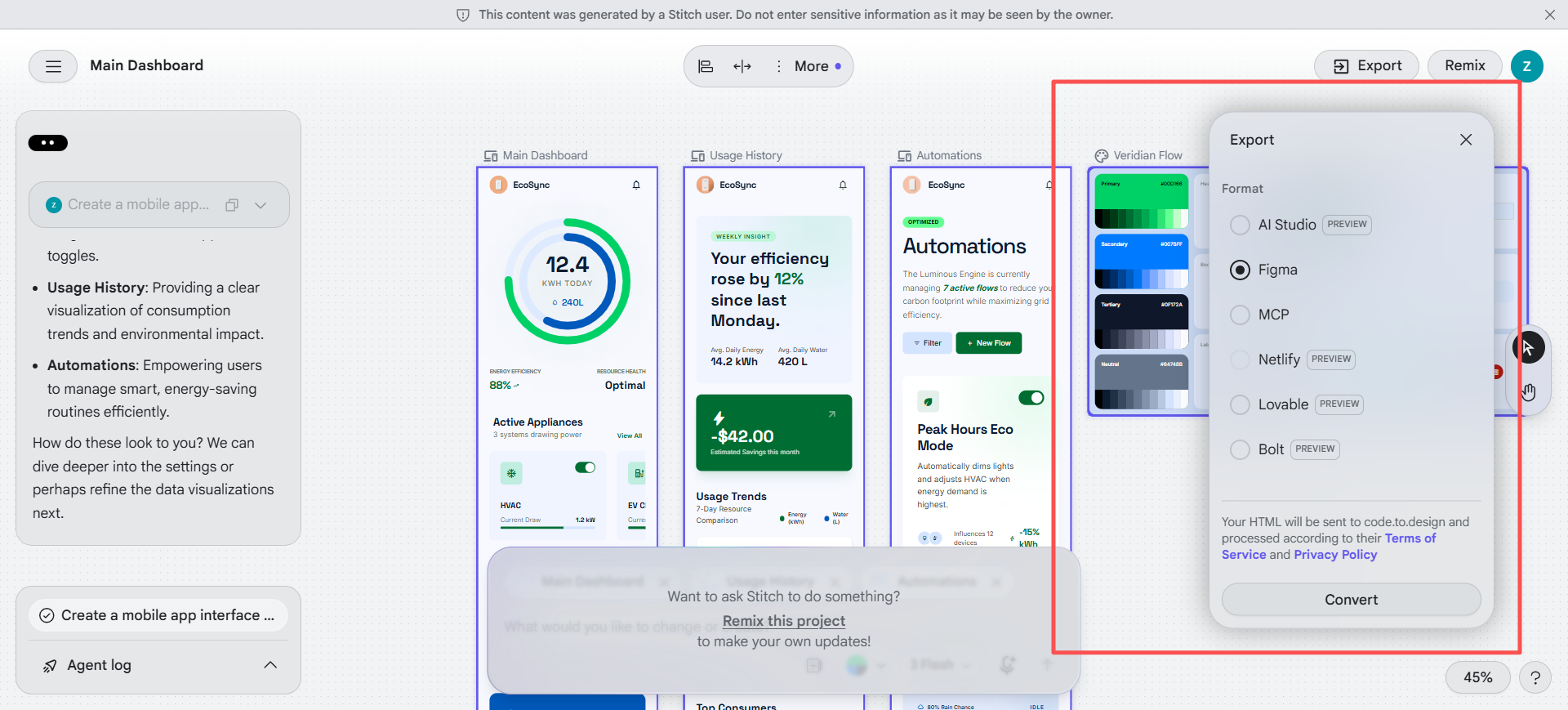
Stitch is Google Labs’ AI canvas for fast hi-fi direction from prompts, screenshots, or existing design/code context—then a handoff story toward Figma or builders. Product FAQ confirms you can export generated UI directly to Figma (Auto Layout, named layers, editable text). Use it when you need speed outside the main file, with a planned path back into Figma—not as a permanent component library home.
- Best for: Early visual spikes and stakeholder “is this the direction?” passes before systems craft in Figma.
- Strongest use: Prompt / image / existing context → stream and edit on the Stitch canvas → export to Figma for collaboration → finalize tokens and components in the shared file. (Other bridges—e.g. toward Bolt/Lovable / MCP—may exist; treat them as optional, not the reason this article lists Stitch.)
- Don’t use if / Watch outs: You only need light AI inside an existing Figma source of truth—prefer Figma AI. Stitch is Labs exploration with a daily credit cap (Settings → Usage Today showed 400 Daily Credits on the account we checked—confirm in your own Settings; caps can vary). Don’t treat it as the long-term design-system workspace.
- Pricing snapshot: Free / Freemium Labs access with daily credits (e.g. 400/day on current check)—confirm in-product Settings before you promise volume to a team.
 Flowstep — Multi-screen flows you Copy to Figma
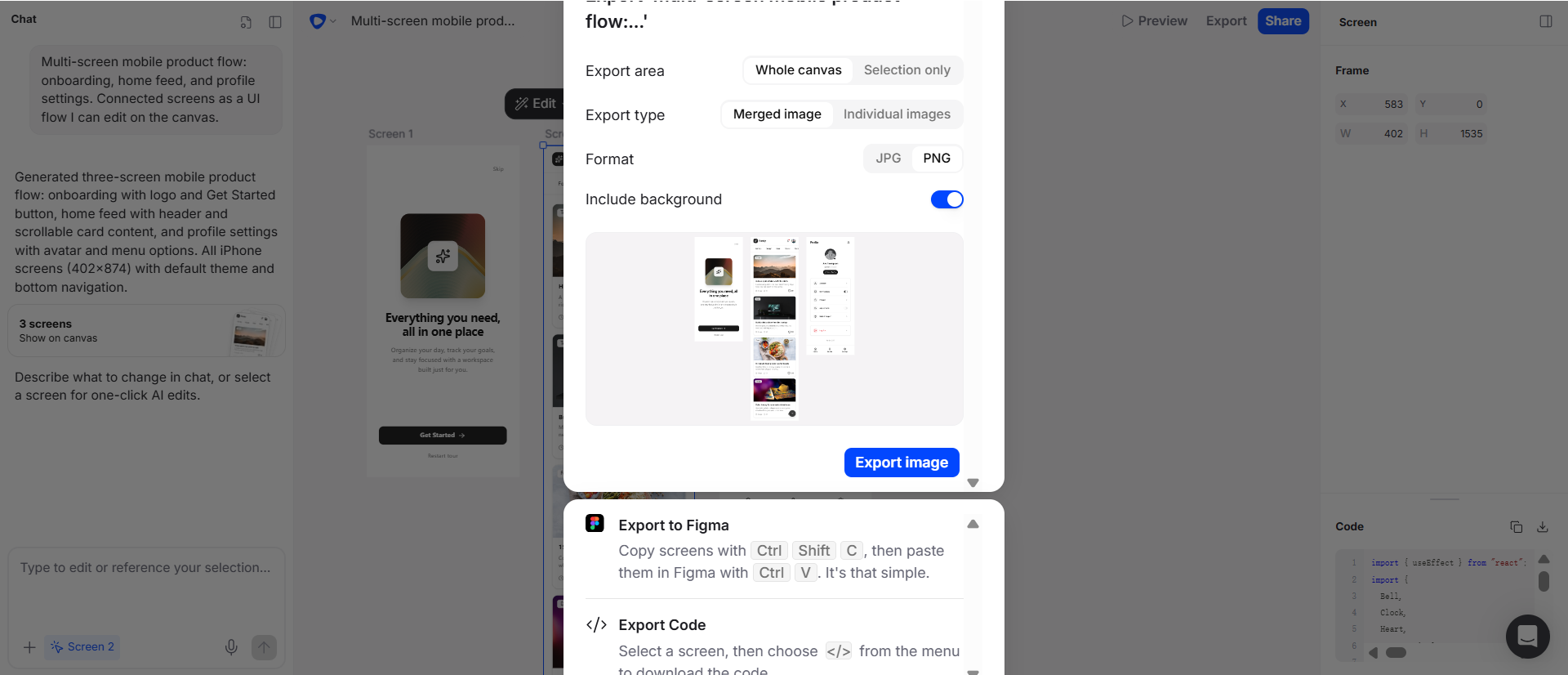
Flowstep’s seat here is the opposite of a structure-only mention: natural language → multi-screen product UI on a canvas → Copy to Figma once the journey hangs together. Free is for trying burn rate; the Figma paste path sits on paid tiers.
- Best for: Getting a connected multi-screen flow into Figma without rebuilding every frame by hand.
- Strongest use: Prompt the flow → refine on the canvas → Copy to Figma (paid) → finish components and edge cases in the shared file.
- Don’t use if / Watch outs: Free lists only limited messages, multi-screen, and projects—and does not include Exports or Copy to Figma. Starter/Pro/Max are message-metered; Starter’s 80 messages/mo tier unlocks unlimited multi-screen, projects, exports, and Copy to Figma—check current tiers before you standardize.
- Pricing snapshot: Freemium — Free to sample; paid message tiers for the Figma handoff path—check current pricing on Flowstep.
 Relume — Marketing-site structure that exports to Figma
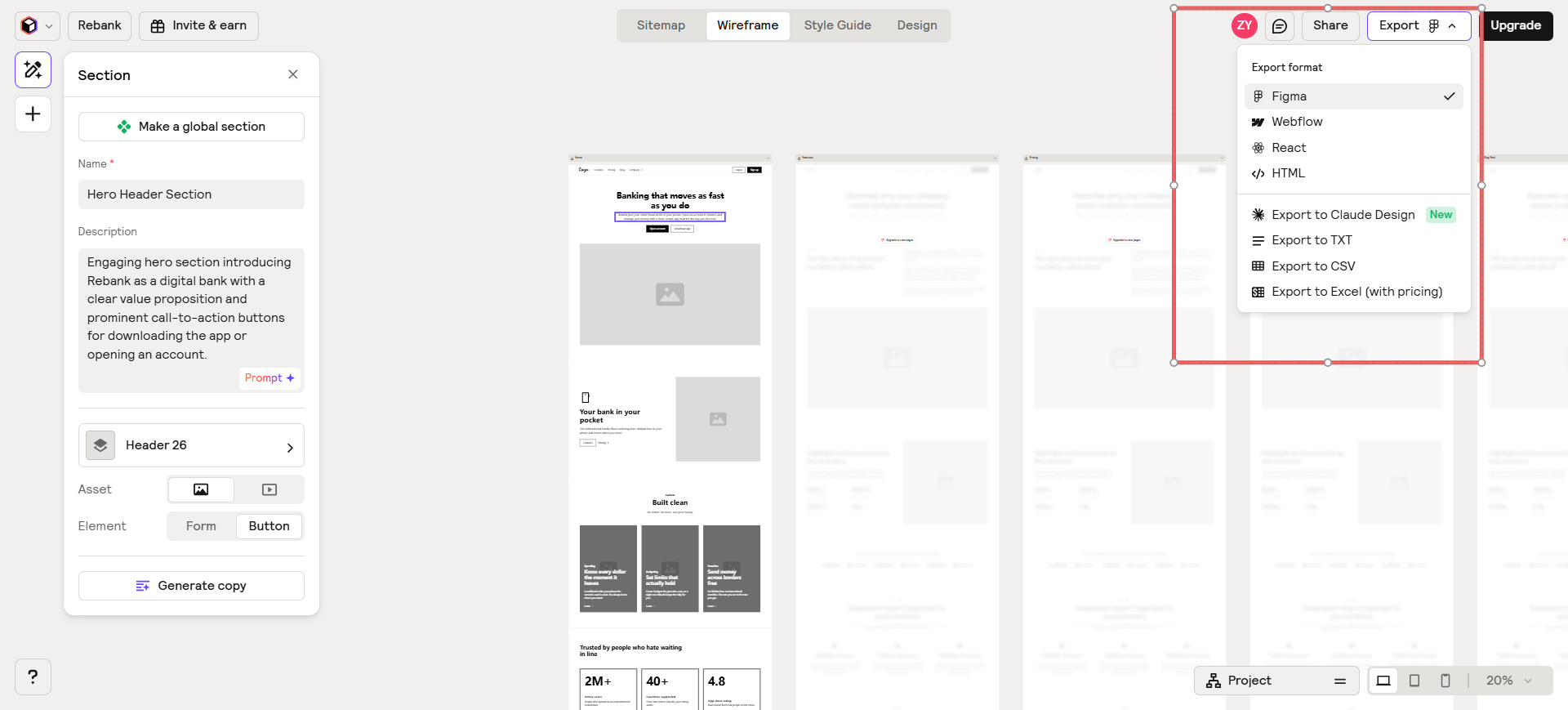
Relume already showed up in the wireframe article as marketing-site IA. Here the role flips to the Figma landing path: sitemap → section wireframes → export wireframes to Figma (and the Relume Figma Kit)—not “use Relume instead of Figma for product UI.”
- Best for: Marketing or brochure sites when you want structure in Relume and polish in Figma.
- Strongest use: Brief or imported sitemap → Site Builder wireframes → export wireframes to Figma (available on Free) → visual polish and production build in Figma / Webflow / code as needed.
- Don’t use if / Watch outs: Dense product/app UI or a long-lived app design system—wrong tool. Free is tight (1 project, 1 wireframe page, limited AI, view-only share). Webflow/React wireframe export starts at Starter; unlimited projects/pages need Pro or Team.
- Pricing snapshot: Freemium — Free includes Figma wireframe export + Relume Figma Kit with hard caps; Starter/Pro/Team unlock pages, Webflow/React export depth, and fuller libraries—check current Relume pricing.
 v0 — When a static Figma frame isn’t enough
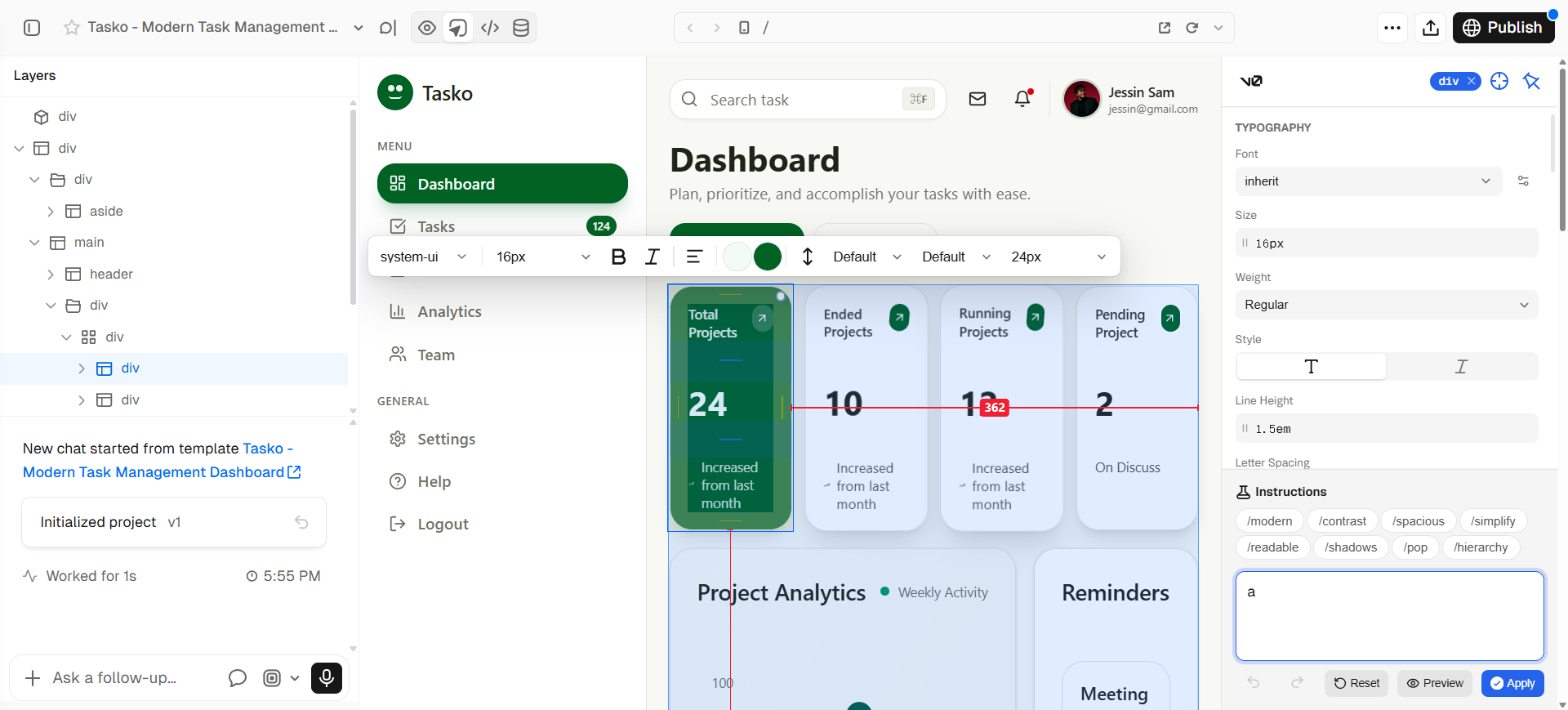
v0 is the downstream neighbor: prompt → working UI with live preview (and Design Mode), aimed at React/front-end spikes you can share with engineering. Primary loop is in v0, not on the Figma canvas. Keep it on this list so “works with Figma” includes the honest moment when a frame cannot prove interaction.
- Best for: Designers and front-end-adjacent teammates who need clickable, code-backed UI after flows are aligned in Figma.
- Strongest use: Align structure in Figma (or upstream wireframe tools) → spike interaction in v0 → hand code toward eng via GitHub or a Vercel deploy → don’t pretend v0 replaced your design system file.
- Don’t use if / Watch outs: You only need AI inside Figma or a design canvas with no code—use Figma AI or Stitch. Free is tight: $5 of included monthly credits and a 7 messages/day limit (Design Mode, GitHub sync, and Vercel deploy are listed on Free—verify current packaging on v0). You want a dedicated Figma→production-code converter roundup—that’s a separate guide, not this workflow shortlist.
- Pricing snapshot: Freemium — Free $0: $5 monthly credits + 7 messages/day. Plus/Business raise included credits (and add daily login credits on those tiers) plus team collaboration; Enterprise is custom—check current plans on v0. v0’s loop stays in v0 (not an Export-to-Figma product); it sits on this list as the past-a-static-frame neighbor.
Don’t use this list if…
- You’re still choosing tools to wireframe structure before Figma. Start with Best AI Wireframe Generators for UI Designers—this piece assumes Figma is (or will be) the home file.
- You want a deep Figma → production code bake-off (every converter, every export quirk). That’s a later task article; v0 here is one downstream spike, not that guide.
- You need Figma AI vs v0 as a two-tool duel. Use Figma AI vs v0 for UI Designers.
- Your brief is logo / brand identity. Use Best AI Logo Generators and the Brand Designer Pack.
- Your team doesn’t use Figma at all. Pick a stack that matches your source of truth first.
Start from the Pack
For a maintained path across flows → wireframes → UI (Figma) → handoff:
This article is the Figma-workflow narrative. The Pack is the shorter living list across the full occupation path.
What’s next
- Best Text-to-UI AI Tools — prompt → product screens when the job is not “how it plugs into Figma.”
- Best AI Wireframe Generators for UI Designers — upstream structure before polish.
- How we evaluate AI design tools — same selection bar, expanded.
- Best AI Tools for UI/Product Designers — occupation overview.
- Figma AI vs v0 for UI Designers — head-to-head when the duel needs its own URL.
- Best Figma-to-Code AI Tools — converter and handoff bake-off.
Missing a tool that genuinely belongs in a Figma-centered workflow? Submit it.