
Last updated: 2026-07-27
Best AI Tools for UI/Product Designers
Related pack: View Pack
Most “best AI for designers” roundups are useless if you ship product UI. They lump Midjourney-style image toys next to tools that actually help with flows, screens, and handoff. You end up with a bookmark folder and no clearer stack than before.
This is a shortlist for people who already live in interface work—product designers, UI designers, the freelancer who owns both discovery and delivery. Six tools (plus two neighbors in our Pack). Not a marketplace dump.
Everything below is also in our UI / Product Designer Pack. The Pack is the maintained list; this piece is the “when would I actually open this?” version.
How we decide what makes the cut
We care less about demo wow and more about Monday morning:
- Does it help with screens, flows, structure, or handoff—not just pretty stills?
- Can you take the output somewhere real (Figma, Webflow, or code you can edit)?
- Will your team tolerate another login, or does it sit next to tools you already use?
- Can a solo designer or small team try it without an enterprise contract?
- Is the product still clearly maintained?
If a tool fails the first two, it’s out—even if Twitter loved the launch video.
The fuller version of this bar—Fit, Delivery, Workflow, Cost, Trust—is in How we evaluate AI design tools.
Where to reach first
| Job | Reach for | Also consider |
|---|---|---|
| Explore UI without leaving Figma | Figma AI | — |
| Prompt / screenshot → UI concepts (and often Figma or code) | Google Stitch | Uizard |
| Fast hi-fi wireframes with stakeholders in the room | Visily | Uizard |
| Marketing site IA, wireframes, draft page copy | Relume | — |
| Flows, diagrams, “how does this feature actually work?” | Whimsical | — |
| Clickable UI in real front-end, not another static frame | v0 | Bolt |
You do not need all of these. Most solid designers run Figma + one ideation tool + maybe one code prototype tool.
The tools
 Figma AI
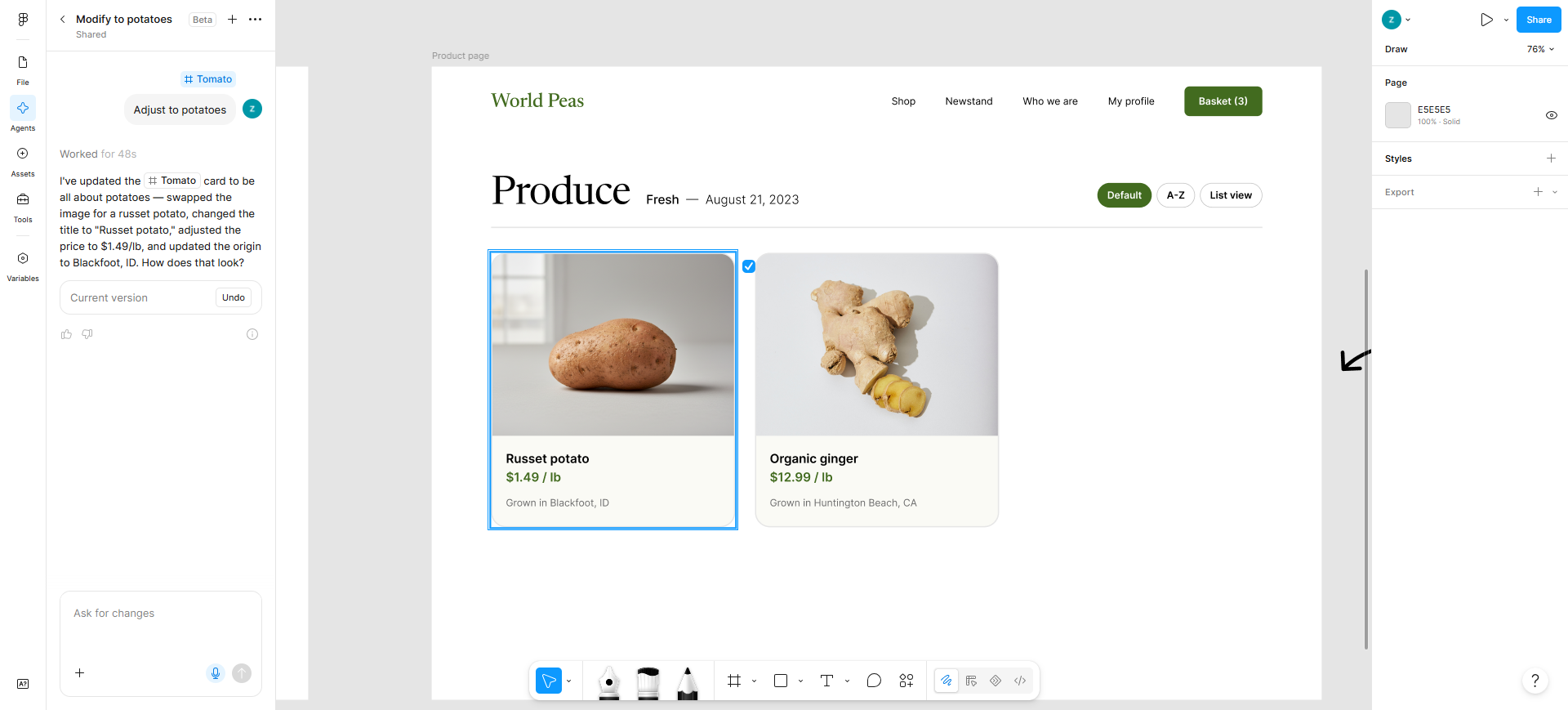
If your source of truth is already Figma, start here. You’re not adopting a new canvas—you’re using AI features inside the file your team already comments on: early layouts, exploration, staying in flow next to components and variants.
Skip if your team isn’t on Figma, or you only have a free/limited seat and expected “unlimited magic.” Fuller AI access sits on paid plans with seat and credit limits; check what your org actually enabled before you promise it in a sprint.
 Google Stitch
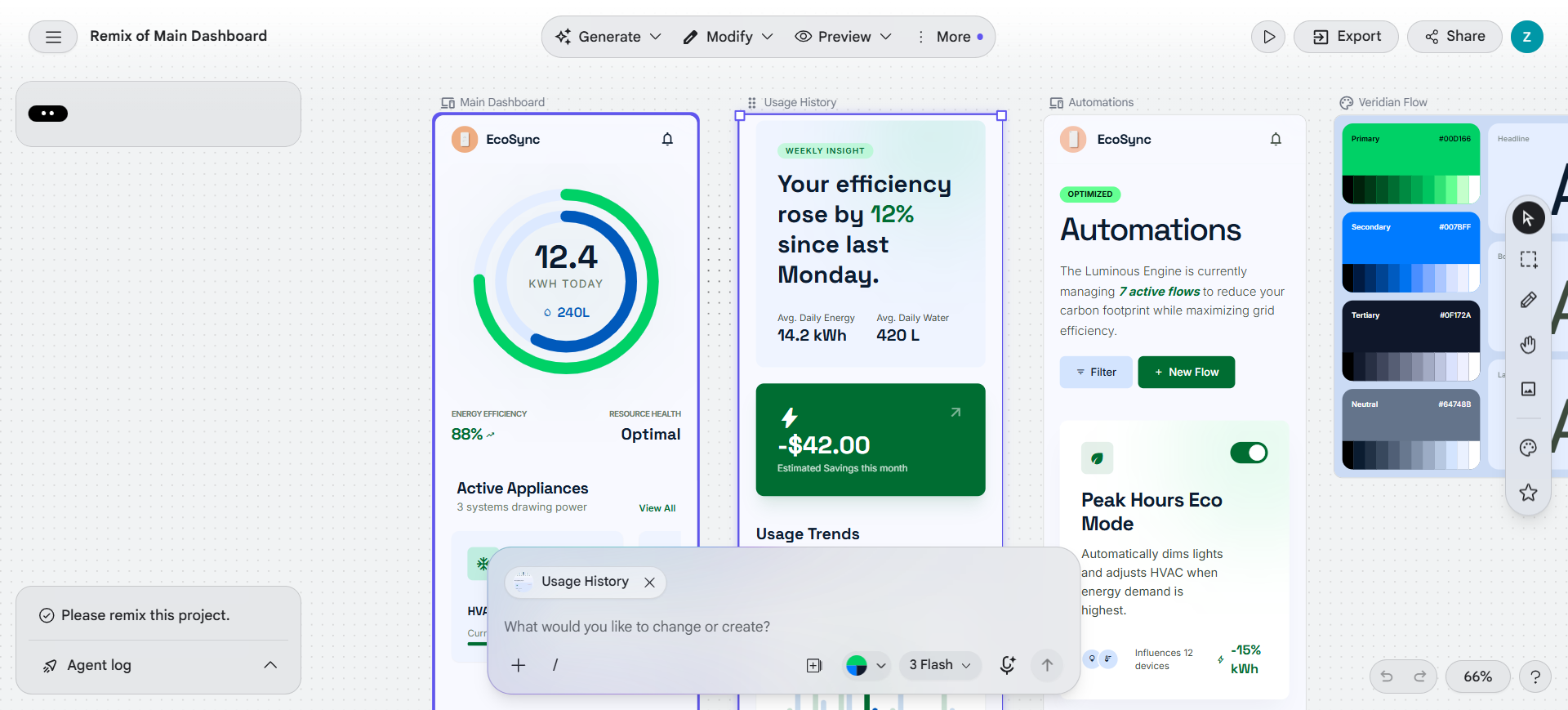
Stitch (Google Labs) is the one we reach for when the brief is still mushy: a paragraph, a rough screenshot, “something like this but for mobile.” It generates UI concepts you can push toward Figma or use as a front-end starting point. Good for spikes and stakeholder “is this the direction?” conversations.
Treat it as ideation, not your design system. It’s free right now with monthly generation caps, and it’s still a Labs product—useful, not something to bet a whole process on forever.
 Uizardand
 Visily
These two occupy similar territory: get to editable UI / hi-fi wireframes fast, with a gentler learning curve than a full Figma practice. We keep both in the Pack because teams pick differently.
Uizard is the “get screens up for an app or site before anyone argues about tokens” option—handy when PMs and designers share the file and not everyone is a Figma power user.
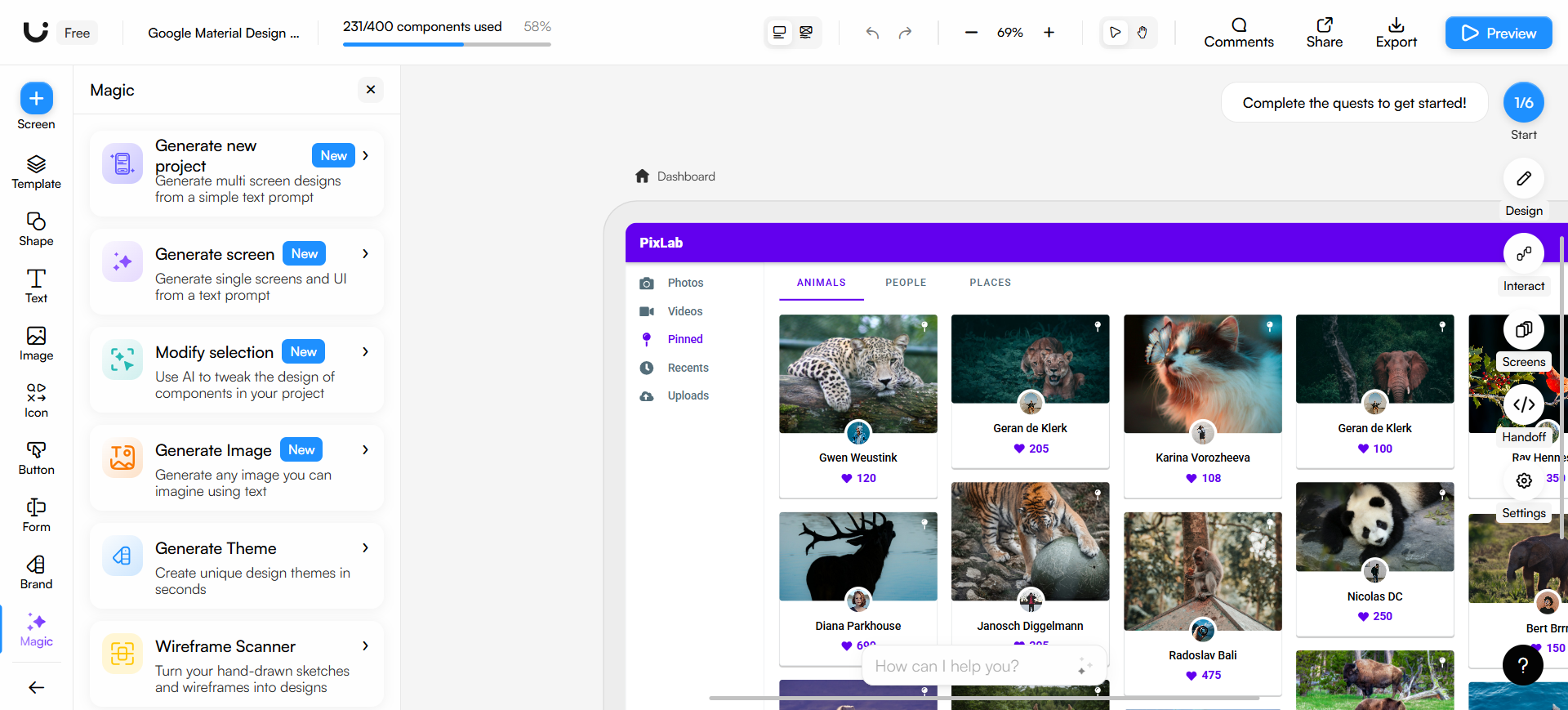
Visily leans into hi-fi wireframes and quick prototypes—the workshop tool when you need something that looks real enough to react to in the room.
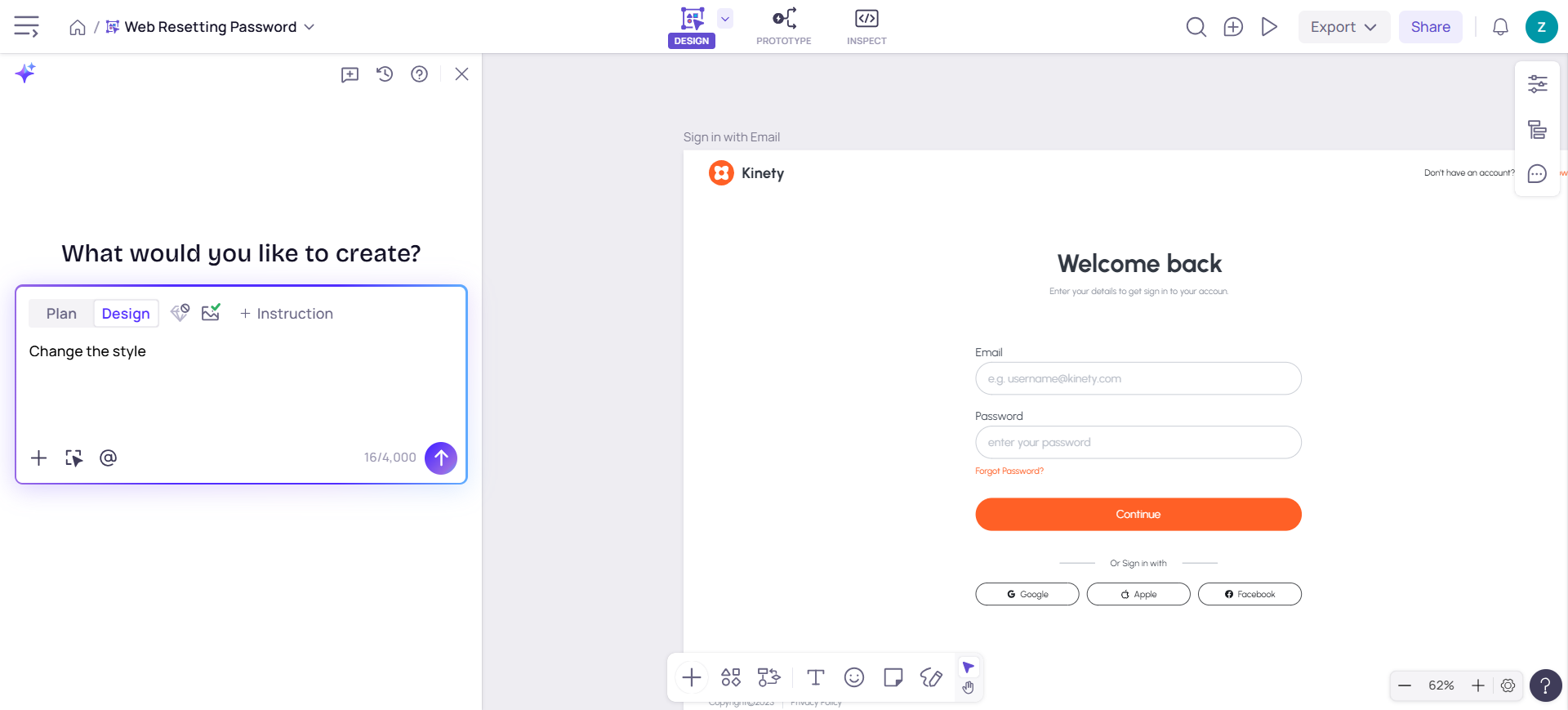
Honest take: don’t subscribe to both on day one. Trial the one that matches how you run reviews. Neither replaces a mature Figma library once you’re in production polish.
Pricing on both: freemium. Confirm current limits on their sites.
 Relume
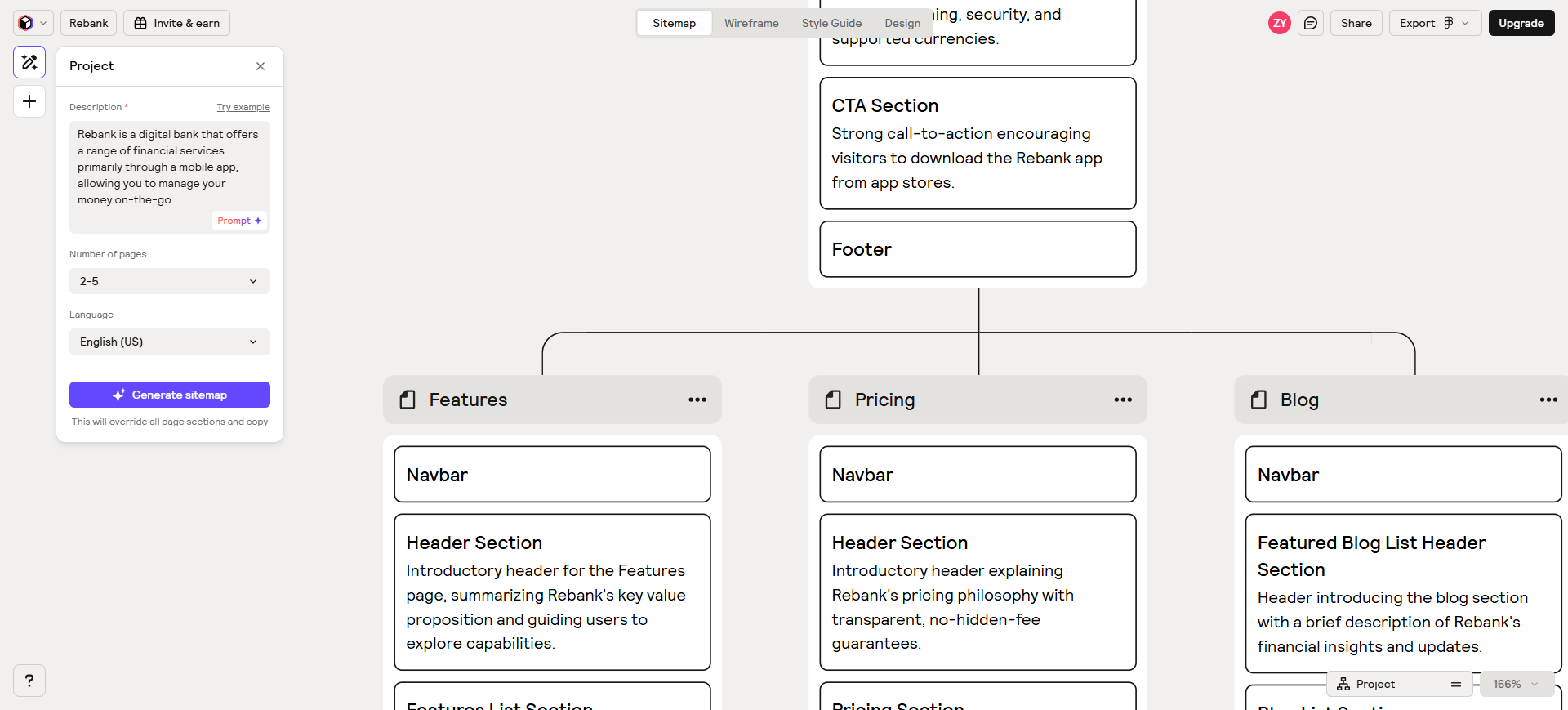
Relume is for marketing and website work: sitemap → wireframes → draft copy, then out to Figma or Webflow (that’s the path it’s built around). If you’ve ever burned two days staring at a blank homepage structure, this is the category of tool that earns its keep.
Skip if you’re designing a dense product UI—settings, data tables, logged-in app chrome. Relume isn’t trying to be your dashboard design system.
→ /tools/relume · Freemium
 Whimsical
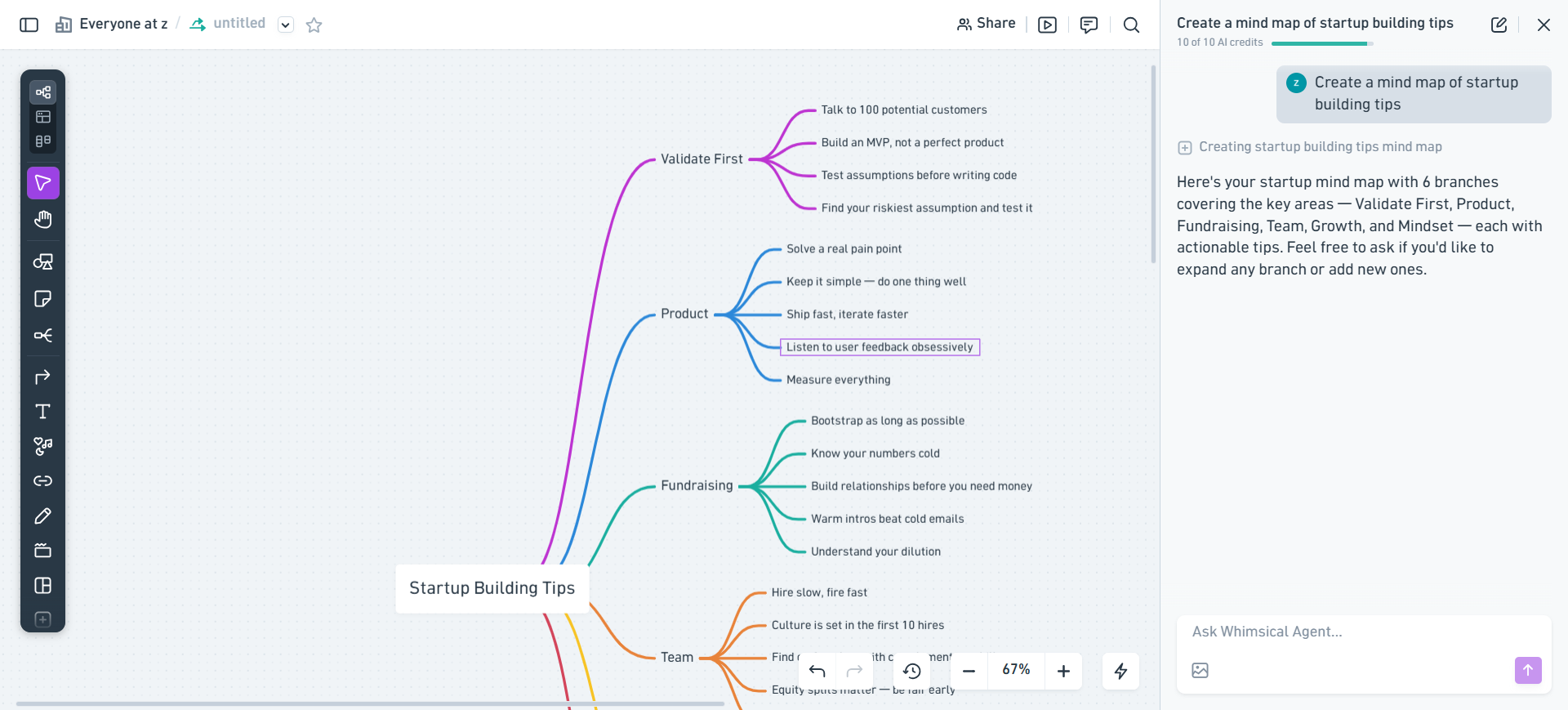
Whimsical isn’t an “AI paints the UI” product first. It’s where you untangle the product: flows, diagrams, light wireframes, the “wait, what happens after login?” map you should have drawn before anyone opens First Draft.
AI here is assistive. The value is still clarity with your PM and eng. If you only need visual exploration, go back to Figma or Stitch.
→ /tools/whimsical · Freemium
 v0
v0
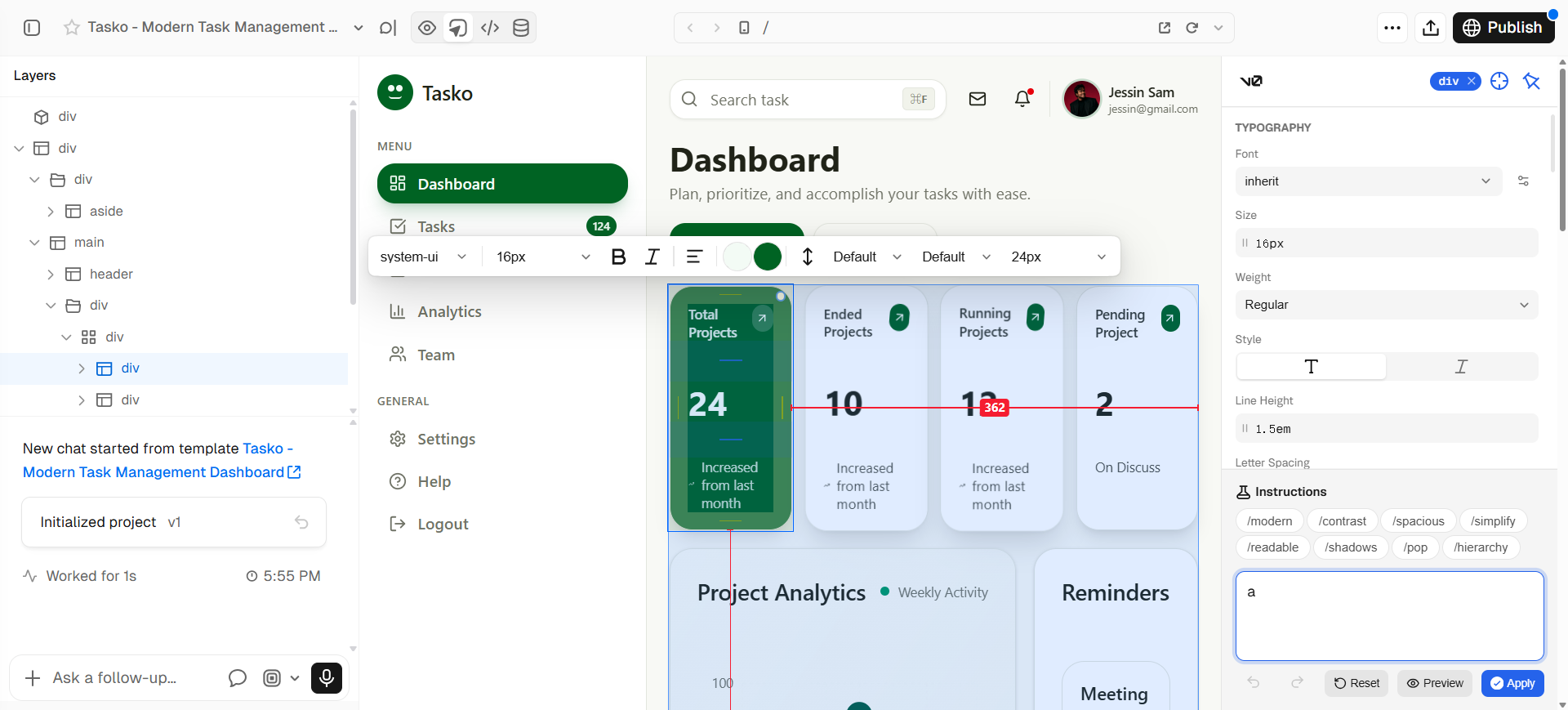
When static frames stop answering the question—interaction, real components, “does this layout survive content?”—v0 (Vercel) gets you into editable front-end territory fast. Designers who pair with eng use it to shrink the “I’ll know it when I click it” gap.
Generated UI still needs a pass for a11y, tokens, and your actual stack. It’s a prototype accelerator, not a free pass on design QA.
Also in the Pack: Bolt, same neighborhood if you want a prompt-to-running-app sandbox. Pick one code-side tool; you don’t need both.
→ /tools/v0 · Freemium
Don’t use this list if…
- You mainly need brand or illustration generators. This Pack is UI/product-shaped; use Best AI Tools for Brand Designers or the Brand Designer Pack instead.
- You want a toy that never has to survive critique or handoff. Everything here assumes you’ll edit the output.
- You only need one deep job (text-to-UI, Figma-to-code, etc.). That’s a task article—this is the occupation overview.
- Your system is locked and the job is tiny. Use the table, grab one tool, ignore the rest.
Go deeper on one job
This overview is the map—not the deep dive. Task articles in the same Pack:
- Best Text-to-UI AI Tools — prompt → high-fidelity screens (Stitch, Magic Patterns, Uizard, Komposo, Banani, v0).
- Figma AI vs v0 for UI Designers — stay in the Figma file vs spike clickable React UI.
- AI Tools That Work with Figma — plugins and neighbors that extend Figma without replacing it.
- Best AI Wireframe Tools — structure and low-fi before you polish screens.
Use the Pack as the living list
Names and order drift. We keep the curated set here:
If something in your real workflow is missing, submit it.