
Last updated: 2026-09-09
Best AI Wireframe Generators for UI Designers
Related pack: View Pack
If you design product UI for a living, most “AI wireframe generator” roundups mix three different jobs: whiteboard flows, editable low-fi screens, and marketing-site sitemaps. They also skip the part that matters on Monday—whether the output is something you can edit and align on, or a pretty picture you redraw in Figma anyway.
This shortlist is for UI and product designers—and the PMs who sit in the same review—who need AI in the structure stage: flows, scope, and early screens (lo-fi through workshop hi-fi) before a design-system pass. Six tools. Not every AI UI generator on the internet.
Honest boundary up front: AI is fast at first structure. Tokens, components, edge cases, and the file of record still land in Figma (or your main tool). This piece is about getting alignment earlier—not replacing your source of truth.
Related living list: UI / Product Designer Pack. For the wider occupation stack (including Figma-native AI and handoff), see Best AI Tools for UI/Product Designers. How we weigh tools: How we evaluate AI design tools.
How we pick
Same bar we use across the site, weighted for wireframe jobs:
- Fit — Is this for structure / wireframes (or clear marketing-site IA), or generic “AI art” / code-only builders?
- Delivery — Can you edit the wireframe, or only screenshot a one-shot image?
- Workflow — Is there a sane path to team review and later Figma—without pretending this is Figma?
- Cost — Can a solo or small team try without an enterprise deal?
- Trust — Still maintained; plan limits and commercial terms checkable before a client workshop.
We do not rank a #1 overall winner. Pick by fidelity and who is in the room.
Where to reach first
| If you need to… | Start with | Also consider |
|---|---|---|
| PRD / prompt → product wireframes (designer-led) | UX Pilot | Uizard |
| Sketch, text, or screenshot → editable draft screens | Uizard | Visily |
| Flows + light / lo-fi wireframes | Whimsical | — |
| Multi-screen product UI flow from a prompt | Flowstep | UX Pilot |
| Workshop / PM-friendly hi-fi wireframes fast | Visily | Uizard |
| Marketing site sitemap → section wireframes | Relume | — (not for dense app UI) |
Most product jobs need one flow/lo-fi tool plus one screen wireframer—not all six.
The shortlist
 UX Pilot — PRD and prompts into product wireframes
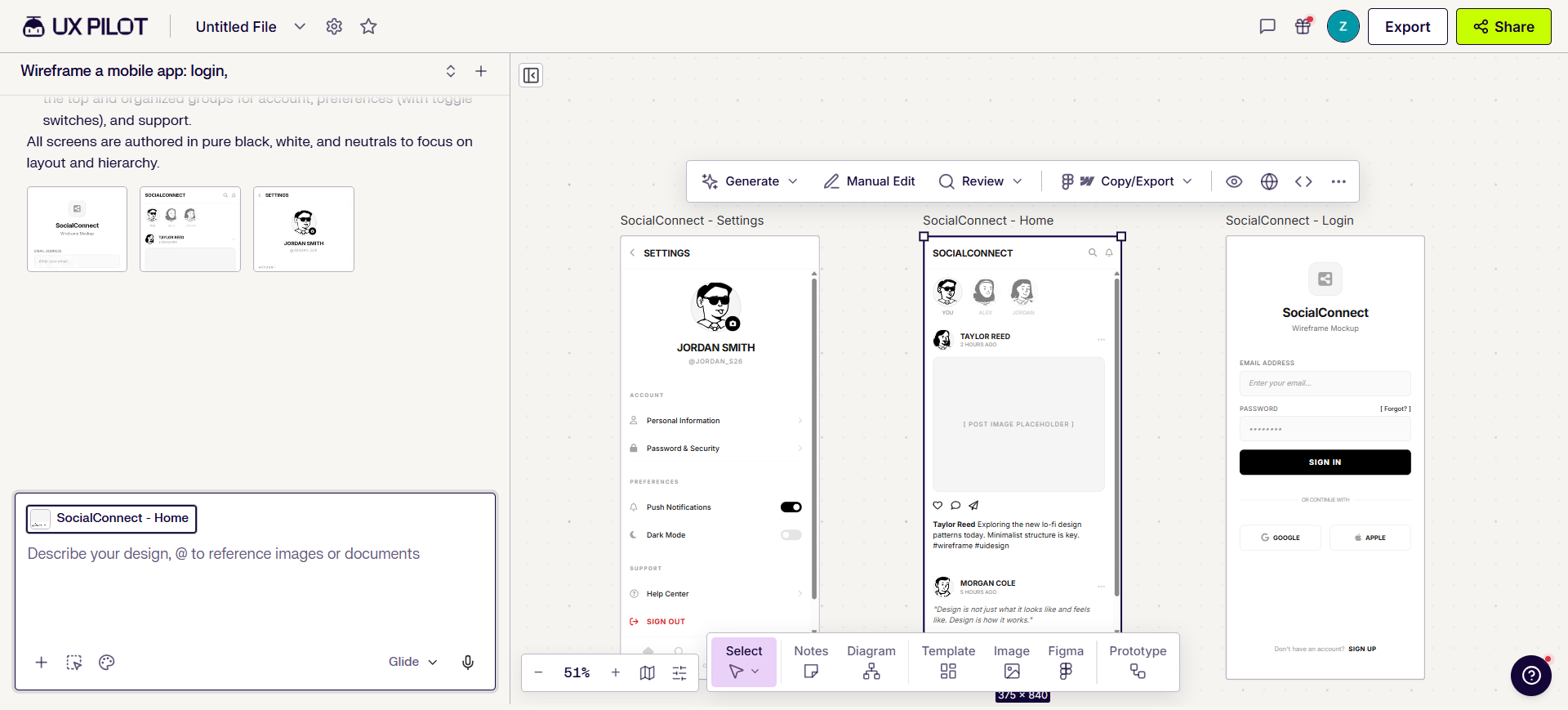
UX Pilot is the designer-leaning path when you already have a brief, PRD, sketch, or reference and want editable wireframes (and early hi-fi) before you treat anything as production UI. Design features run on Free; Export to Figma / code starts at Pro—use Free as a first pass, not the handoff plan.
- Best for: Product/UX teams turning written scope into screen structure quickly.
- Strongest use: Prompt / document / sketch / image → wireframes and multi-screen flows → section edit / review → upgrade for Figma/code export when handoff matters → finish components and edge cases in your main file.
- Don’t use if / Watch outs: Your Figma system is already finished and you only need in-file AI. Free is real product access (wireframes, hi-fi, flows, section edit, Figma component import)—but 80 credits/day with no rollover, about 13 screens/day, and 1 project will block ongoing multi-project production. Export to Figma / code are Pro+, not Free. Website cloner is paid-tier.
- Pricing snapshot: Freemium — Free $0 forever (no card): 80 credits/day (daily refresh, no rollover), ~13 screens/day, 1 project, design features in-app. Pro/Teams for Figma/code export, monthly credit pools, more projects, website cloner, or shared seats—check UX Pilot Compare Plans.
 Uizard — Sketches and text into editable draft screens
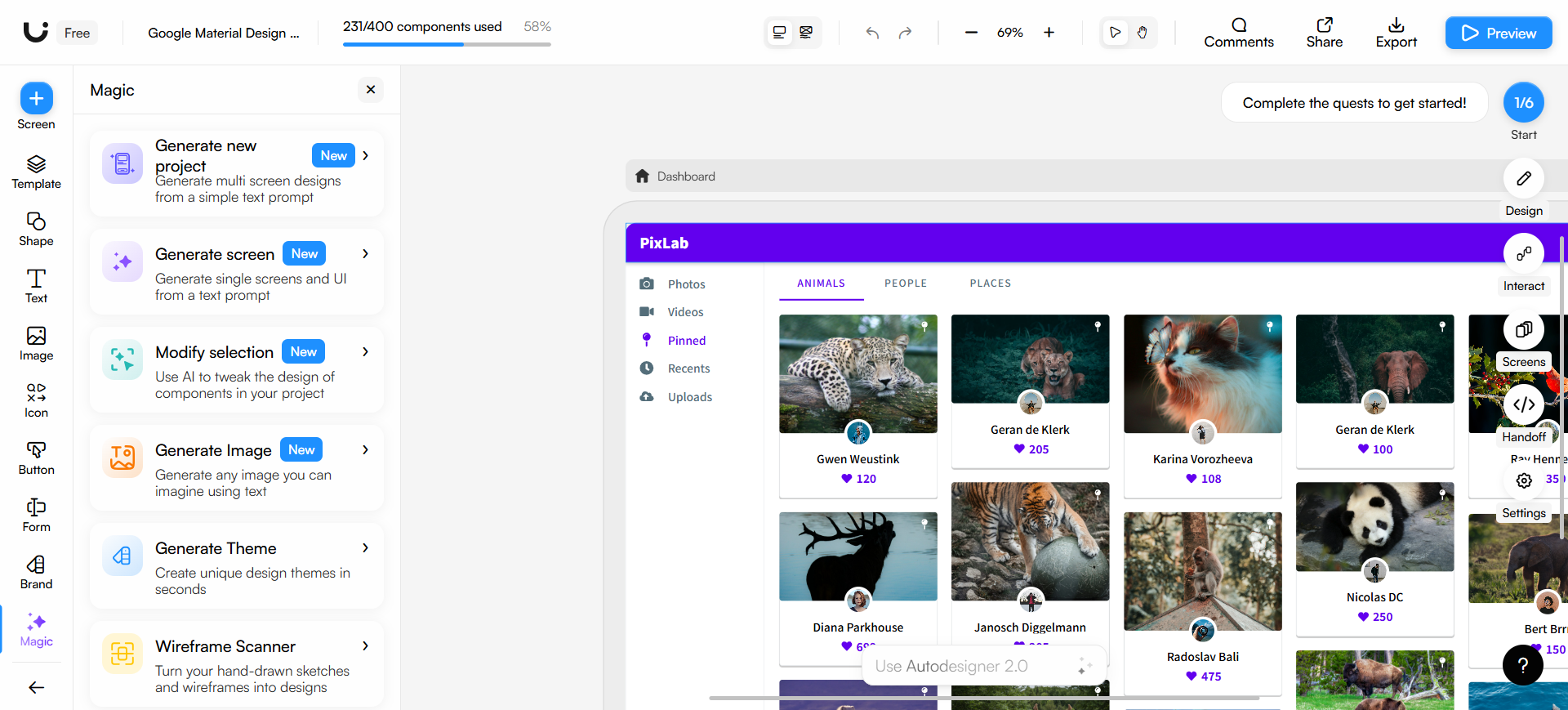
Uizard is built for getting app or site screens up fast for stakeholder reaction—especially when not everyone lives in Figma. Autodesigner, Screenshot Scanner, and Wireframe Scanner turn text, screenshots, or hand-drawn wireframes into editable mockups in Uizard’s own editor.
- Best for: Early direction with mixed PM–designer groups still aligning on structure.
- Strongest use: Text or sketch/screenshot in → edit screens and clickable prototypes → share with free viewers/commenters → move agreed direction into Figma for systems work.
- Don’t use if / Watch outs: Figma is already the only source of truth and you only need AI inside that file. Free is hobbyist-shaped: 2 projects, up to 5 screens per project, 3 AI generations per month, Autodesigner 1.5 (not the paid Autodesigner), exports at 1x only, and no CSS/React developer handoff. Unlimited free viewers/commenters help reviews; they don’t raise the generation cap. Figma→Uizard import paths exist; treating Uizard as a clean two-way design-system sync back into Figma is the wrong expectation. Uizard has been acquired by Miro—product direction may follow Miro’s roadmap; check current positioning if you’re signing a long team contract.
- Pricing snapshot: Freemium — Free $0 (students/hobbyists): 2 projects, ≤5 screens/project, 3 AI gens/mo, Autodesigner 1.5, 10 templates, unlimited viewers/commenters, 1x image/PDF export. Paid plans raise AI caps (Autodesigner 2.0 on paid) and unlock developer handoff—check current Pro/Business details on Uizard.
 Whimsical — Flows plus lo-fi AI wireframes
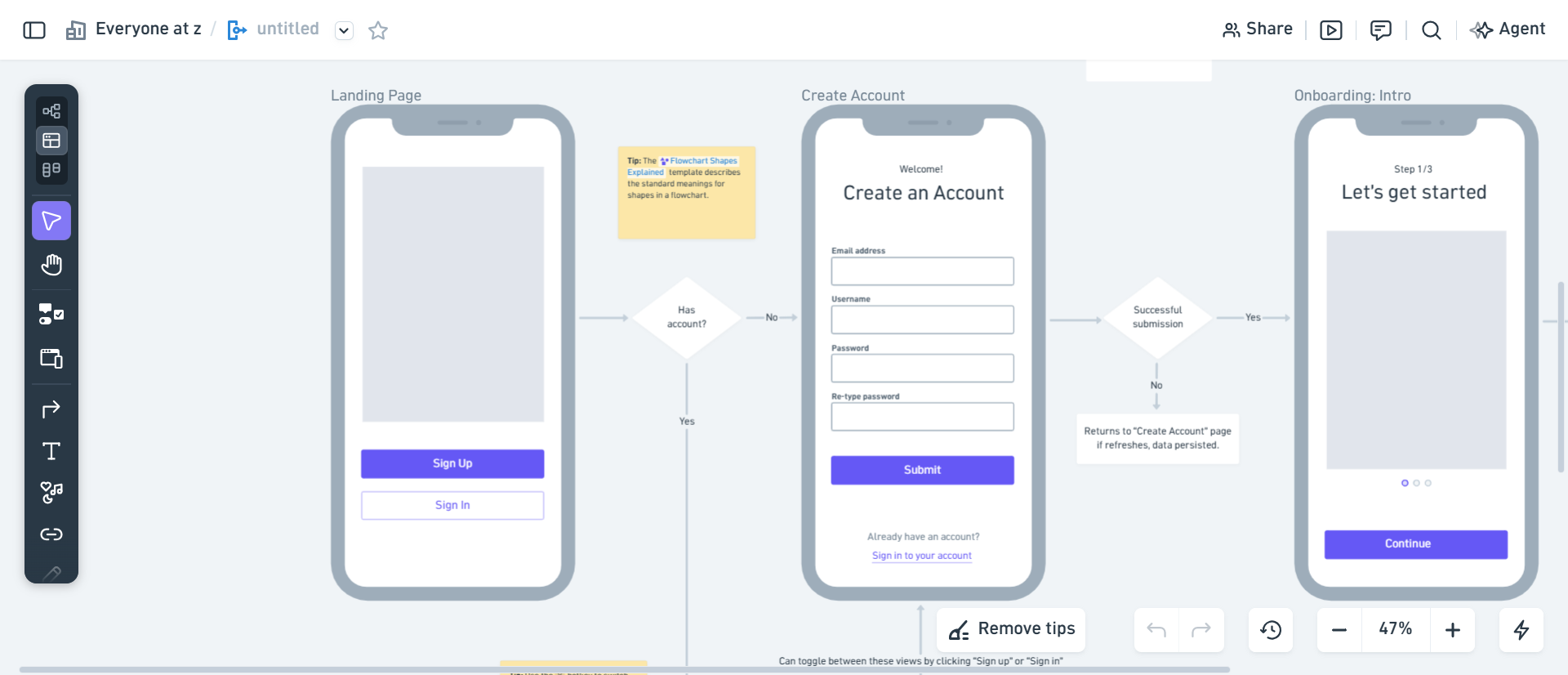
Whimsical sits upstream of hi-fi: diagrams, flowcharts, and lightweight UI wireframes the team can edit together. Whimsical AI helps with diagrams, organization, and lo-fi wireframes—not painted marketing screens.
- Best for: Untangling a feature (paths, edge cases, IA) before anyone invests in high-fidelity UI.
- Strongest use: Map the flow (± AI) → optional light wireframes → comments / share links → hand off structure into Figma for visual design.
- Don’t use if / Watch outs: You need AI to paint hi-fi product or marketing screens (look at UX Pilot, Uizard/Visily, or Relume by scenario). Free AI is capped at 10 AI credits—confirm before a workshop marathon if the team will burn generations in one sitting.
- Pricing snapshot: Freemium — Free includes limited boards plus 10 AI credits; viewers stay free. Pro/Business unlock higher board limits, watermark removal, and stronger admin options—check current plans on Whimsical.
 Flowstep — Multi-screen product flows from a prompt
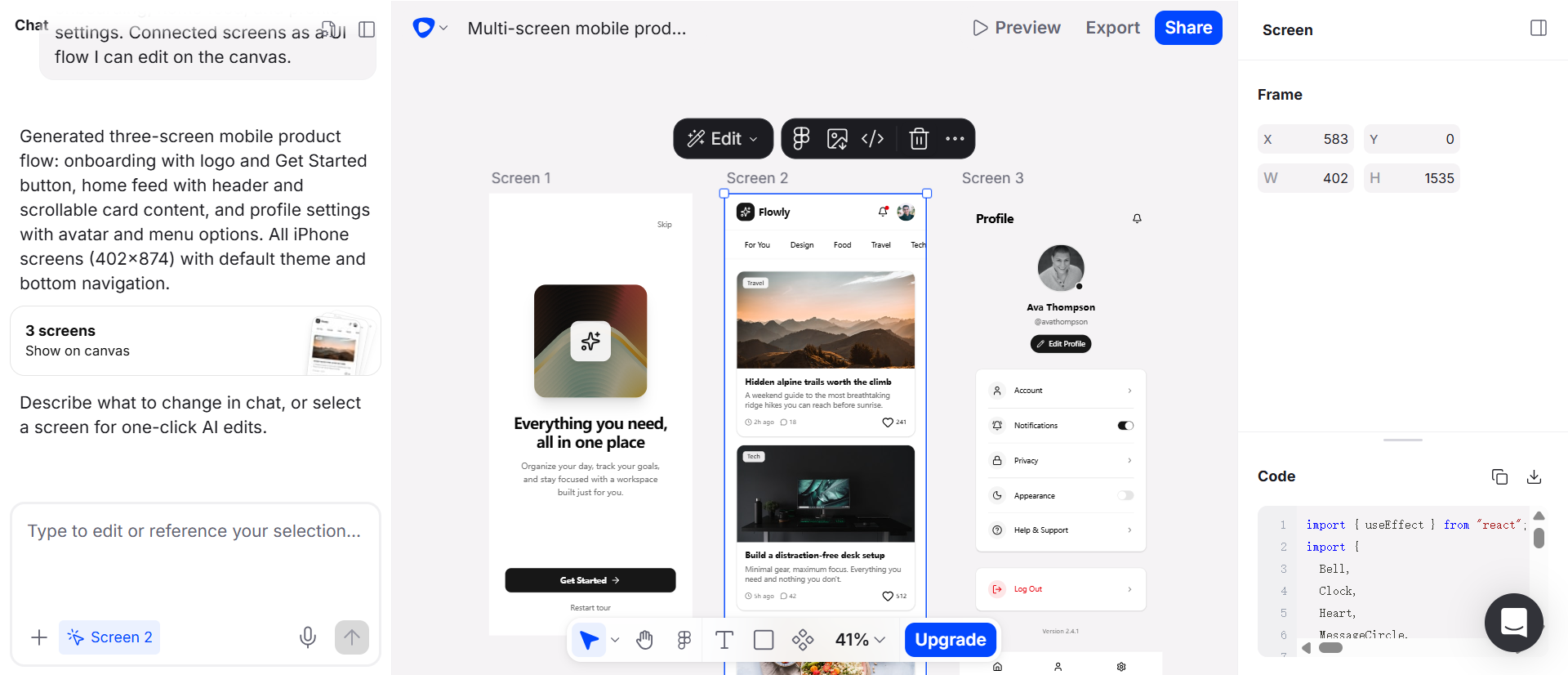
Flowstep fills the gap single-screen generators leave: natural language → a multi-screen product UI flow you refine on a canvas, then continue toward Figma or code. On this list it earns a seat for journey structure, not for “paste into Figma” depth (that’s a separate workflow article).
- Best for: First-pass multi-screen product flows when the brief is verbal and screens must connect.
- Strongest use: Prompt the flow → generate multi-screen UI → refine on the canvas → later copy/export toward Figma or a code-oriented path once structure is agreed.
- Don’t use if / Watch outs: Free only offers limited messages, multi-screen, and projects—and does not list Exports or Copy to Figma (treat those as paid). You mainly want UX Pilot’s wireframe/credit canvas, or you’re already past structure and only need design-to-code conversion. Heavy prompt iteration burns monthly message pools on Starter-class plans (Starter starts at 80 messages/mo with unlimited multi-screen, projects, exports, and Copy to Figma; Pro/Max raise the message cap via the same message-metered ladder).
- Pricing snapshot: Freemium — Free $0 to try (limited messages / multi-screen / projects). Paid Starter / Pro / Max are message-metered; Starter unlocks unlimited multi-screen, projects, exports, and Copy to Figma at the 80 messages/mo tier—check current message tiers and pricing on Flowstep.
 Visily — Workshop-ready wireframes for mixed rooms
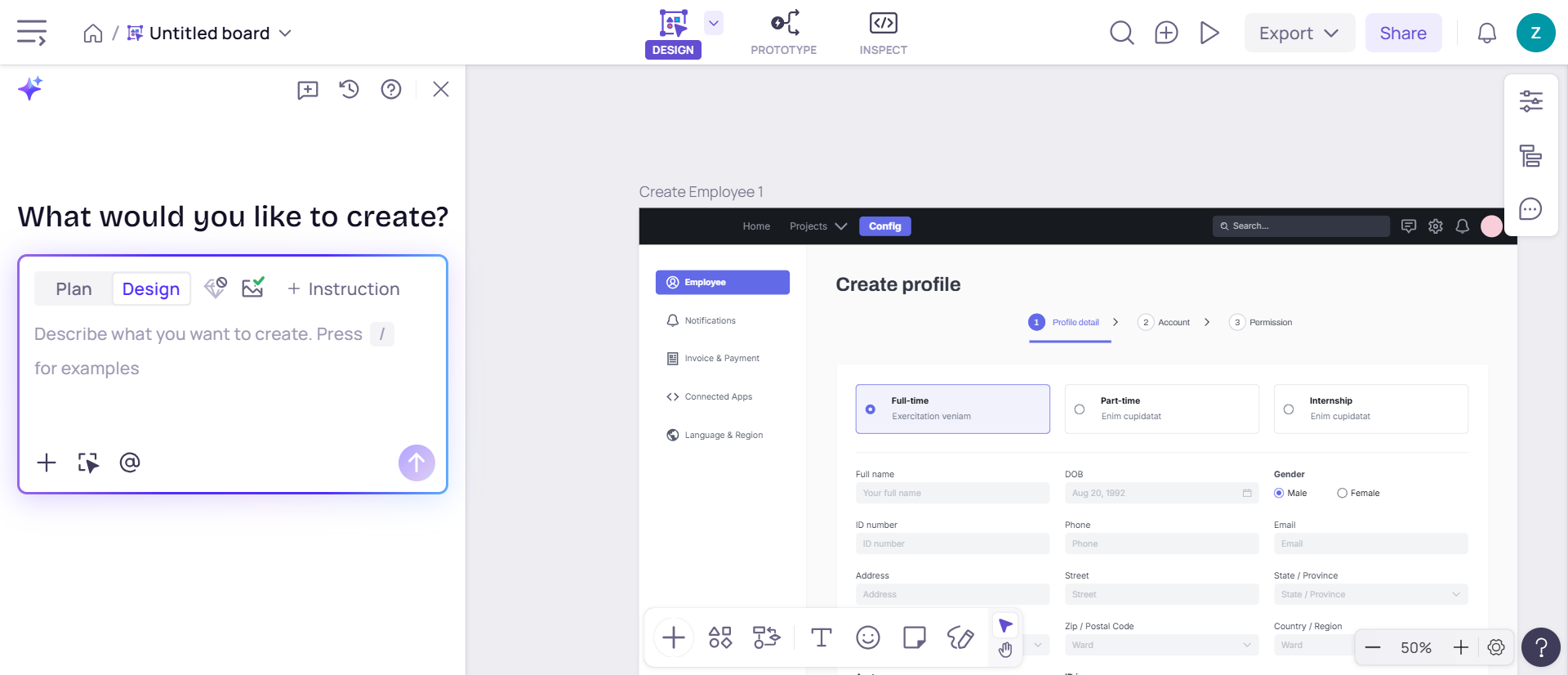
Visily is strong when non-designers are in the room and you need stakeholder-ready hi-fi wireframes or product screens before a full Figma design-system pass. Prompt, screenshot, diagram, and template paths sit on a drag-and-drop board with collaboration features aimed at review.
- Best for: PM-led or workshop alignment where speed and shared boards matter more than designer-only craft.
- Strongest use: Prompt / screenshot / diagram → hi-fi ↔ lo-fi boards → comments and shared review → Pro+ paths into Figma or code when you’re ready—then finalize systems in Figma.
- Don’t use if / Watch outs: You’re a senior UI designer whose only gap is AI inside an existing Figma file—prefer Figma-native AI for that job. Starter ($0) is for trying basics: 2 editable boards (unlimited view-only), 2,500 elements/board, 300 AI credits/workspace/month (600 in month one), plus separate template credits—and JPG/PNG/PDF export at 1x with watermark. Export/import Figma, export to code, and Visily MCP start at Pro—don’t plan day-one clean Figma handoff on Starter. Starter also lacks AI deep design / design instructions (Pro+).
- Pricing snapshot: Freemium — Starter $0: 300 AI credits/workspace/mo, limited boards/elements, watermarked 1x exports. Pro adds 3,000 AI credits/editor/mo, unlimited boards/elements, Figma export & import, code export, and MCP; Business raises credits and adds SSO/admin controls—check current per-editor pricing on Visily.
 Relume — Marketing-site sitemap and section wireframes
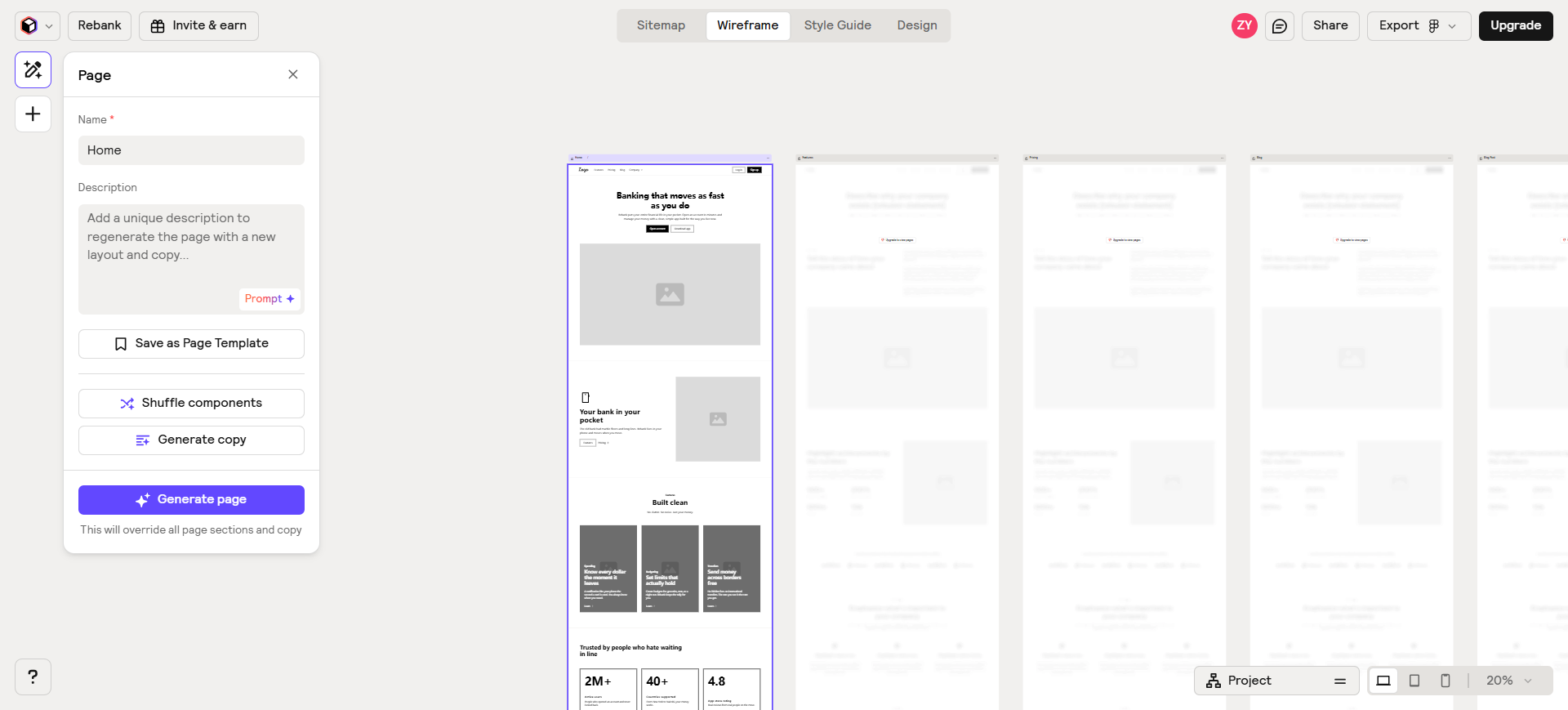
Relume uses the word “wireframe,” but the job is different: marketing website IA—prompt → sitemap → section wireframes with draft copy → a path into Figma, Webflow, or React. It is on this list so you don’t confuse product-app wireframing with site structure work.
- Best for: Scoping or pitching marketing sites when sitemap and section layout come first.
- Strongest use: Brief or imported sitemap URL → AI Site Builder wireframes → hand off wireframes toward Figma (wireframe export available across plans) → polish and production build in Figma/Webflow/code.
- Don’t use if / Watch outs: You’re designing dense product UI or a long-lived app design system—use UX Pilot, Uizard, Flowstep, or your Figma stack instead. Free is sample-shaped: 1 user, 1 project, 1 wireframe page, limited AI, view-only share, and only ~30 Webflow/React components. Export wireframes to Figma is on Free; Webflow and React wireframe export start at Starter. Starter still caps at 1 project / 5 wireframe pages—unlimited projects and pages need Pro or Team.
- Pricing snapshot: Freemium — Free: 1 project, 1 wireframe page, limited AI, Figma wireframe export + Relume Figma Kit, view-only share. Starter: unlimited AI, 5 wireframe pages, Webflow/React export, 1,000+ components. Pro/Team: unlimited projects and pages (Team adds seats + team workspace)—check current pricing on Relume.
Don’t use this list if…
- You need a finished design system tomorrow (tokens, components, accessibility, edge states). Wireframe AI gets alignment; craft stays with you in Figma.
- You’re shopping for in-Figma AI only, or “which tools paste cleanly into Figma.” That’s a different task—see AI Tools That Work with Figma for UI Designers.
- You want prompt → production code as the main deliverable (v0, Bolt, and neighbors). Wrong aisle for a wireframe article.
- You only need a two-tool duel (e.g. Uizard vs Visily). That’s a comparison URL later—this is the task overview.
- Your brief is logo / brand identity. Start from Best AI Logo Generators and the Brand Designer Pack instead.
Start from the Pack
For a maintained kickoff set along the UI/product path—flows → wireframes → UI → handoff—use:
This article is the wireframe-task narrative. The Pack is the shorter living list across the full workflow (and may include Figma-native and handoff tools this piece deliberately skips).
What’s next
- How we evaluate AI design tools — same selection bar, expanded.
- Best AI Tools for UI/Product Designers — occupation overview this task sits under.
- AI Tools That Work with Figma for UI Designers — handoff / in-file workflow (not a second wireframe list).
Missing a wireframe tool that belongs in real product workflows? Submit it.