
Last updated: 2026-10-01
Best AI Mockup Generators for Designers
Related pack: View Pack
Most “AI mockup” lists mash together three different jobs: paste a screen into a phone frame, drop a logo onto a T-shirt template, and turn a white-background SKU shot into a lifestyle listing. Designers don’t need that mash-up. You need to know which tool is a generative product scene, and which is still a template mockup studio.
This shortlist is for graphic, brand, and ecommerce-adjacent designers (and freelancers who own proposals, portfolios, and store visuals) who must show work as if it already shipped—on a product, a shelf, a model, or a mailer—before the photoshoot exists. Six tools. Not every app with a “mockup” button.
Honest boundary up front: AI staging and template mockups preview and accelerate. They do not replace print-ready dielines, trademark-clean packaging, or hero photography when the brief demands a real studio. Background removal alone is a prep step—see Best Background Removal Tools for Designers. Upscale is a separate guide.
Living list: Graphic Designer Pack. Brand / listing neighbor: Brand Designer Pack. Selection bar: How we evaluate AI design tools.
How we pick
Same site-wide bar, weighted for mockup and product-scene delivery:
- Fit — Does it stage products, apparel, packaging, or device art into believable scenes—or is it generic text-to-image with “mockup” in the headline?
- Delivery — Path to a usable still (listing, deck, Behance, client PDF)—not a locked preview forever.
- Workflow — Browser (or Figma/Express plugin) you can keep next to Figma, Photoshop, or a store CMS.
- Cost — Free smoke-test vs paid image/credit caps is explicit; we don’t invent dollar amounts.
- Trust — Still maintained; commercial license checkable before a client SKU goes in.
We do not rank a #1 overall winner. Pick by generative product photography vs template mockup library.
Where to reach first
| If you need to… | Start with | Also consider |
|---|---|---|
| AI product scenes / on-model / ads from product assets | Flair | Claid.ai |
| Ecommerce photoshoot + fashion models in one studio | Claid.ai | Flair |
| Many lifestyle backgrounds from one clean SKU shot | Pebblely | Photoroom |
| Cutout that continues into AI backgrounds / listings | Photoroom | Pixelcut |
| Catalog cutout + scene + batch before Figma/store | Pixelcut | Photoroom |
| Classic template mockups (devices, apparel, packaging, print) | Artboard Studio | Placeit · Mockuuups |
Most jobs need one generative staging tool plus, sometimes, one template library for portfolio frames—not all six.
The shortlist
 Flair — AI product photography for scenes and on-model shots
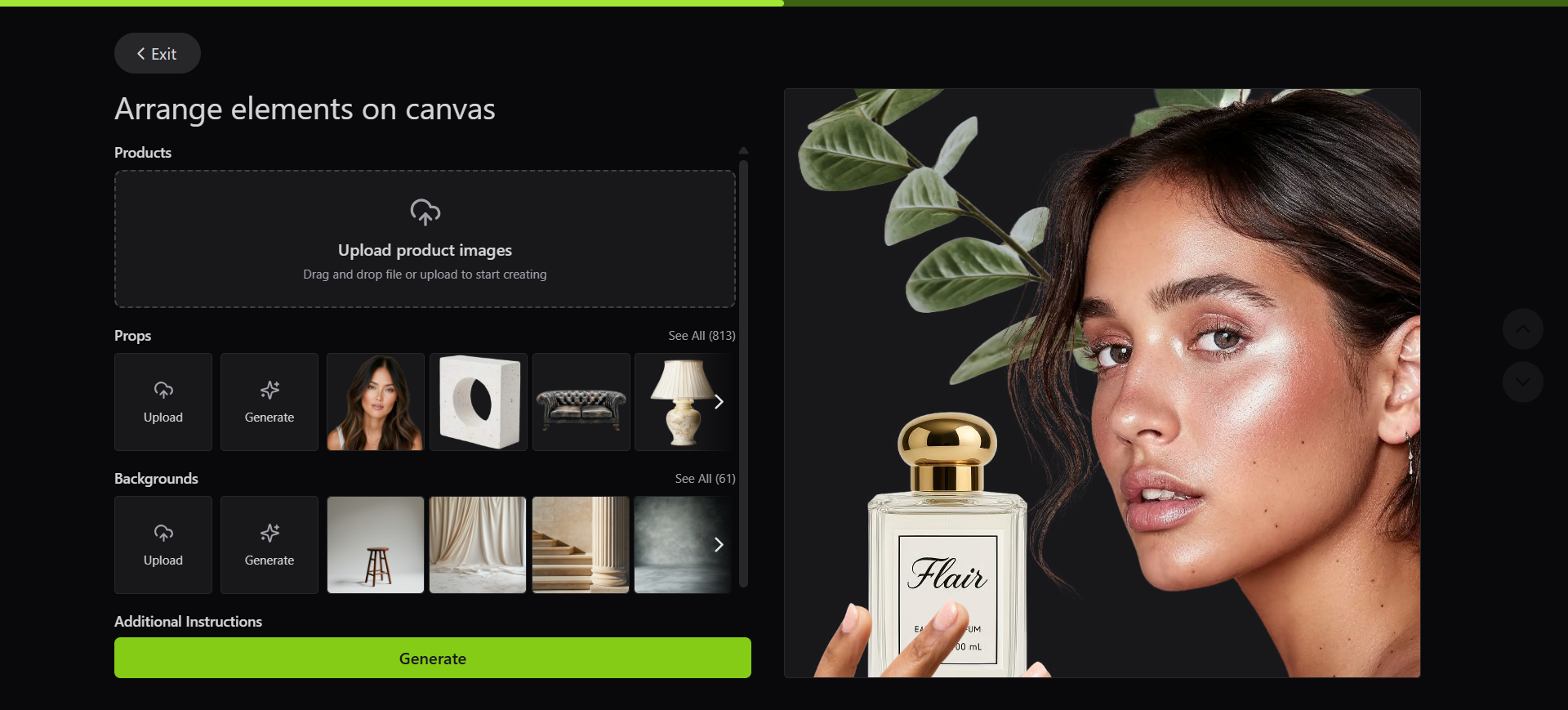
Flair is the generative staging seat: drag products onto a canvas, add props and backgrounds, then generate lifestyle stills, on-model shots, ad creatives, and short product clips. On this list it answers “does the product survive in a real scene?”—not “paste my PNG into a phone bezel.”
- Best for: Brand and ecommerce-adjacent designers who need applied product visuals for listings, decks, or campaign tests without a studio day.
- Strongest use: Upload product assets → stage props/backgrounds (or train a custom model) → Generate → export for PDP, ads, or client review → keep master artwork in Illustrator/Figma; Flair proves the touchpoint.
- Don’t use if / Watch outs: You only need a device/apparel template library—Artboard Studio or Placeit. Free is a smoke test: 1 custom model, 5 generated images, 1 video. Pro does not list a Company Commercial License on the live pricing card; Pro+ and Scale do—do not ship paid client work on Free or Pro. Instant/Ad-style paths can burn quota faster than standard images—confirm in-app before a sprint (Flair pricing).
- Pricing snapshot: Freemium — Free: 1 model / 5 images / 1 video. Pro+: higher caps + Company Commercial License. Scale adds API early access and priority support—check Flair for current tiers.
 Claid.ai — Ecommerce photoshoot and on-model fashion in one studio
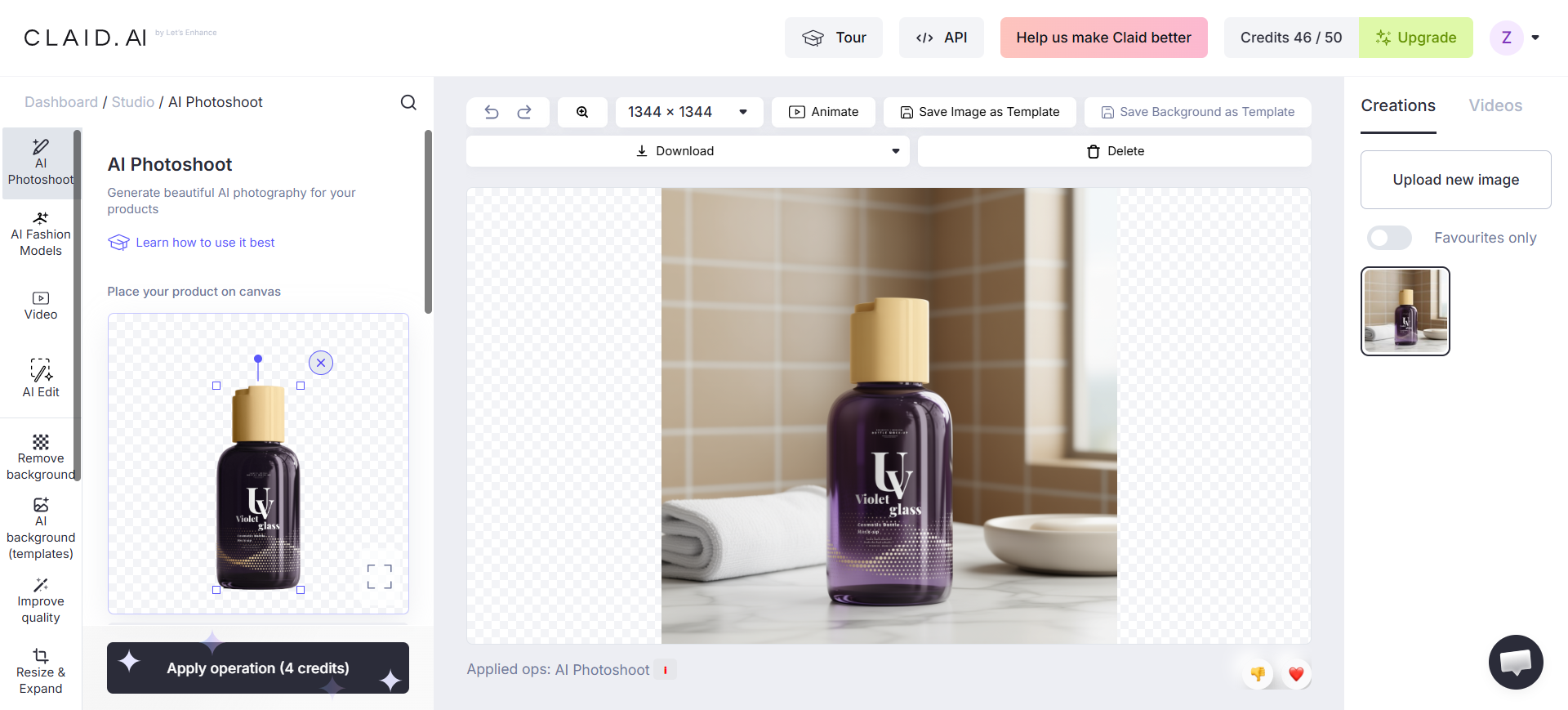
Claid.ai (by Let's Enhance) is the catalog studio seat: AI Photoshoot and Fashion Models aim to place SKUs into editorial/lifestyle scenes while preserving logos and packaging detail—plus cutout, color fix, upscale, and a separate API track. Reach for it when mockups are really product photography at catalog volume.
- Best for: Ecommerce and packaging-adjacent designers shipping PDP, ads, or seller onboarding visuals from flat or ghost-mannequin shots.
- Strongest use: Upload SKU → AI Photoshoot or Fashion Models → review texture/label fidelity → Download → drop into Figma, the store, or ads. Use Studio cleanup tools when the plate still needs cutout or upscale.
- Don’t use if / Watch outs: You want freeform concept art—wrong aisle. Free trial is roughly 50 web credits + 50 API credits—not unlimited production. Web and API wallets are separate. You only need cheap consumer removers or illustration upscalers—compare the background-removal and upscalers guides.
- Pricing snapshot: Freemium — trial credits to explore; Essentials / Pro raise monthly pools (Pro unlocks higher-res Premium paths); Business is custom. Confirm current credit tables on Claid.
 Pebblely — One SKU shot → many lifestyle backgrounds
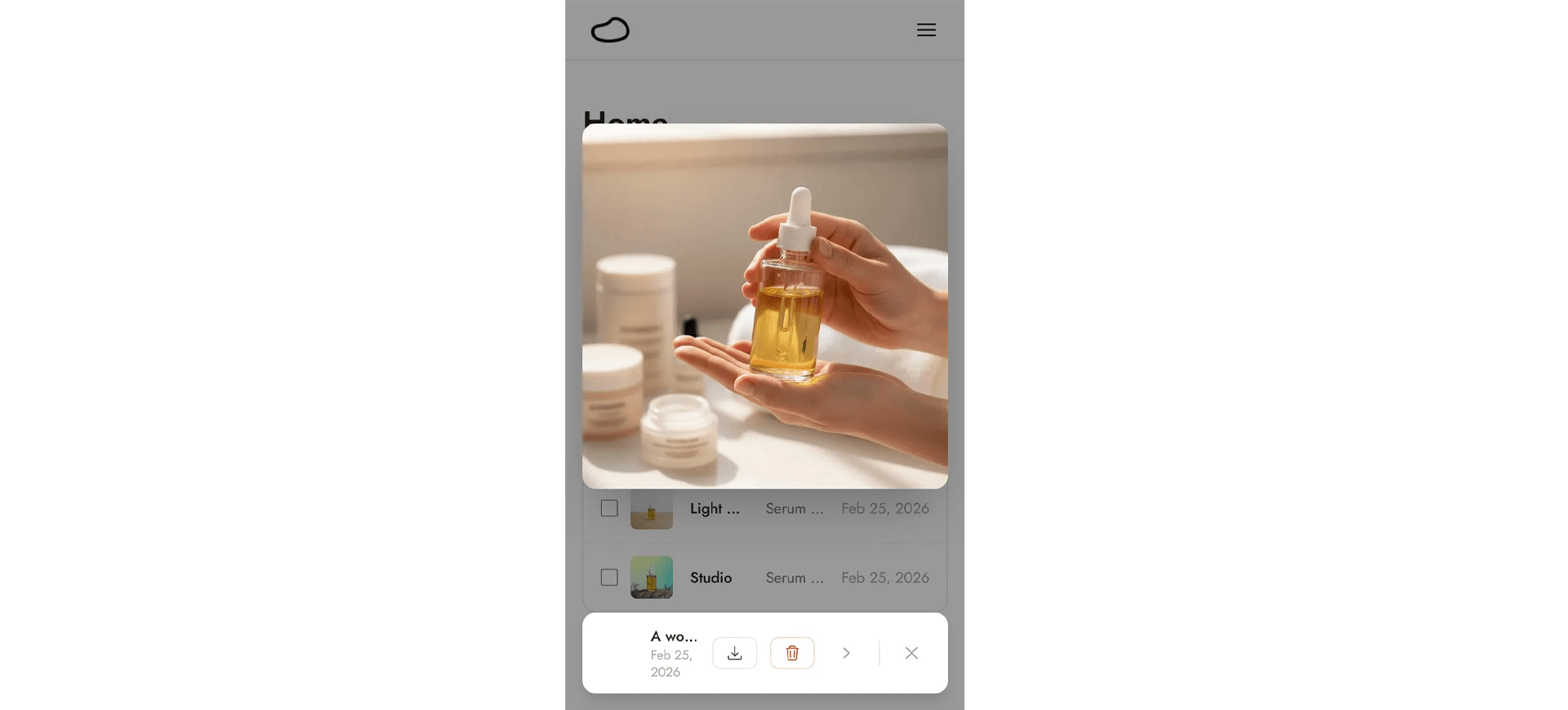
Pebblely is the background-volume seat: take one clear product photo, then generate themed or prompt-driven lifestyle scenes with shadows and reflections aimed at marketplaces and social. It is narrower than Flair’s full staging canvas—and that is the point when the brief is “more listing variants, fast.”
- Best for: Sellers and small-brand designers who already have a clean SKU plate and need many scene variants for listings, email, or ads.
- Strongest use: Add product → Templates or Custom prompt → Create → download → place in the shop or deck. Use bulk generate on higher plans when the catalog repeats the same product across scenes.
- Don’t use if / Watch outs: FAQ: no free trial—you pick a paid plan to generate production images. Not a portrait beauty retoucher, megapixel upscaler, or enterprise API studio—Claid.ai is closer for fashion models + API. You need device/portfolio template mockups—Artboard Studio.
- Pricing snapshot: Paid image allowances (Lite / Basic / Pro; Basic and Pro add bulk). Confirm current monthly caps on Pebblely pricing.
 Photoroom — Cutouts that continue into AI backgrounds
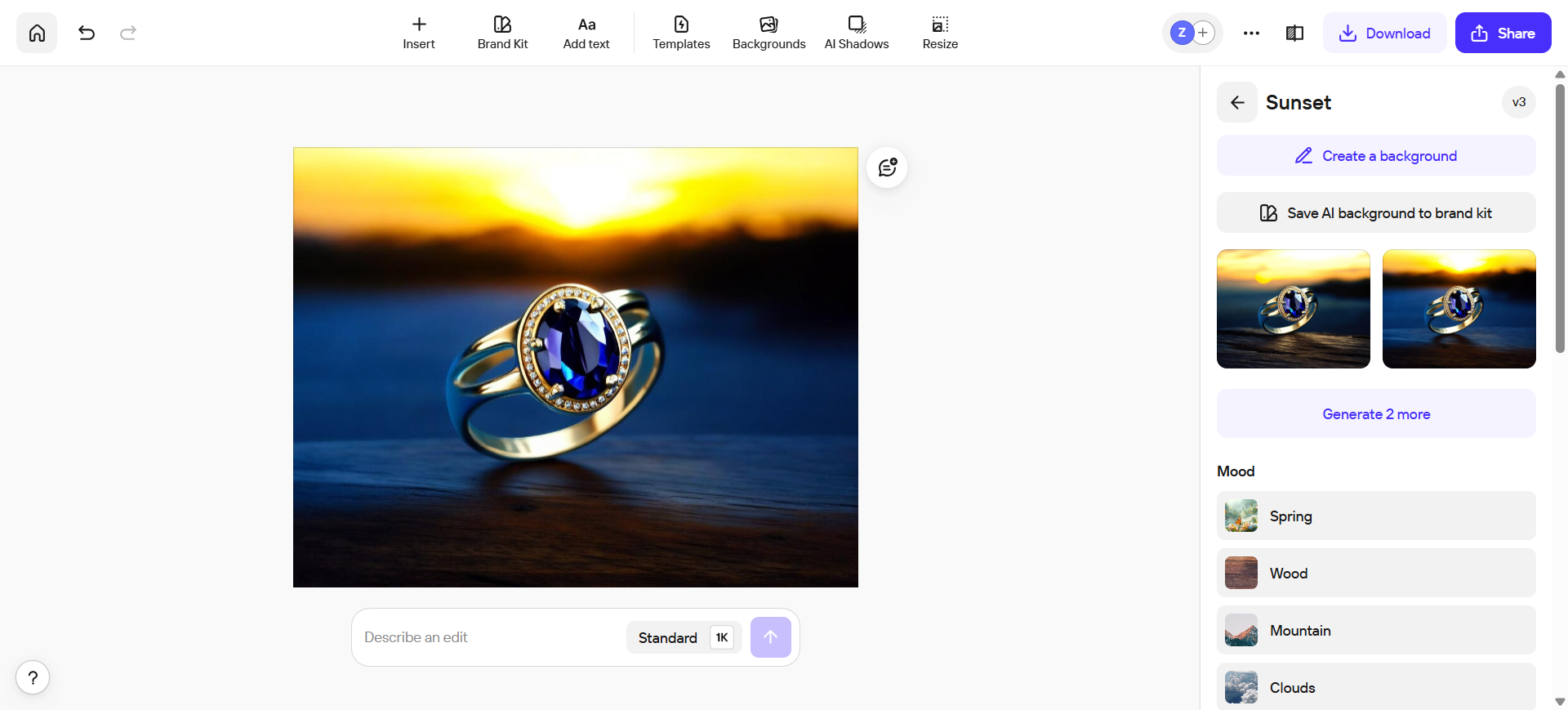
Photoroom sits here as the listing editor seat, not a sixth identical “generate scene” widget. Background removal is the start; AI backgrounds, shadows, retouch, and catalog export are why mockup work stays in one browser.
- Best for: Brand and ecommerce designers who cut a product out and immediately need a store/social scene—without opening Photoshop for every SKU.
- Strongest use: Import product shot → Remove background → Create a background / moods → optional AI Shadows → Download into shop, Figma, or social templates. Core remover/retouch tools sit on paid plans; generative extras are credit-metered.
- Don’t use if / Watch outs: You only need a transparent PNG API—remove.bg or the background-removal shortlist. Free-tier / commercial limits can block real listings—upgrade before you ship store assets. Deep art-directed composites still belong in Photoshop / Adobe Firefly.
- Pricing snapshot: Freemium — plan ladder Pro / Max / Ultra (AI credits, hi-res exports, batch on paid). Confirm current Free vs paid export and commercial rules on Photoroom.
 Pixelcut — Catalog cutouts, scenes, and batch stills
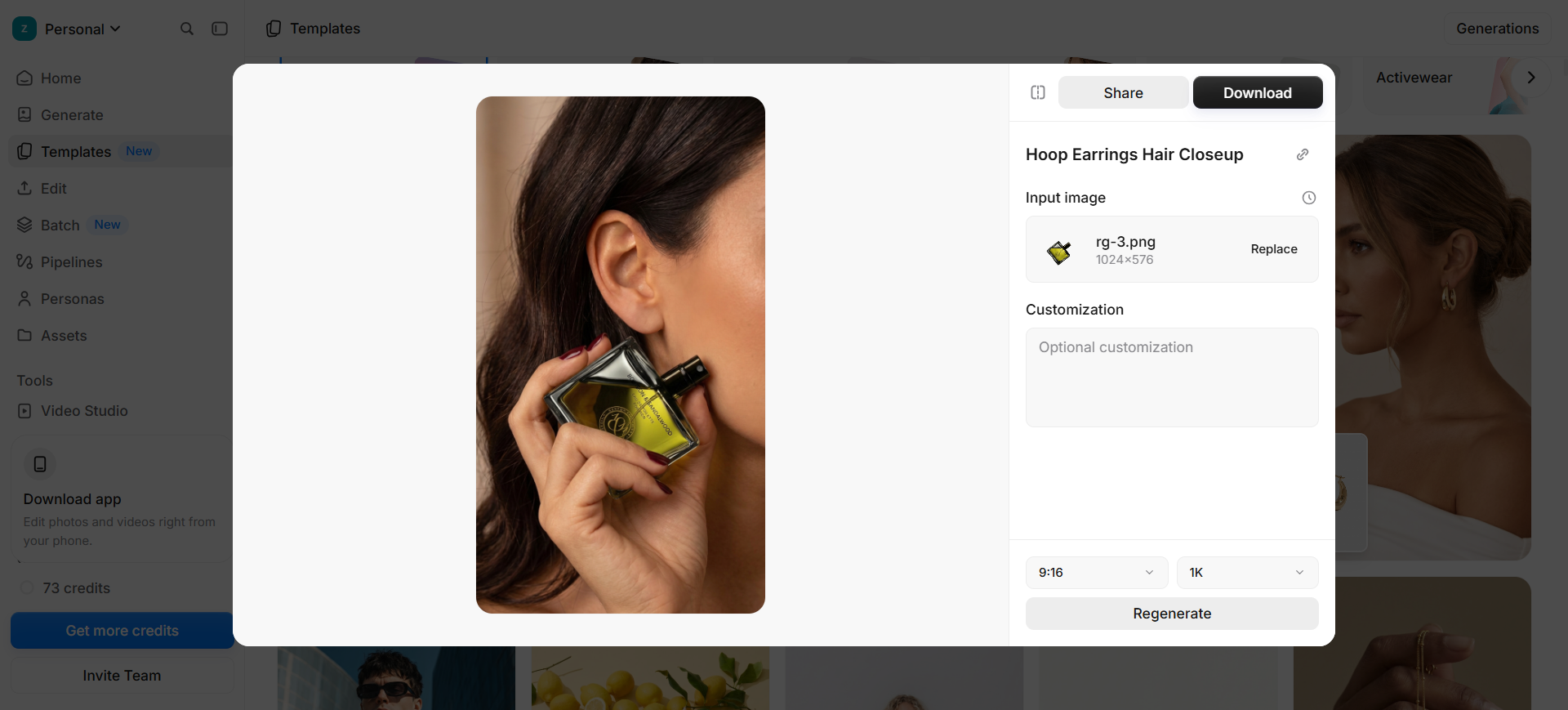
Pixelcut is the catalog workspace seat: remove backgrounds, erase clutter, stage product scenes, then download rasters into Figma or a store listing—with batch exports on paid plans. On this list it covers seller/designer volume, not a Behance device-frame library.
- Best for: Designers and sellers who bounce between cutout, scene, and catalog batch before layout or marketplace upload.
- Strongest use: Upload product → cut out / stage → Download → drop into Figma or the listing. Move to Pro when you need unlimited cutouts, batch exports, and a commercial license.
- Don’t use if / Watch outs: You need Photoshop layers, a Figma design system, or SVG icons—wrong tool. This is not Placeit/Artboard-style apparel or device mockup libraries. Free keeps background removal and upscale limited, with no commercial license on that tier—upgrade before client catalogs. Print-critical 4×–8× upscale is a side pass here; prefer the upscalers guide when resolution is the whole job.
- Pricing snapshot: Freemium — Free: no watermark on downloads, limited cutout/upscale. Pro: monthly AI credits, unlimited cutout/upscale, team seats, batch exports, commercial license—check Pixelcut for current numbers.
 Artboard Studio — Template mockups for devices, apparel, and packaging
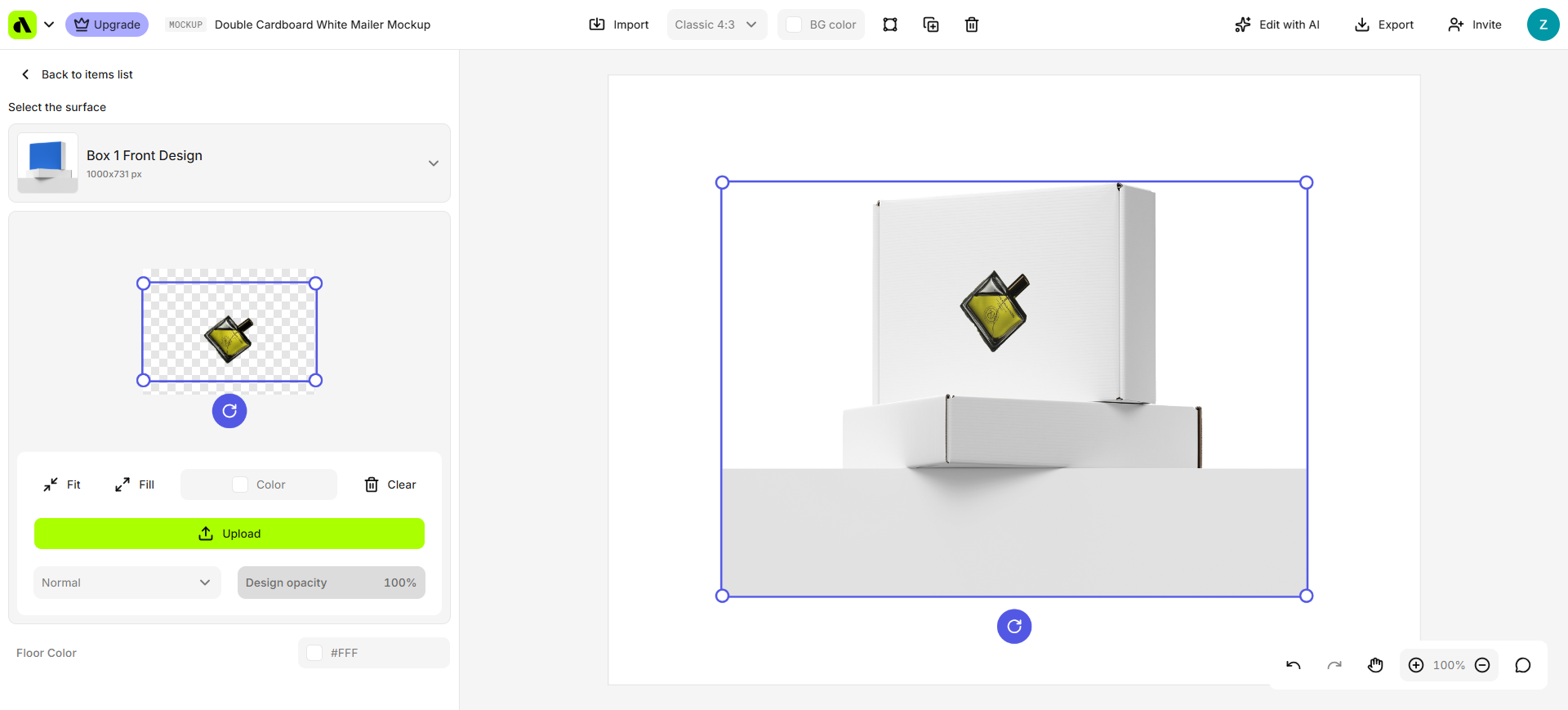
Artboard Studio is the classic mockup-library seat on an otherwise generative list: place screens, artwork, or video onto phones, apparel, packaging, print, and branding templates in the browser (plus Figma and Adobe Express plugins). Use it when the job is portfolio and client presentation mockups, not AI product photography.
- Best for: Product, brand, and graphic designers who need realistic device or packaging frames for case studies, Behance/Dribbble, or decks.
- Strongest use: Open editor → FREE-tagged or unlocked items → drop stills/video onto surfaces → Export. Upgrade when locked library items block the presentation, or when you need plugins and unlimited high-res exports.
- Don’t use if / Watch outs: You need Flair-style AI ecommerce photoshoots / on-model generation—stay with Flair or Claid.ai. Most of the library locks until Premium/Lifetime; Free is a tagged subset. AI mockup generation is a separate AI Credits purchase (Free showed 0/0 credits with no starter grant in our review)—don’t expect generative staging for free. One-off phone frames you already have in a free Figma community file—skip the subscription.
- Pricing snapshot: Freemium — FREE-tagged items to try; Premium or Lifetime Mockup unlock the full library, unlimited exports/uploads, high-res, plugins, and commercial license on paid paths. Confirm current inclusions on Artboard.
Don’t use this list if…
- You only need a transparent PNG cutout. Start from Best Background Removal Tools for Designers.
- You only need resolution / sharpen. Use Best AI Image Upscalers for Designers.
- Your brief is brand identity from direction through lockup. Start from Best AI Tools for Brand Designers—Flair appears there as an applications stop, not a mockup bake-off.
- You want a ranked dump of every POD T-shirt widget. Neighbors like Placeit, Mockuuups, and Smartmockups (now Canva Mockups) sit next to Artboard; they don’t all earn a full seat here.
- You expect AI scenes to replace print-ready packaging files, dielines, or trademark review. They won’t.
- You’re shopping for UI wireframes or Figma handoff. Wrong aisle—see the UI / Product Designer Pack.
Start from the Pack
For campaign and marketing stills on the graphic path—including export and production neighbors:
Brand / listing touchpoints where Flair and Photoroom also appear:
This article is the mockup / product-scene task narrative. The Packs are the shorter living lists by workflow stage.
What’s next
- Best Background Removal Tools for Designers — when the plate still needs a clean cutout first.
- Best AI Image Upscalers for Designers — when the scene is right but the file is still soft.
- Best AI Tools for Brand Designers — when mockups are only one stop on an identity kickoff.
- How we evaluate AI design tools — same selection bar.
Missing a mockup or product-scene tool that belongs in real design delivery? Submit it.