
Last updated: 2026-08-18
Best AI Image Upscalers for Designers
Related pack: View Pack
You exported a hero at the wrong size. A client sent a compressed JPEG. Your Midjourney pass looks fine at thumbnail scale and falls apart in a deck. Most “AI upscaler” lists never say which job they’re for—or whether the tool faithfully enlarges what’s there or invents detail you’ll have to defend in review.
This shortlist is for designers shipping stills: UI mockups, brand photography, campaign art, AI-generated concepts, and print-adjacent layouts. Six tools. Not every photo app with an “Enhance” button.
Honest boundary up front: upscaling finishes an asset—it does not replace shooting, illustrating, or regenerating from scratch. Color, crop, and brand craft still happen in Figma, Photoshop, or your layout tool. This piece is about getting files big and clean enough to place.
Related living list: AI Image Creator Pack (Refine & cleanup node). Selection bar: How we evaluate AI design tools. Same week, different job: Best AI Icon Generators (icons, not resolution).
How we pick
Same bar we use across the site, weighted for upscale jobs:
- Delivery — Does output actually hold up at the size you need (web hero, deck, large mockup, print-adjacent)?
- Fit — Is this upscaling / enhancement, or a disguised text-to-image generator?
- Workflow — Local desktop vs browser; batch; privacy; drop into Figma/Photoshop without a dead end?
- Cost — Can you try without an enterprise deal—and do credits match your volume?
- Trust — Commercial terms and plan limits checkable before client work.
We do not rank a #1 overall winner. Pick by faithful recovery vs creative reimagining, and by where the file lives in your stack.
Where to reach first
| If you need to… | Start with | Also consider |
|---|---|---|
| Free local upscaling, offline / privacy | Upscayl | — |
| Print-critical sharpen, denoise, upscale | Topaz Photo AI | Let's Enhance |
| Browser upscale for product shots / AI art | Let's Enhance | VanceAI |
| Creative detail on soft AI art (accept invention) | Magnific | — |
| Credit-based online suite (upscale + neighbors) | VanceAI | Let's Enhance |
| Portrait / face clarity on people photos | Remini | Topaz Photo AI |
Most jobs need one faithful upscaler plus, sometimes, one generative option for AI art—not all six.
The shortlist
 Upscayl — Local, open-source enlargement
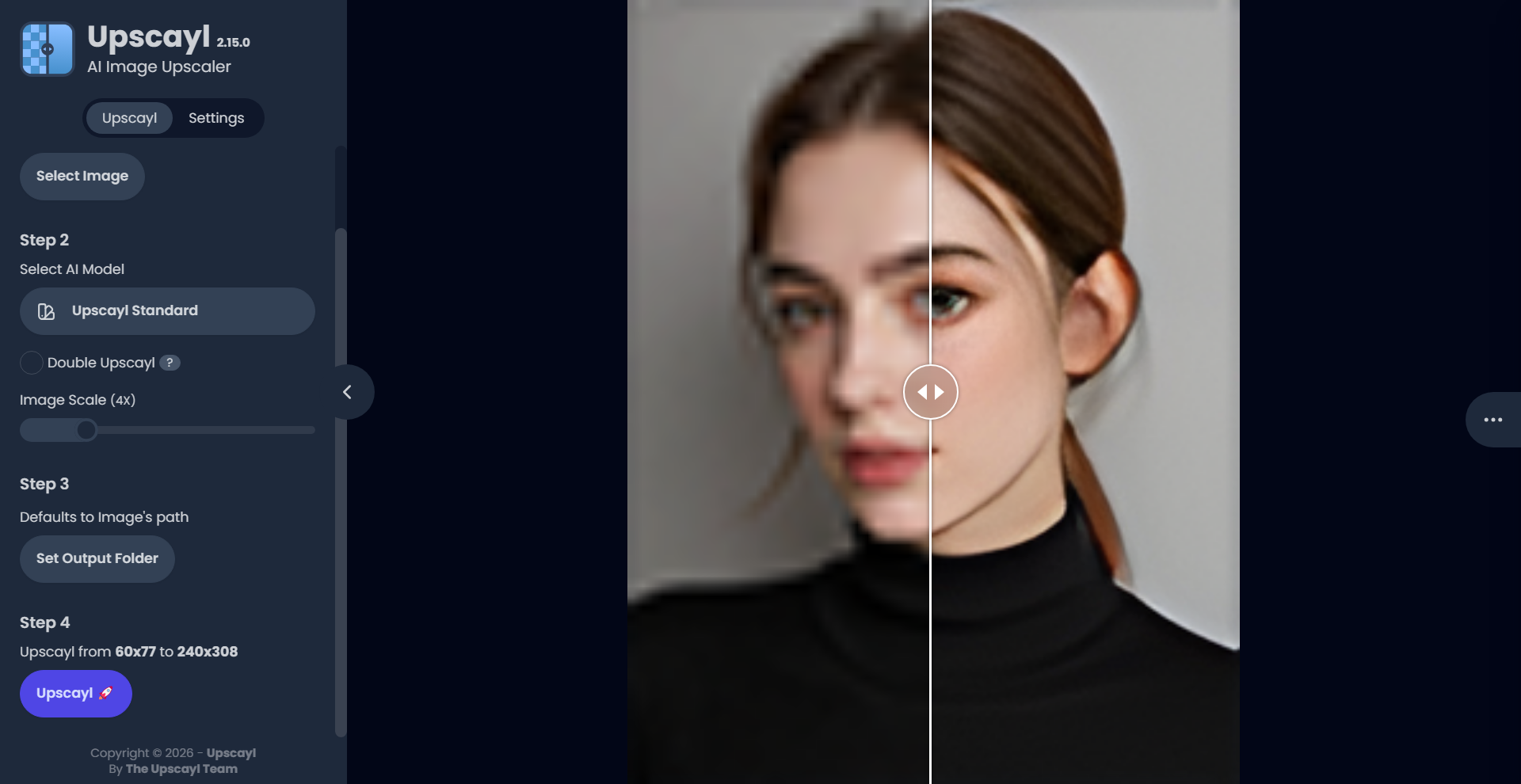
Upscayl is the practical first stop when you want no subscription and files stay on your machine: moodboard grabs, mockup placeholders, and delivery prep before you pay for a commercial photo suite.
- Best for: Designers who want free desktop upscaling with offline privacy.
- Strongest use: Install → pick a model → upscale single images or batches → drop results into Figma or Photoshop for layout and color. Optional Upscayl Cloud when you need speed, shared access, or higher output caps—not required for the core free product.
- Don’t use if / Watch outs: You need print-critical, highly controllable enhancement with dedicated photo models—compare Topaz Photo AI. You want generative “add detail” upscales— that’s Magnific territory. Local GPU load can be heavy on weak machines; Upscayl Cloud is still sold if desktop performance or sharing blocks you (Cloud is a credit product, not a replacement for the free installer).
- Pricing snapshot: Desktop is free and open-source. Cloud: free trial (10 credits); paid Pro is credit-metered (e.g. 300 credits/mo, unused credits roll over, upscale up to 256 MP on that card)—check current Cloud tiers on Upscayl.
 Topaz Photo AI — Paid sharpen, denoise, and upscale
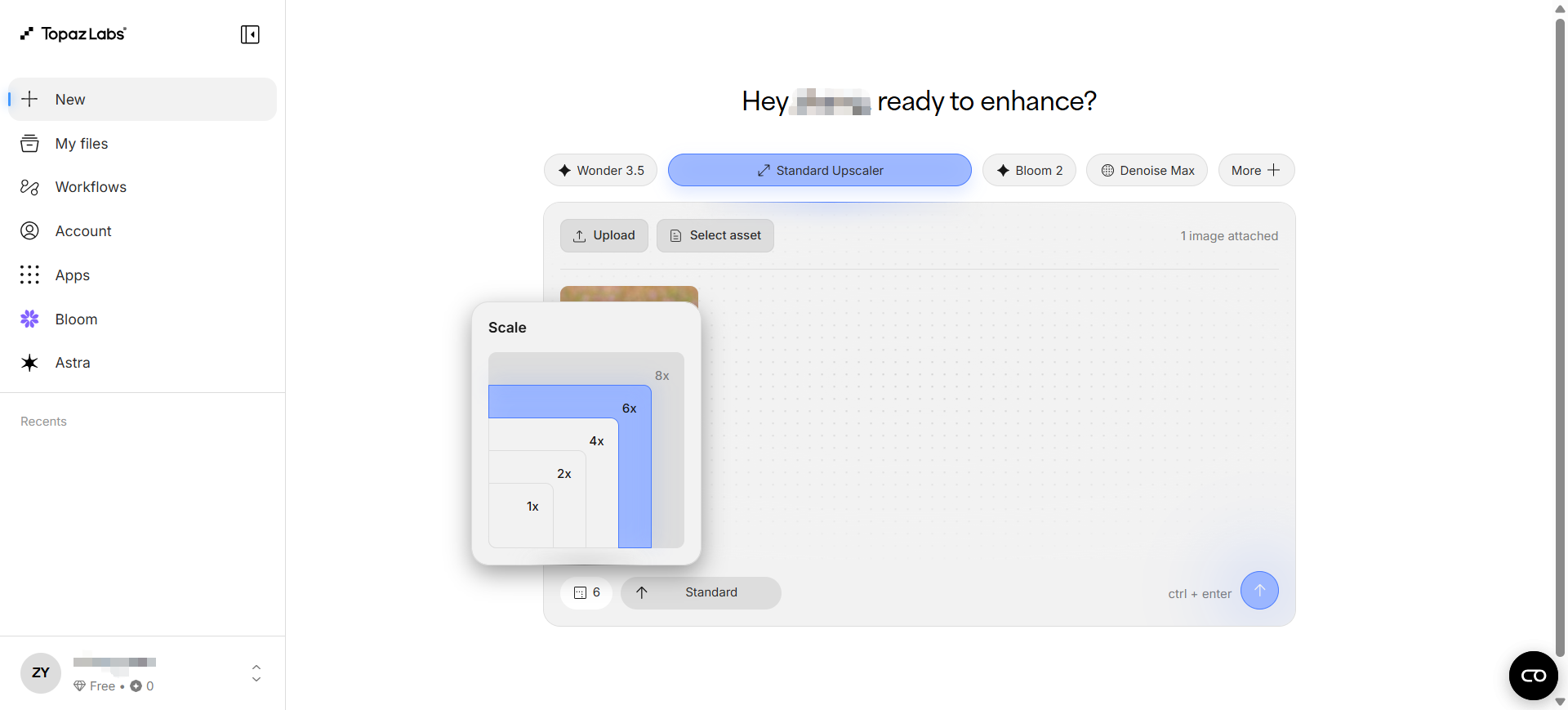
Topaz is for hero stills that must survive scrutiny: client photography, campaign key visuals, and print-adjacent work where sharpen and denoise matter as much as pixel count.
- Best for: Quality-critical photo finishing before layout—not casual moodboard enlargement.
- Strongest use: Run stills through Photo and/or Gigapixel (or the full Studio bundle: Video, Photo, Gigapixel, Image Web, Astra, Bloom, and more) → unlimited local rendering on Studio → export → finish in Figma or Photoshop. Studio also lists unlimited cloud image rendering plus a monthly video cloud credit pool. Need only one app? Topaz still sells single-app paths.
- Don’t use if / Watch outs: Occasional free local enlargements are enough—start with Upscayl. You’re generating concept art from prompts—that’s Midjourney/Ideogram, not Topaz. Studio Pro is the commercial-team card (full commercial use, seat management, higher video credits and cloud concurrency)—don’t assume the standard Studio plan covers studio/commercial delivery. Verify current licensing on Topaz before a long team commitment.
- Pricing snapshot: Paid subscription — Studio (all apps; unlimited local + unlimited cloud image; 300 video cloud credits/mo on the current monthly card) or Studio Pro (commercial + seats + 600 video credits + 4 image cloud concurrency). Check current prices on Topaz.
 Let's Enhance — Browser faithful upscale and restore
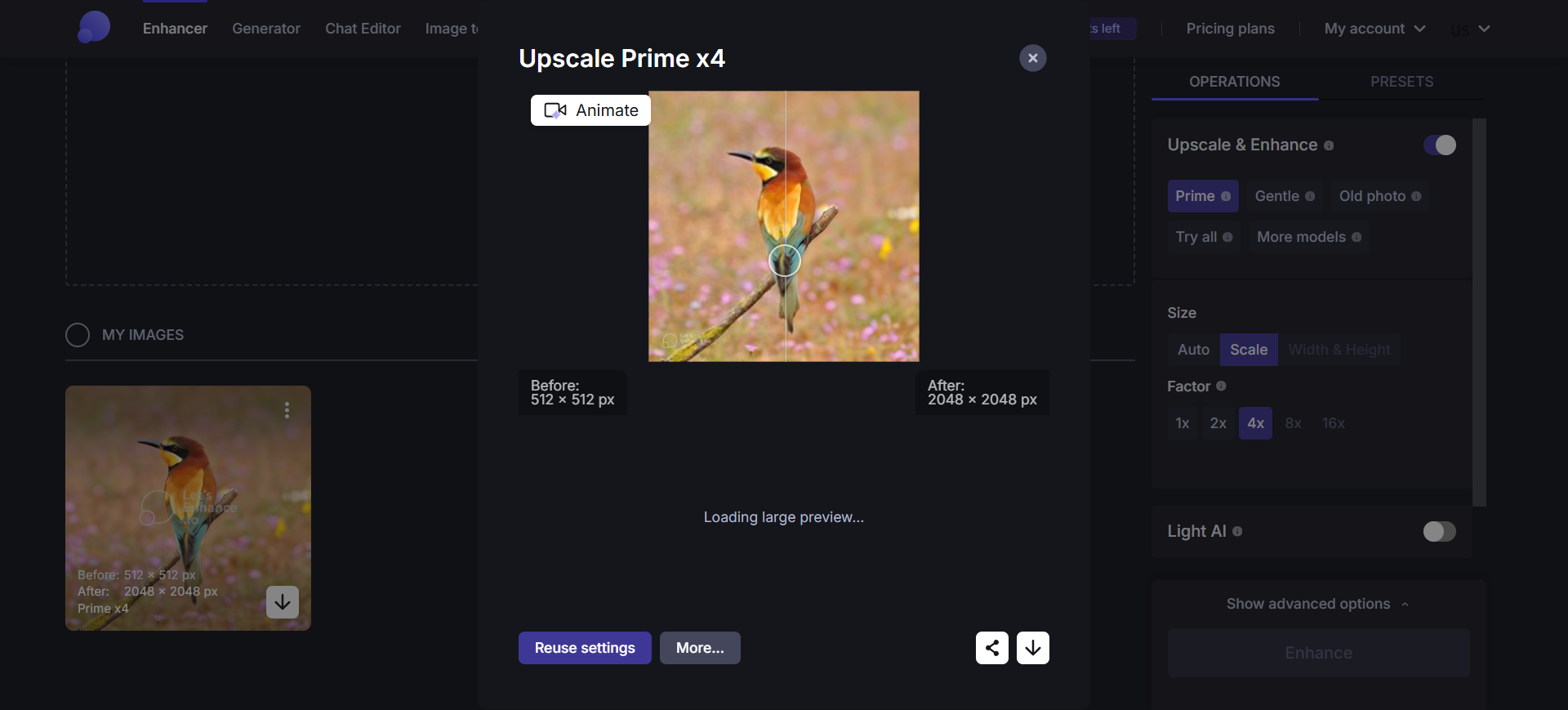
Let's Enhance fits web and catalog workflows: rescuing compressed product shots, polishing AI art for a landing page, or pushing files toward print-oriented megapixel ceilings—without installing desktop software.
- Best for: Designers who want enhance / upscale / restore in one browser app with clear mode choices.
- Strongest use: Upload → pick enhance, upscale, or restore → download full-res on paid tiers (no watermark) → hand off to layout. Starter / Pro / Max raise monthly credits, rollover caps, and upscale ceilings.
- Don’t use if / Watch outs: Free is signup-trial shaped: 10 credits (no card), watermark, input up to 24 MP / 50 MB, upscale up to 8 MP—not client delivery. You want creative reimagining upscales that invent texture—Magnific may fit better. You need offline open-source processing—use Upscayl.
- Pricing snapshot: Freemium — Free: 10 credits + watermark + 8 MP upscale cap. Paid: Starter 100 credits/mo (rollover up to 600; upscale up to 256 MP) · Pro 300/mo (up to 1800; 350 MP) · Max 500/mo (up to 3000; 512 MP). Check current prices on Let's Enhance.
 Magnific — Generative upscale (detail invention)
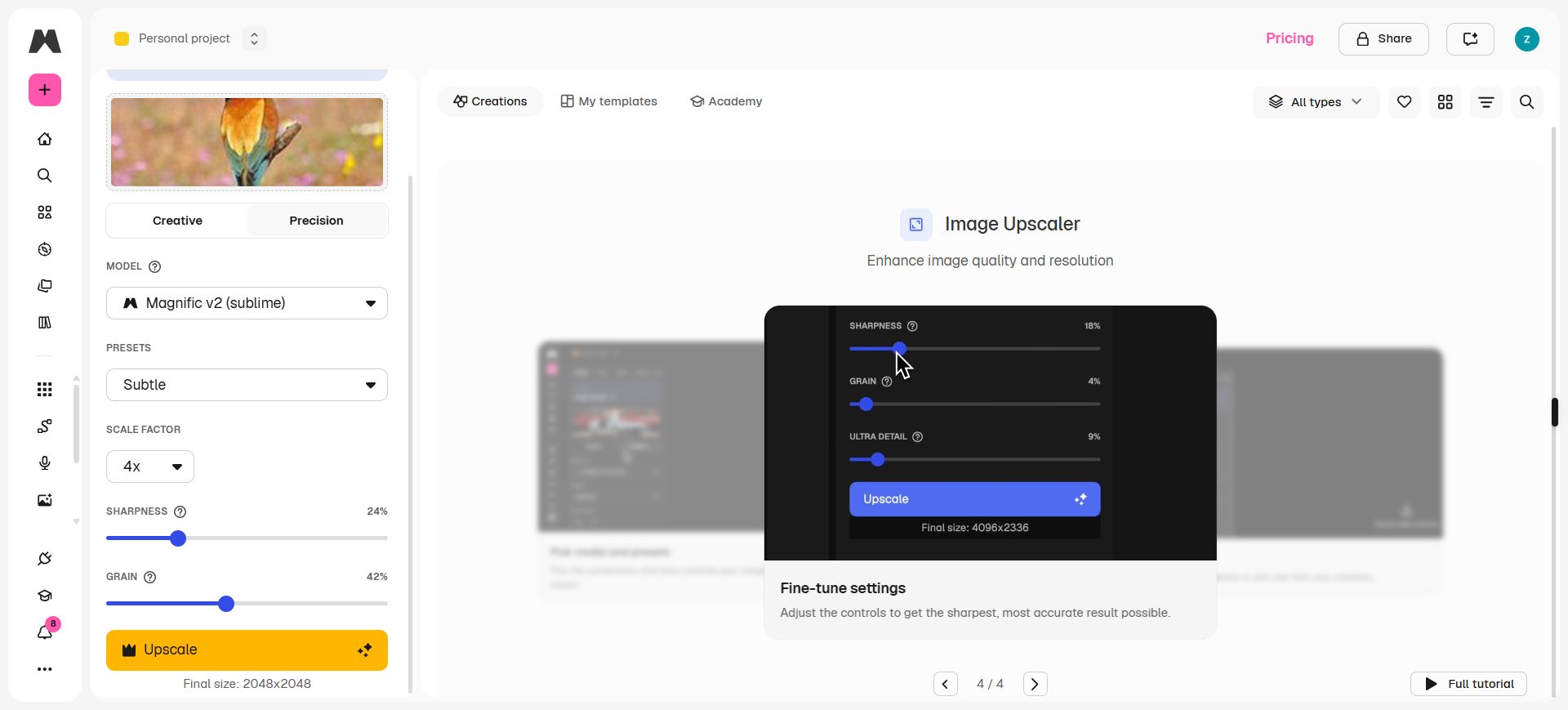
Magnific is the creative seat on this list: it can add detail to soft AI art or weak shots when you accept that the model may hallucinate texture—not just enlarge pixels faithfully.
- Best for: AI-generated visuals and soft sources where “more detail” matters more than pixel-perfect fidelity.
- Strongest use: Import or generate → run Magnific image/video upscalers (Premium) → spend from an annual credit pool (no monthly wipe on these individual plans) → place in campaign files. Premium+ adds Topaz upscalers on-platform plus credit top-ups; Pro is volume + early access / lineage.
- Don’t use if / Watch outs: When the job forbids invented detail (product photography, legal-sensitive assets)—prefer Let's Enhance, native Topaz, or Upscayl. You want a free offline desktop tool only. High-res creative upscales burn credits fast on lighter pools. This is a suite (models, stock, MCP)—not a single-purpose upscaler UI.
- Pricing snapshot: Paid credit plans (annual billing on the current cards): Premium — Magnific upscalers + commercial AI license + yearly credits; Premium+ — Magnific and Topaz upscalers + top-ups; Pro — larger yearly pools. Check current credit counts and prices on Magnific.
 VanceAI — Credit-metered online enhancement suite
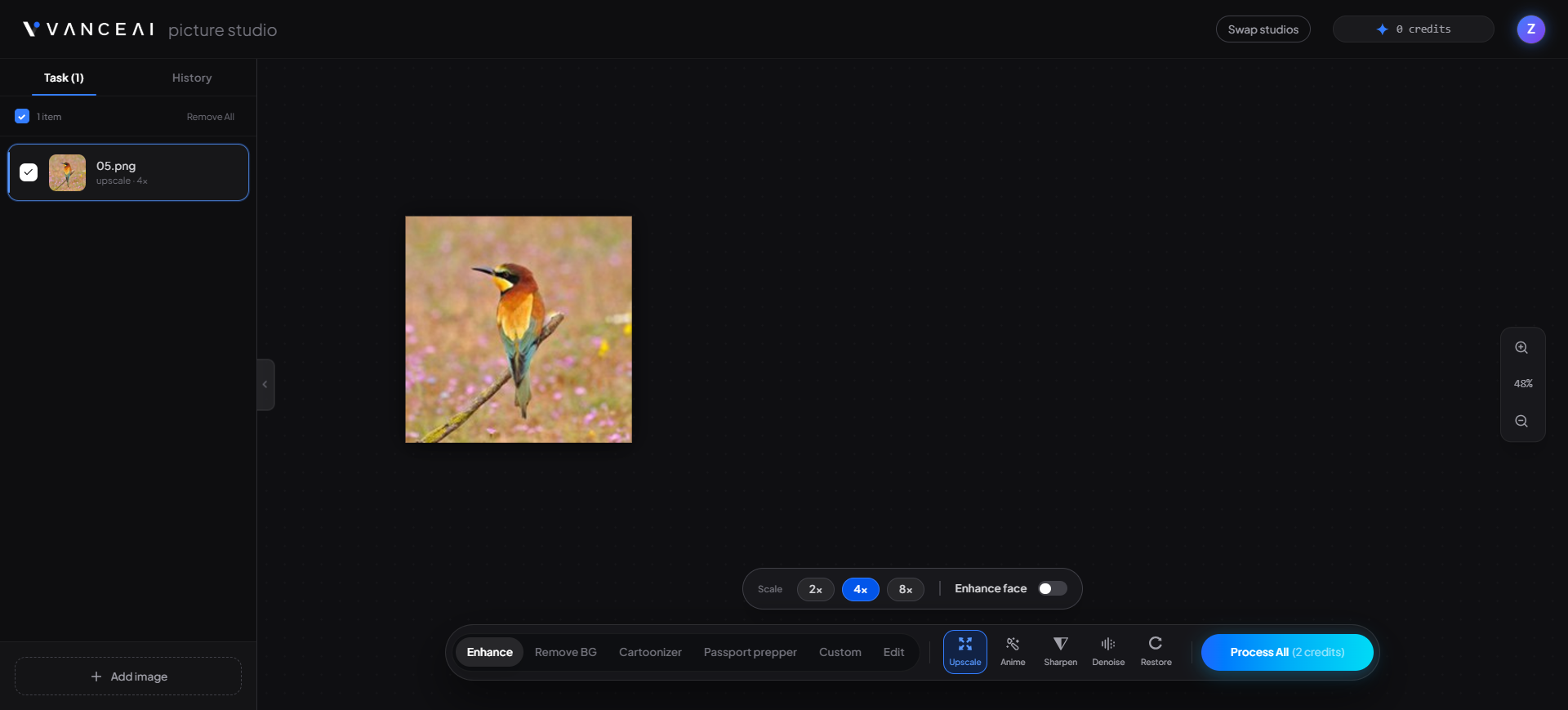
VanceAI bundles upscaler, sharpener, denoiser, enhancer, restorer, and neighbors (background remove, cartoon/sketch paths) under one credit wallet—useful when you want browser tools without committing to a single-function app.
- Best for: Mixed enhancement jobs (upscale one asset, restore another) billed per credit rather than unlimited seats.
- Strongest use: Upload → pick the tool (upscale factor and job type affect credit cost) → preview → download. Re-downloading the same result typically doesn’t re-spend credits. Desktop (VanceAI PC) when batch volume grows.
- Don’t use if / Watch outs: The current free trial is 10 credits—not ongoing monthly production. Per-tool credit tables add friction vs flat plans—read the cost for 4K restore/colorize before you standardize. You want generative suite + stock in one vendor—Magnific’s platform angle may be broader. Object-only erasure → narrower tools like Cleanup.pictures (not this upscale list).
- Pricing snapshot: Freemium — try free with 10 credits. Paid annual cards are credit/mo ladders (e.g. 200 / 500 / 1,000 / 2,000 credits per month); unused credits roll over. Check current prices on VanceAI.
 Remini — Portrait and face-forward enhancement
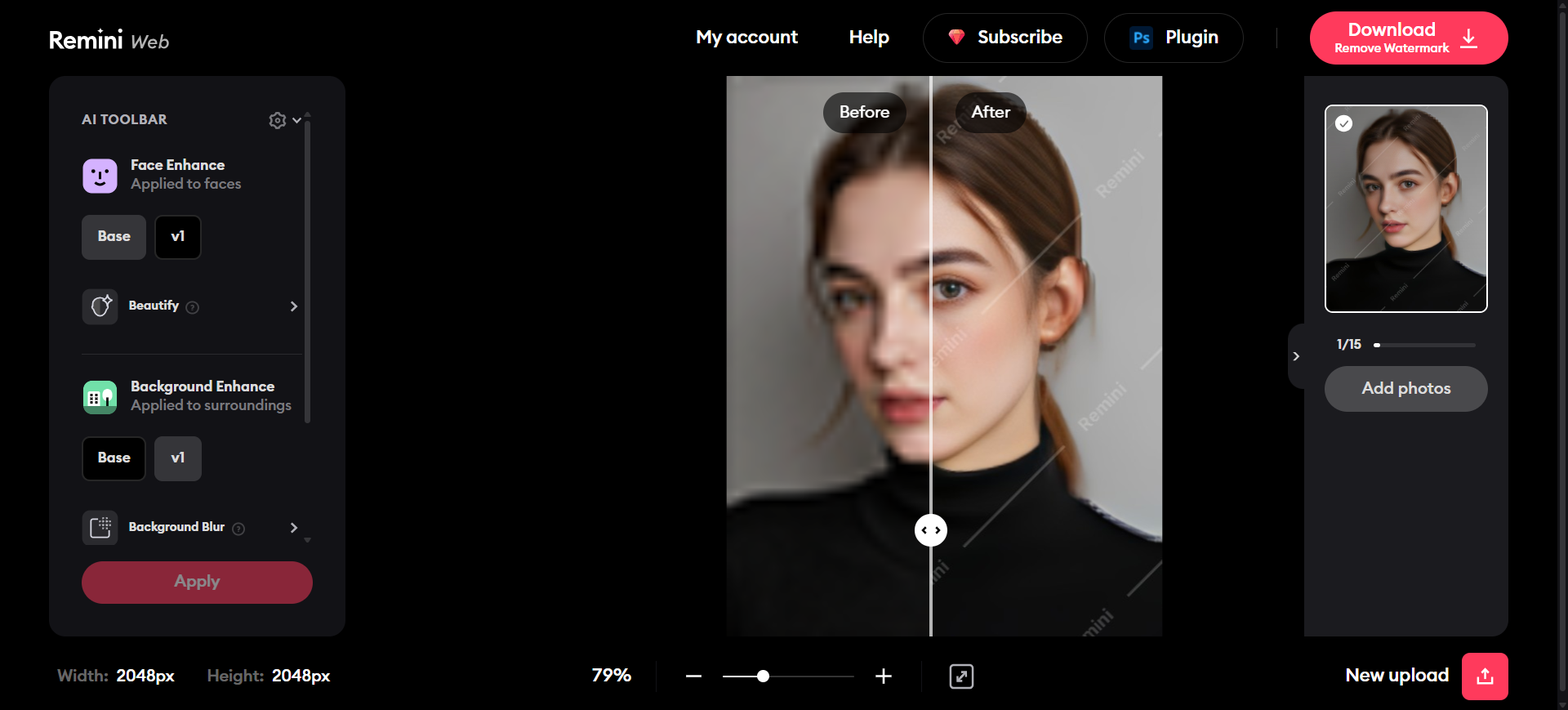
Remini earns a seat for people-centric assets: team photos, testimonial portraits, and social crops where face clarity is the bottleneck—not generic UI screenshots or icon sheets.
- Best for: Portrait restoration and face enhancement on marketing or editorial people photos.
- Strongest use: Run the portrait through Remini (mobile or web flows) → export → crop and grade in your layout tool. Treat output as a photo retouch pass, not a layout upscaler for entire mockups.
- Don’t use if / Watch outs: Your job is UI mockups, icons, or full-bleed product flats—use Upscayl, Let's Enhance, or Topaz instead. Free exports carry a watermark. Web Personal is private-use: about 20 photos/week, JPG only, no commercial use, no bulk, no Photoshop plugin. Business unlocks unlimited photos, PNG/TIFF, commercial use, bulk upload, and the PS plugin. Not a substitute for proper photography when the job demands custom craft.
- Pricing snapshot: Freemium — Free = watermarked. Paid Web Personal vs Business (weekly after a short trial on the current cards)—check current prices on Remini.
Don’t use this list if…
- You need custom icons or symbol sets. That’s Best AI Icon Generators—same week, different cluster.
- You only need background removal. See Best Background Removal Tools for Designers—or Pack
refine-cleanupneighbors like remove.bg, not this upscale shortlist. - You want to generate new images from prompts (Midjourney, Leonardo, Ideogram). Wrong aisle—upscale after you have a source file.
- You need two-tool duel (e.g. Upscayl vs Topaz). That’s a comparison piece later—this is the task overview.
- You expect upscaling to fix wrong composition or brand-off colors. Fix art direction first; upscalers only add pixels or controlled detail.
Start from the Pack
For generate → refine → export along the image creator path:
This article is the upscale / resolution task narrative. The Pack’s Refine & cleanup node is the living shortlist (Upscayl, Topaz, Magnific, and neighbors). Graphic designers also use upscayl in export & production—same tool, different workflow step.
What’s next
- Best AI Icon Generators — symbol assets, not enlargement (W4 companion).
- How we evaluate AI design tools — same selection bar, expanded.
- Later: background removal task guide; optional Upscayl vs Topaz comparison when the narrative earns its own URL.
Missing an upscaler that belongs in real design delivery workflows? Submit it.