Last updated: 2026-09-01
Best AI Tools for Brand Designers
Related pack: View Pack
Most “best AI for designers” lists treat brand work like a logo contest: enter a name, download a PNG, call it identity. Real brand designers live across a longer path—direction before marks, concepts you can actually refine, vectors that survive one-color tests, and visuals that prove the system on a real touchpoint.
This shortlist is for brand and visual designers (and freelancers who own identity kickoffs) who need AI across that path, not another gallery of marks. Seven tools across six workflow stops—from direction through touchpoints. Not every AI art product on the internet.
Honest boundary up front: AI accelerates exploration and first assets. Strategy, clear space, mono/reverse systems, trademark review, and production-grade lockup still land with you—usually in Illustrator or your vector tool of record. None of these replace that step.
Logo deep dive: Best AI Logo Generators. Living list: Brand Designer Pack. Selection bar: How we evaluate AI design tools.
How we pick
Same site-wide bar, weighted for brand and identity delivery:
- Fit — Does it serve direction, marks, vectors, or real brand touchpoints—not generic “AI art”?
- Delivery — Is there a path toward editable marks, kits, vectors, or listing-ready visuals? PNG-only exploration is labeled as such.
- Workflow — Can you continue in Illustrator, Figma, or brand docs—or is the handoff a dead end?
- Cost — Can a solo designer or small studio try before a client review?
- Trust — Still maintained; commercial terms checkable before you put a client name in it.
We do not rank a #1 overall winner. Pick by stage: direction, concepts, refine, applications.
Where to reach first
| If you need to… | Start with | Also consider |
|---|---|---|
| Set color direction by layout role (background, text, accent) | Huemint | Khroma in the Pack |
| Shortlist heading + body type before you draw the mark | Fontjoy | — |
| Logo concepts + optional Brand Kit for stakeholder shortlists | Looka | Brandmark — see logo task guide |
| Edit marks and merch on a browser canvas | Kittl | Looka for kit-style downloads |
| Vector icons, illustrations, style-controlled assets | Recraft | Adobe in the Pack for Illustrator/Firefly polish |
| Turn a raster concept into SVG/EPS after preview | Vectorizer | Recraft’s vector path when generating fresh |
| Product / listing visuals that stress-test the brand on a touchpoint | Flair | Photoroom or Canva in the Pack |
Most kickoffs need direction (color or type) + one concepts tool + one refine path—not every stop on this list.
The shortlist
 Huemintand
 Fontjoy — Direction before you draw the mark
These two sit upstream of logo generators. Neither is a logo wizard. They answer “what should this identity feel like?” before anyone opens Looka or Illustrator.
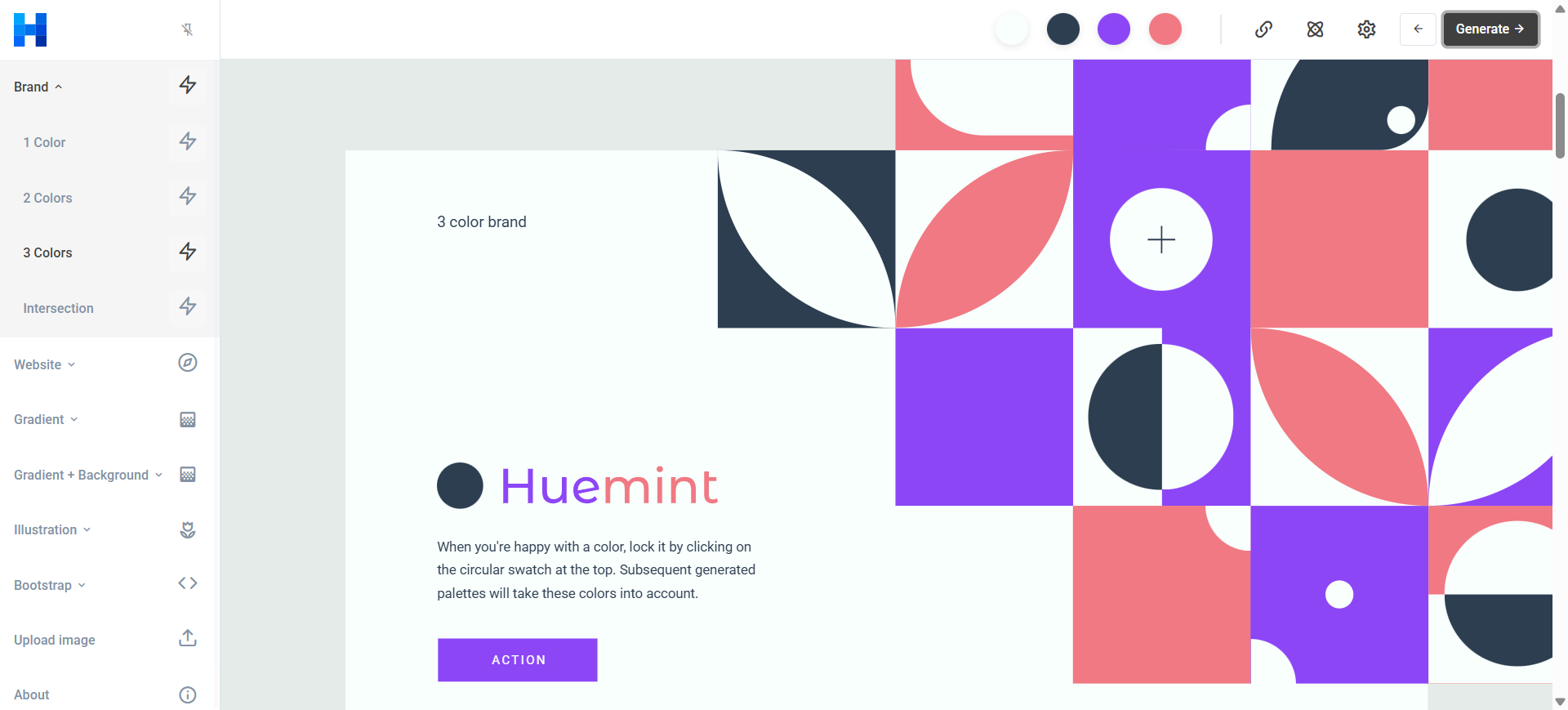
Huemint proposes color schemes tied to layout roles—background, text, accents—on brand, website, and illustration templates.
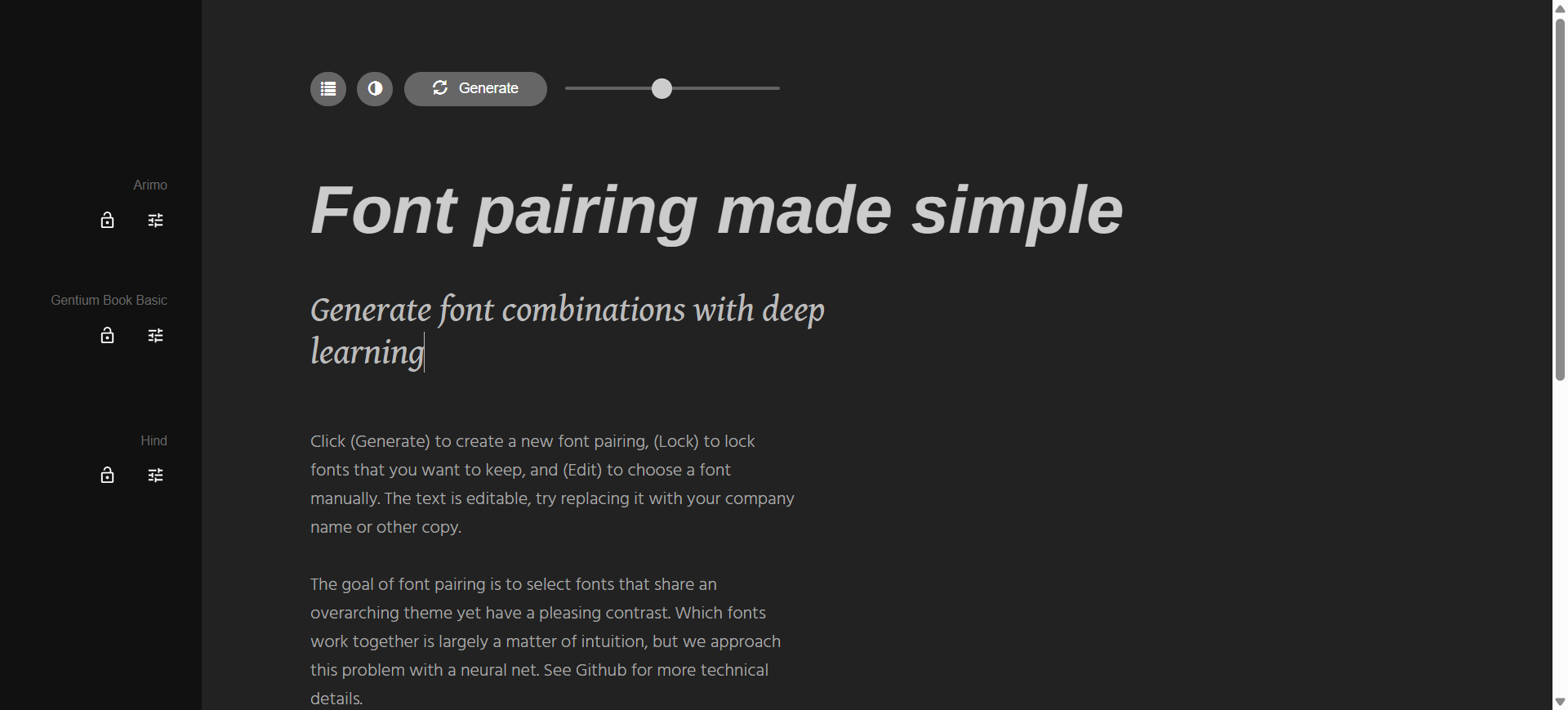
Fontjoy uses a neural net to suggest heading–body pairings you can lock, swap, and preview with real copy.
- Best for: Brand designers who want quick direction on palette and typography without building a full moodboard deck first.
- Strongest use: Huemint → lock keeper swatches → copy hex into Figma or brand docs → Fontjoy → lock keeper fonts → note names for Figma text styles → move into concept tools with clearer constraints.
- Don’t use if / Watch outs: You need a saved team design system or Figma library sync—both are browser one-offs (Fontjoy has no collections export). Huemint’s image upload mode expects flat color areas, not photos or gradients (About). Khroma in the Pack is the alternative when you want taste-trained palettes with WCAG pair ratings instead of layout-role ML. Neither replaces a strategist-written brief.
- Pricing snapshot: Free in the browser for both—Fontjoy has no paid tier. Huemint’s public API is non-commercial only, provided as-is with no uptime guarantee (About).
→ /tools/huemint · /tools/fontjoy
 Looka — Logo concepts plus a Brand Kit path
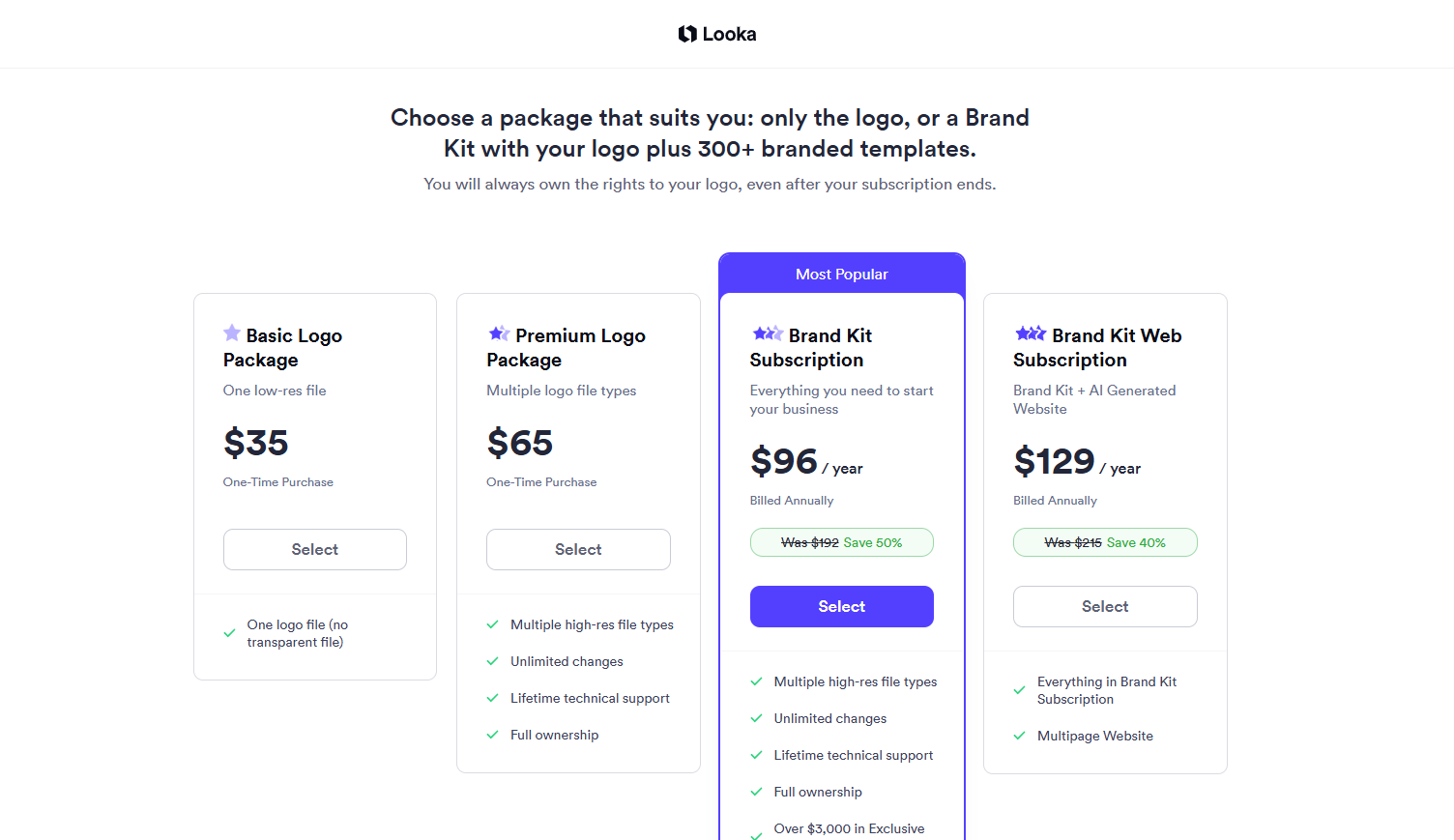
Looka is the kit-first concepts seat: explore marks free, then buy logo-only packages or an annual Brand Kit with hundreds of branded assets. On this list it anchors the concepts → starter collateral stage—not Illustrator-level lockup (that comes later).
- Best for: Identity shortlists where stakeholders want “logo + something to post tomorrow,” while you still plan to redraw the mark for uniqueness.
- Strongest use: Preferences → options → Premium Logo (hi-res PNG + EPS/SVG/PDF, variants, post-purchase edits) or Brand Kit (vectors + 300+ branded assets). Skip Basic Logo for real delivery—it’s one PNG file only.
- Don’t use if / Watch outs: You need a live editable canvas for merch and labels—Kittl. You want unlimited free concepts with a one-time download—Brandmark in the logo shortlist. Basic Logo is a single low-res PNG—not client handoff. Brand Kit and Brand Kit Web are annual subscriptions (Web adds an AI-generated site); logo-only Basic/Premium are one-time. Brand Kit lists full logo ownership even after the subscription ends—still confirm current terms on Looka pricing before client contracts.
- Pricing snapshot: Freemium — free to design; Basic / Premium Logo (one-time) or Brand Kit / Brand Kit Web (annual). Check Looka for current prices; we don’t quote dollars here.
 Kittl — Browser canvas for logos, labels, and merch
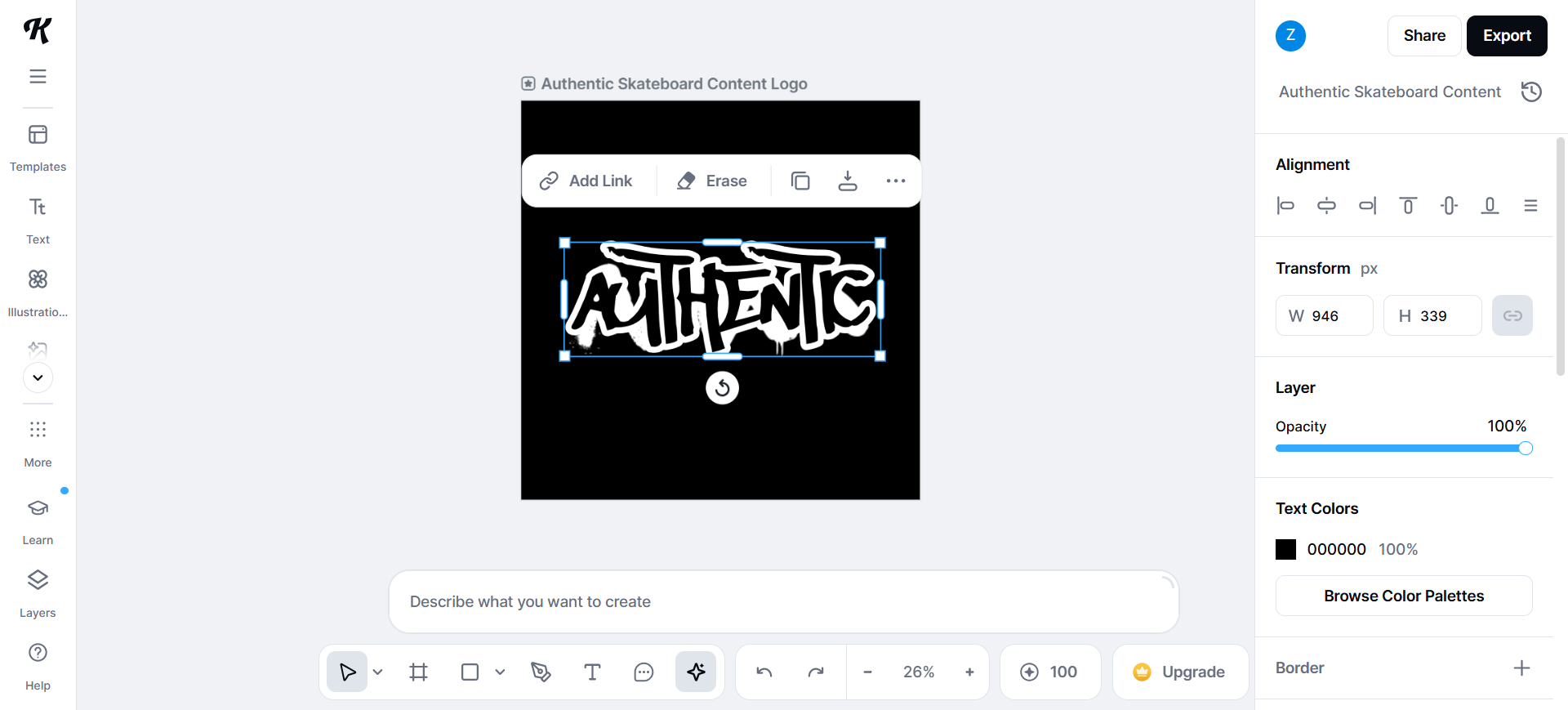
Kittl is not “download a logo pack and leave.” It is a template-driven graphic studio: logos next to posters, labels, apparel art—AI on a canvas you keep editing. Reach for it when identity work includes applied graphics, not a single SVG export.
- Best for: Brand designers and print/merch-adjacent work that needs ongoing layout control after the mark exists.
- Strongest use: Build or import a direction → iterate marks inside campaign or product contexts → export on a paid plan when client-ready (SVG/PDF where the plan allows) → polish paths and typography in Illustrator.
- Don’t use if / Watch outs: You only need a one-shot logo file pack—Looka, Brandmark, or LogoAI are simpler. Free is explore-only: capped projects, personal use, no transparent or high-res exports on the free tier—upgrade before you treat output as handoff. Pair with a kit-style tool when you still need the initial mark shortlist.
- Pricing snapshot: Freemium — free to explore; client-ready export and commercial use need a paid plan—check Kittl for current Pro/Business limits.
 Recraft — Controllable vectors and brand-consistent assets
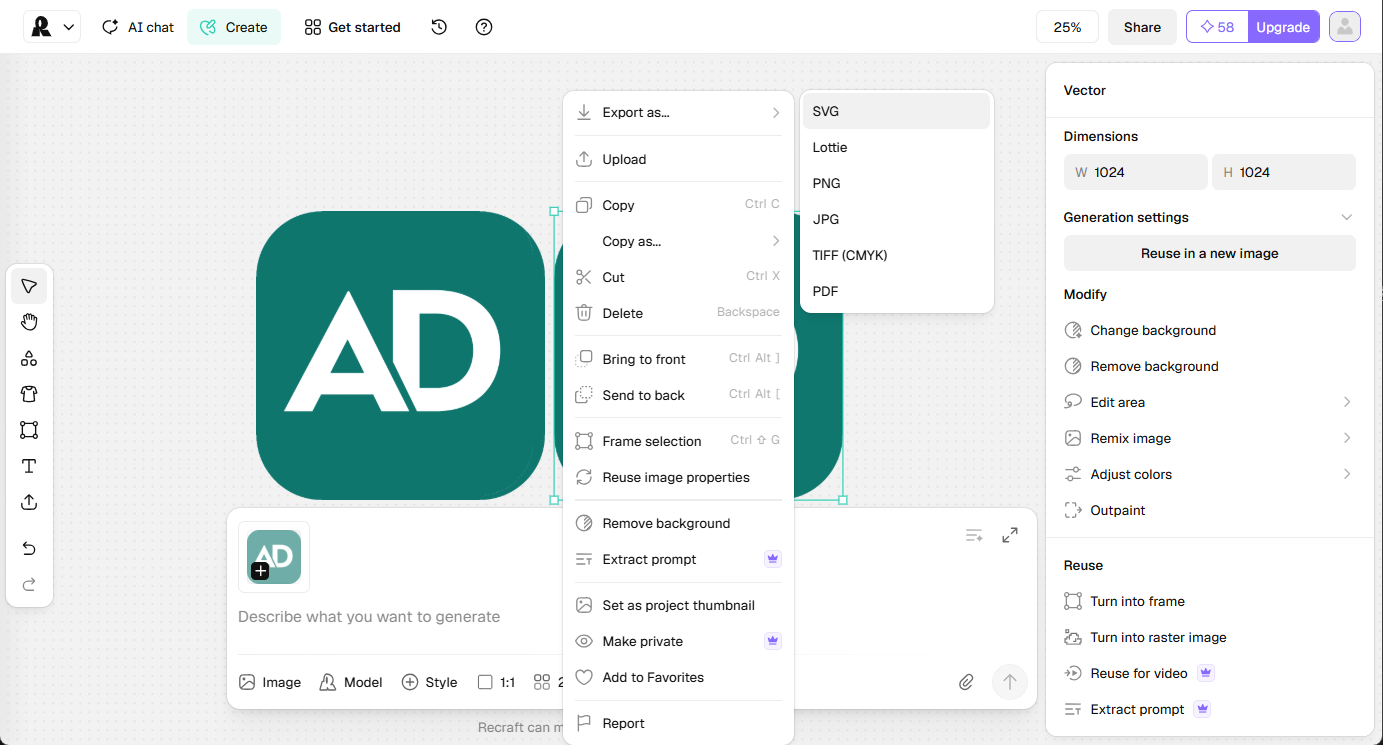
Recraft is the refine-and-extend seat: design-controlled vectors, icons, and illustrations with reusable styles—not a “enter company name → logo pack” wizard. Use it when the direction is clearer and you need editable graphics that match a defined look.
- Best for: Icon sets, illustration-adjacent brand assets, and vector exploration after concepts exist.
- Strongest use: Style or prompt → generate raster or vector → edit in Recraft → export SVG into Illustrator/Figma → pair with a concepts tool when you still need the initial mark package.
- Don’t use if / Watch outs: You only want a one-time logo + Brand Kit download—use Looka or Brandmark. Free-tier outputs are public, owned by Recraft, and not licensed for commercial use—generate client or sellable assets on a paid plan (rights attach at generation time). Deeper icon roundups: Best AI Icon Generators. Adobe in the Pack covers Firefly + Illustrator polish when the job is photo/retouch heavy, not SVG-first generation.
- Pricing snapshot: Freemium — free exploration with daily caps; paid plans for ownership, privacy, and commercial use—check Recraft for current credit tiers.
 Vectorizer — Raster concept → production SVG/EPS
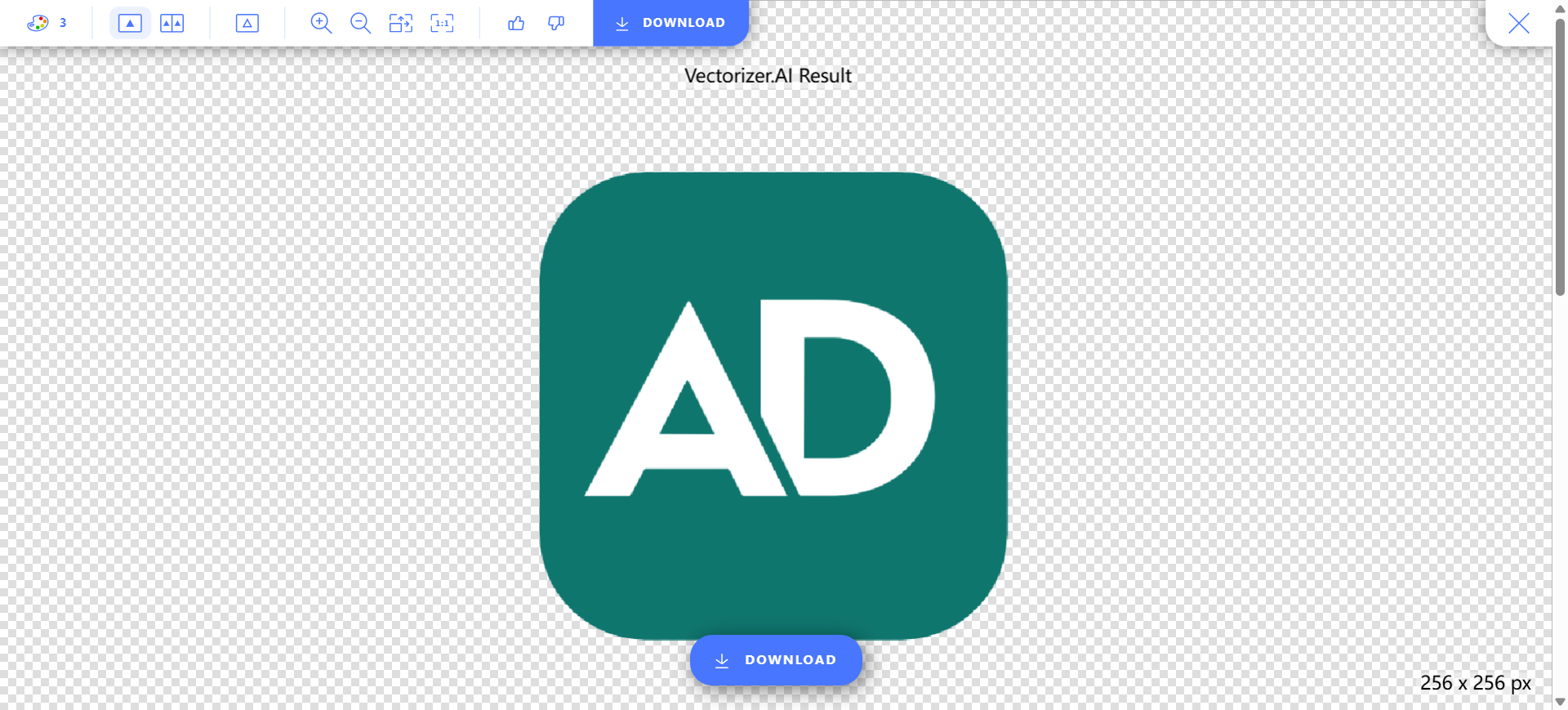
Vectorizer is a single-job tracer: upload PNG/JPG, preview the AI trace in the browser, then pay to download SVG, PDF, EPS, or DXF. It belongs in the stack when a concept arrived as a raster—screenshot, generated PNG, scan—and you need vector source before Illustrator cleanup.
- Best for: Turning an approved raster direction into editable paths without redrawing from a blank artboard.
- Strongest use: Upload raster → review free interactive preview → subscribe to Web App (unlimited manual downloads in-browser) or API (credit-metered automation) → open SVG/EPS in Illustrator/Figma → simplify paths, fix corners, set proper type.
- Don’t use if / Watch outs: You can generate vectors directly—try Recraft first. You need generative illustration from text—wrong tool. Production downloads require a paid subscription—preview alone is not handoff. Web App is for people in the browser (no API); API plans are for software pipelines. Noisy photos and soft gradients trace poorly; flatten or simplify first.
- Pricing snapshot: Paid for production exports. Web App: unlimited manual vectorization in the browser (most users). API: credit-based monthly plans with rollover—see Vectorizer pricing.
 Flair — AI product scenes for touchpoint stress-tests
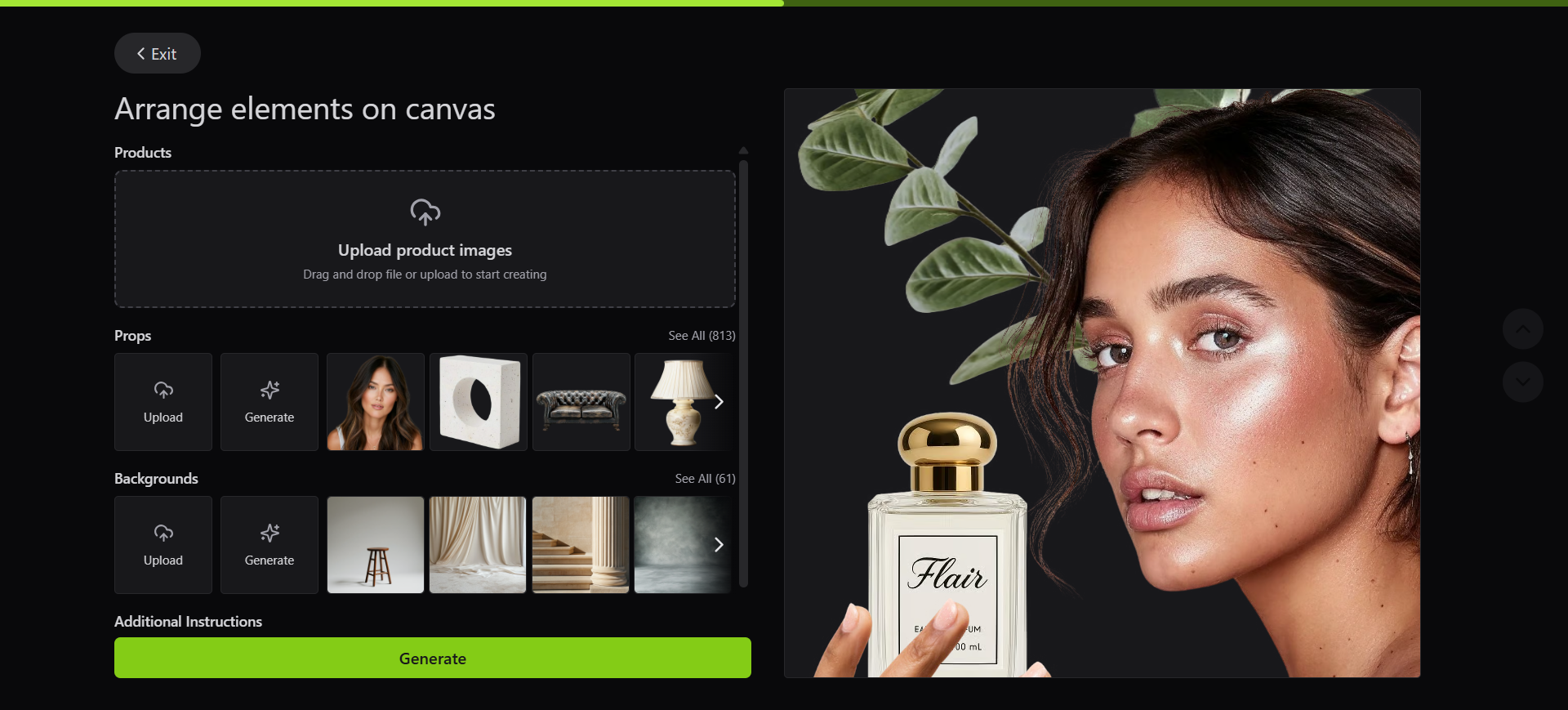
Flair stages product photography: on-brand scenes, on-model shots, ad stills, and short product clips without a studio day. On this list it covers applications—does the identity survive on a real listing or ad—not logo generation.
- Best for: Brand and ecommerce-adjacent designers who need applied visuals to test color, type, and mark context on merchandise or PDP-style layouts.
- Strongest use: Upload product assets → train or pick a model → generate staged scenes → export for listings, pitch decks, or client reviews → keep the master mark in Illustrator; Flair proves the system on touchpoints.
- Don’t use if / Watch outs: You only need logo concepts—stay upstream with Looka or the logo shortlist. Free: 1 custom model, 5 generated images, 1 video—enough to test, not a production month. Pro does not include a company commercial license; Pro+ and Scale do—do not ship paid client work on Free or Pro. Instant/Ad generation paths can burn quota faster than standard images (Flair pricing). Heavy cutout/listing cleanup without generative staging—Photoroom in the Pack.
- Pricing snapshot: Freemium — Free: 1 model / 5 images / 1 video. Pro+: higher model/image/video caps + Company Commercial License. Scale adds API early access and priority support—check Flair pricing for current tiers.
Don’t use this list if…
- You need AI to write the brand strategy brief from zero. The Pack’s brief stage is still human-first—no dedicated tool here replaces discovery, audience research, or positioning workshops.
- You only need logo generators and nothing else. Use Best AI Logo Generators—six tools, one job.
- Your brief is product UI, wireframes, or Figma handoff. Start from Best AI Tools for UI/Product Designers, Best Figma-to-Code AI Tools, or the UI / Product Designer Pack.
- You want a finished identity system tomorrow (forbidden uses, trademark search, full guidelines). AI gets you direction and drafts; craft and legal review still sit with you or counsel.
- You’re shopping for generic AI art, not identity delivery. Wrong aisle.
- You need a two-tool logo duel (Looka vs Brandmark only). That’s a comparison piece later—this is the occupation overview.
- Your stack is locked and the job is one tiny step. Use the table, grab one tool, ignore the rest.
Go deeper on one job
This overview is the map—not every deep dive:
- Best AI Logo Generators — six prompt-to-mark tools when concepts are the whole brief.
- Best AI Icon Generators — when icons, not logos, are the deliverable (Recraft appears in both contexts with different jobs).
- Best AI Tools for UI/Product Designers — product UI and handoff when the brief leaves brand identity.
Use the Pack as the living list
Names and order drift. We keep the curated set by workflow stage here:
The Pack also includes neighbors this overview does not repeat—Khroma for taste-trained palettes, Adobe for Illustrator/Firefly polish, Photoroom and Canva for listing and template-heavy applications. All seven tools above fit real kickoff stages even when they are not the only node for that step.
What’s next
- How we evaluate AI design tools — same selection bar, expanded.
- Best Figma-to-Code AI Tools — when the brief shifts from identity to design-file handoff.
- Later: Looka vs Brandmark — when a two-tool duel earns its own URL.
Missing a brand tool that belongs in real identity workflows? Submit it.