Last updated: 2026-10-01
Best AI Tools for Graphic Designers
Related pack: View Pack
Most “best AI for graphic designers” lists are a random pile of image generators with a Canva logo stapled on. Real graphic work is a path: lock the brief and sizes, explore concepts with copy in mind, build a hero layout, adapt it across placements, then export something print- or platform-ready.
This shortlist is for graphic and marketing designers (and freelancers who own posters, social, decks, and ads) who need AI across that path—not another Midjourney moodboard gallery, and not a UI/wireframe roundup. Six tools across four workflow stops. The Pack’s brief/specs stage stays human-first—no fake “AI brief writer” seat here.
Honest boundary up front: AI accelerates exploration, layout fills, resize, and cleanup. Hierarchy, brand voice, print specs, and final craft still land with you—usually in Canva, Kittl, Illustrator, or Photoshop. None of these replace a real brief.
Living list: Graphic Designer Pack. Brand identity path (different job): Best AI Tools for Brand Designers. Selection bar: How we evaluate AI design tools.
How we pick
Same site-wide bar, weighted for campaign and marketing delivery:
- Fit — Does it serve concept, layout, multi-size, or export for posters/social/ads—not product UI systems or identity lockups alone?
- Delivery — Path to a usable file for a channel (PNG/JPG, video, print-adjacent) with commercial terms you can check?
- Workflow — Can you keep going in a canvas or editor designers already use—or is the handoff a dead-end gallery?
- Cost — Can a solo designer or small studio try before a client review?
- Trust — Still maintained; free-tier and license ceilings labeled honestly.
We do not rank a #1 overall winner. Pick by stage: concept, layout, multi-size, export.
Where to reach first
| If you need to… | Start with | Also consider |
|---|---|---|
| Readable text inside posters / social KV concepts | Ideogram | Midjourney for art direction without type |
| Art direction / mood exploration before layout | Midjourney | Adobe Firefly if you already live in CC |
| Hero layout + templates + Magic/AI assists | Canva | Kittl for merch/print canvas |
| Editable posters, labels, merch graphics on a canvas | Kittl | Canva for Brand Kit + team templates |
| Resize / recompose for more placements | Kapwing | Canva Magic Resize on Pro |
| Local upscale before handoff | Upscayl | remove.bg / Photoroom when cutout or listing scenes are the gap |
Most campaigns need one concept tool + one layout canvas + one resize or export stop—not all six.
The shortlist
 Ideogram — Concepts with readable words in the frame
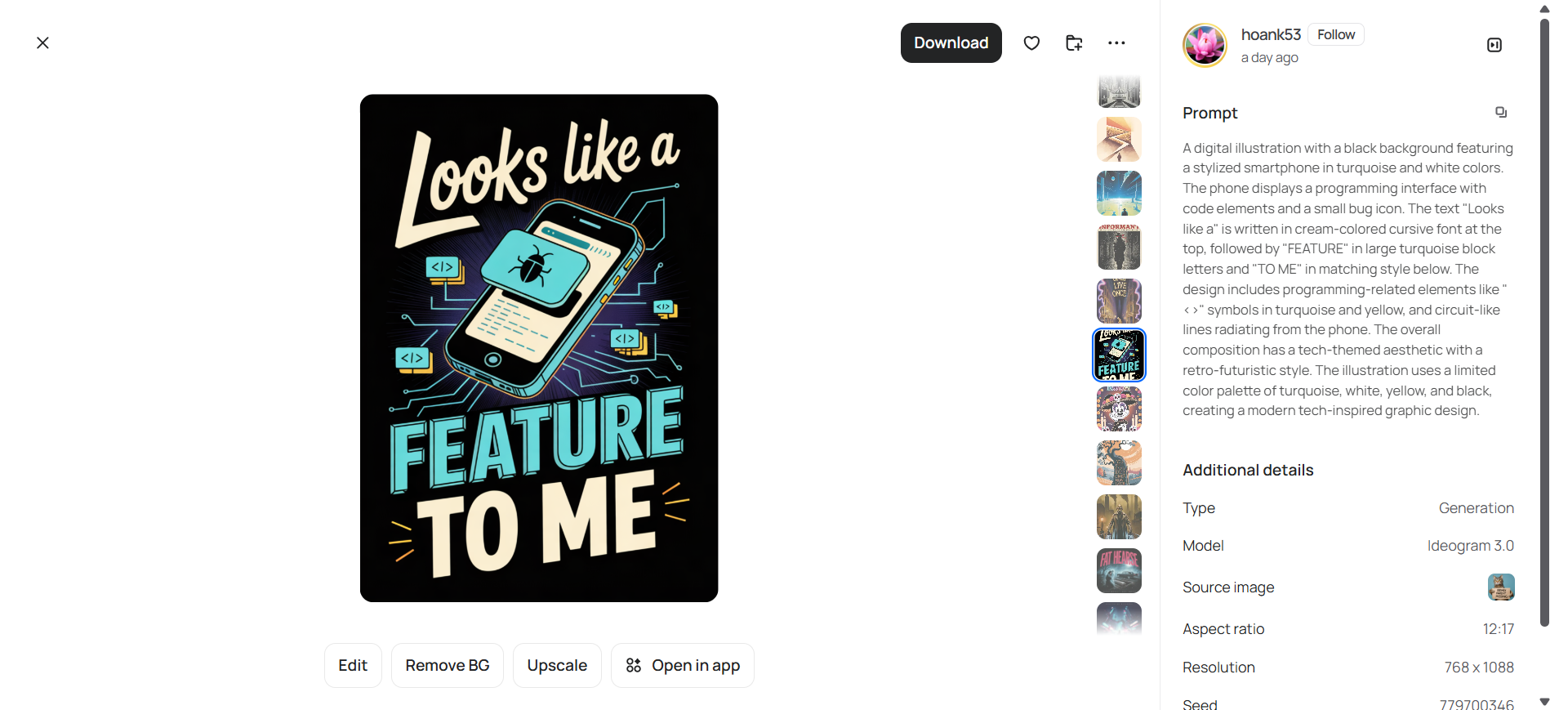
Ideogram is the type-in-image concept seat: prompt-to-image built so posters, social creatives, and POD-style layouts can carry legible headlines—not just pretty mush. On this list it anchors concept & art direction when the brief already has copy.
- Best for: Graphic designers exploring key visuals where the words must stay readable in the draft.
- Strongest use: Prompt (optional Magic Prompt) → pick a keeper → Edit / cleanup in-app → drop into Canva or Kittl for real layout hierarchy → redraw type in your layout tool when the file is client-facing.
- Don’t use if / Watch outs: You need SVG or editable vectors—exports are bitmaps; use Recraft or Illustrator. Free generations are public—upgrade to Plus for private mode before client or unreleased work. Product UI / design systems—Figma territory.
- Pricing snapshot: Freemium — free limited public exploration; Plus / Pro add private mode, priority credits, and higher volume—check Ideogram for current credit ladders.
 Midjourney — Art direction and mood before you set type
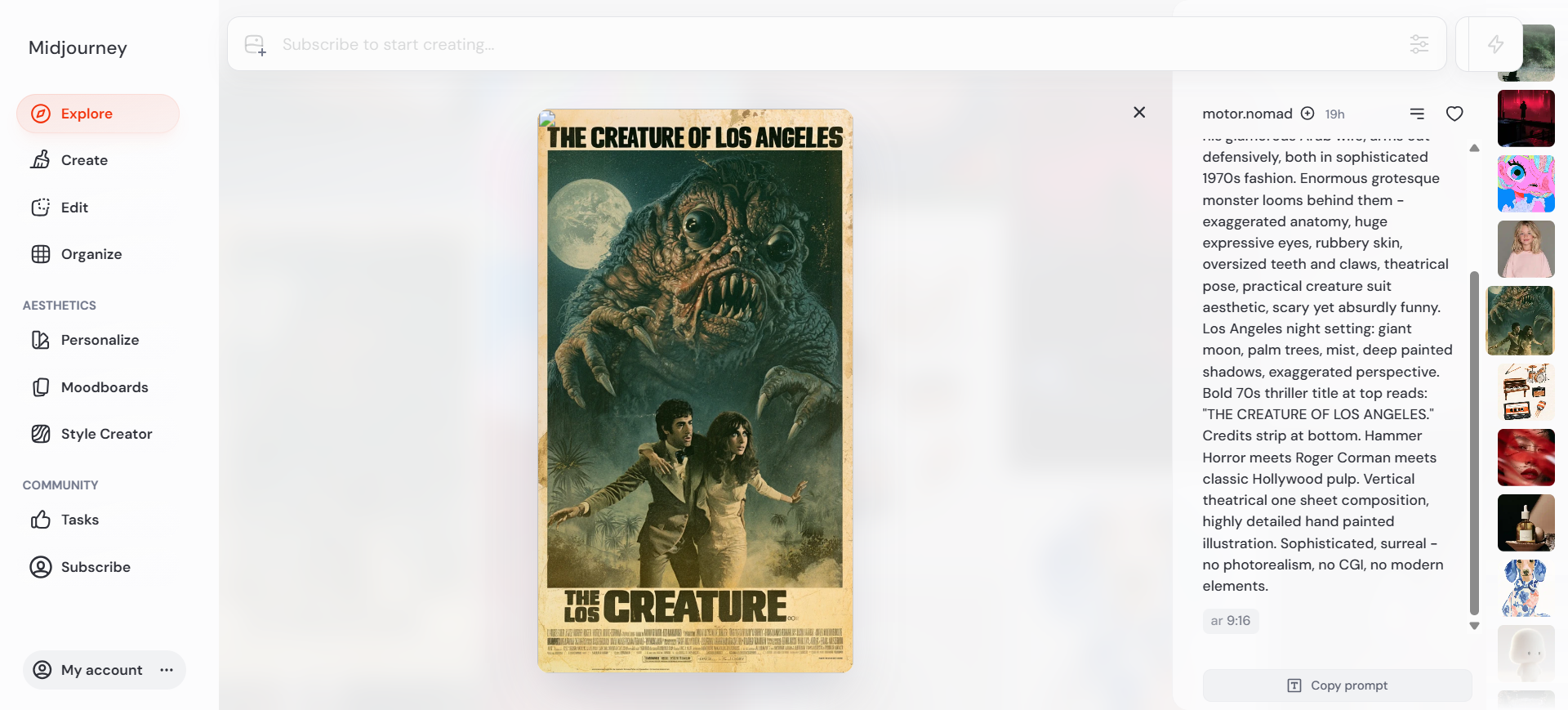
Midjourney is the art-direction seat: high-quality stills (and short image-to-video) for moodboards and visual direction when typography is not the first constraint. Use it upstream of layout—then set real type in Canva, Kittl, or Illustrator.
- Best for: Campaign mood, style frames, and concept exploration before the hero layout lock.
- Strongest use: Web Create (or Discord) → style / image references → shortlist directions → bring a still into your layout tool as a plate or texture—not as final headline art when type must be perfect.
- Don’t use if / Watch outs: You need reliable readable text inside the image—Ideogram. No free public sandbox—paid plans only. Client privacy needs Stealth (Pro / Mega)—Basic and Standard are not private by default. SVG or UI systems—wrong tool.
- Pricing snapshot: Paid GPU-time plans (Fast hours; unlimited Relax from Standard up). Confirm Stealth and commercial ceilings on Midjourney for your company size.
 Canva — Hero layout, Brand Kit, and Magic assists
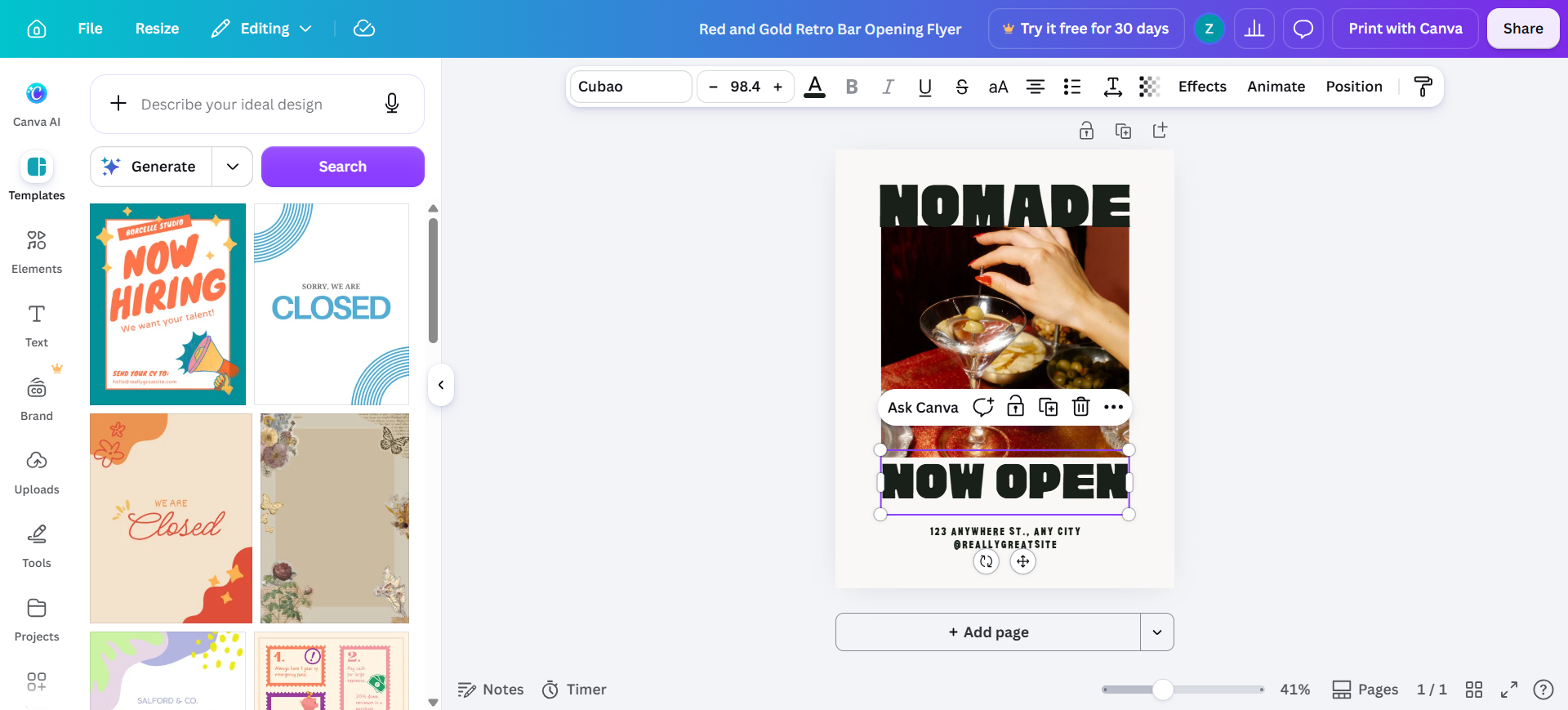
Canva is the layout workhorse on this Pack: template-first Visual Suite for social, decks, video, and print, with Brand Kit and Magic / Canva AI for copy, cleanup, background remove, and multi-size resize. Reach for it when the brief is campaign graphics, not a Figma product system.
- Best for: Marketing and freelance graphic designers shipping channel-ready layouts fast with reusable brand assets.
- Strongest use: Start from template or blank → lock Brand Kit → build hierarchy → Magic Resize / AI assists when the plan allows → export for each placement. Keep Figma for app UI; keep dedicated logo tools when the mark itself is the brief.
- Don’t use if / Watch outs: Source of truth is a product UI design system—Figma. Free caps are real (thin Brand Kit, limited AI allowance, thinner asset library). Unlimited generative AI is not the model—allowances reset; heavy months need Pro / Business or an AI Pass. Strategy-led custom lettering—finish outside Canva.
- Pricing snapshot: Freemium — Free to explore; Pro / Business unlock Magic Resize, richer Brand Kit, higher AI, and team admin—check Canva for current limits.
 Kittl — Canvas for posters, labels, and merch graphics
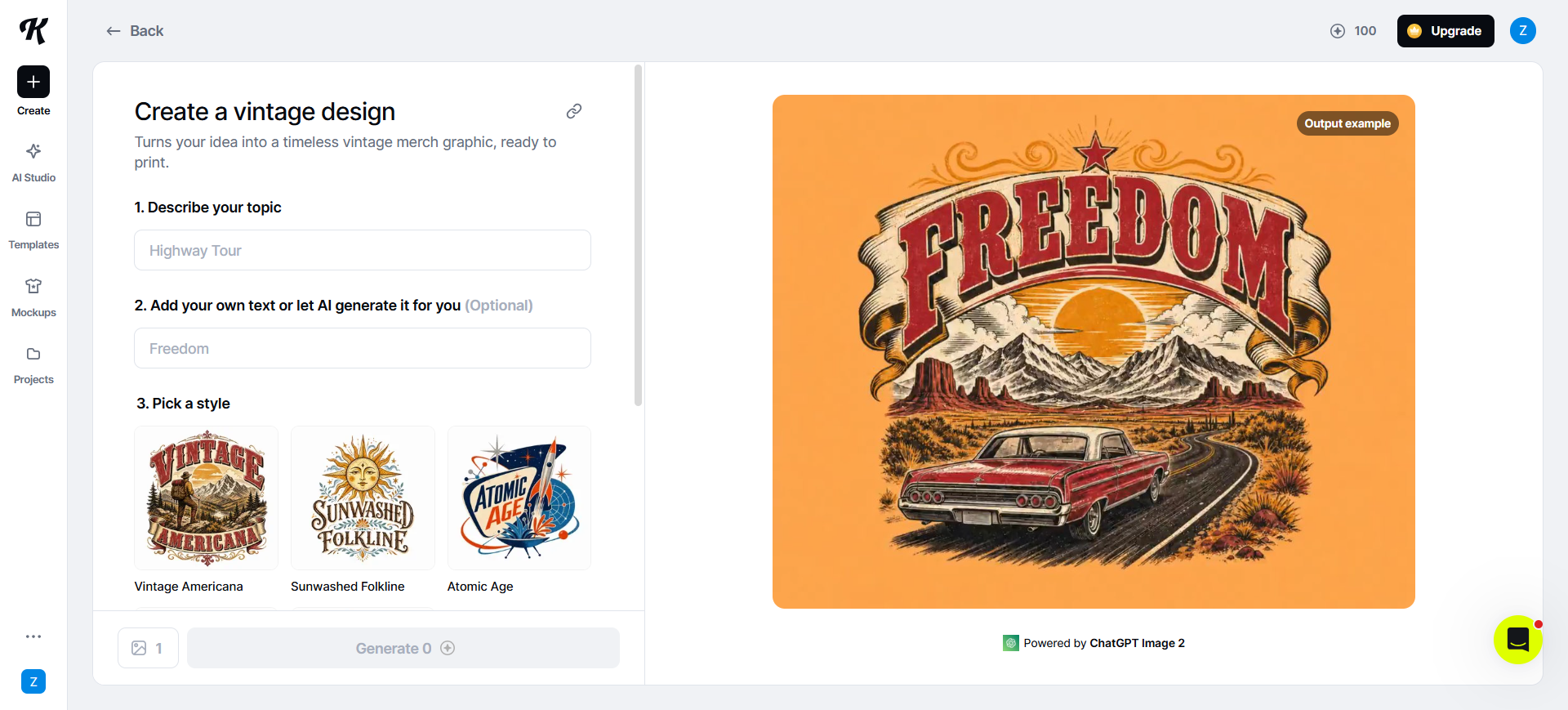
Kittl is the print-and-merch canvas seat: templates plus AI generation/cleanup on an infinite browser canvas for posters, badges, labels, and apparel art. On this list it sits beside Canva—lean Kittl when the deliverable is editable applied graphics, not a full marketing suite.
- Best for: Graphic designers and POD-adjacent work that needs ongoing layout control after a concept exists.
- Strongest use: AI Studio or templates → refine on canvas → export on a paid plan (hi-res PNG/JPG; SVG/PDF where the plan allows) → polish paths/type in Illustrator when print-critical.
- Don’t use if / Watch outs: You only need a one-shot logo + Brand Kit download—Looka / Brandmark (see logo generators). Free is personal-use exploration: limited projects, low-res exports (~800px / 72dpi)—upgrade before client or sellable work. Product UI—Figma.
- Pricing snapshot: Freemium — Free sandbox; paid tiers for commercial use, hi-res, and vector-friendly exports—confirm licensing copy-count caps on Kittl.
 Kapwing — Resize and recompose for more placements
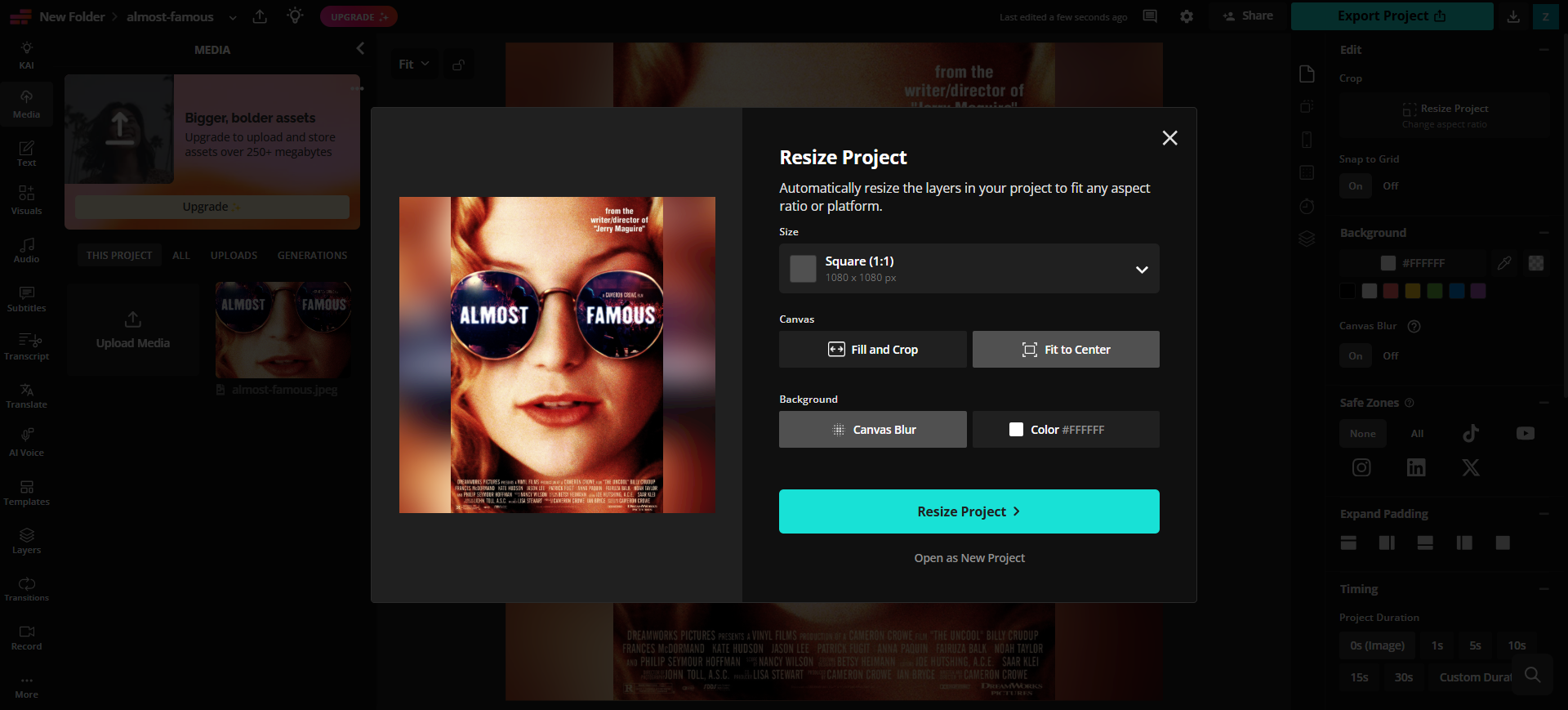
Kapwing is the multi-size seat: browser editor for short video and graphics with a clear Resize Project path (aspect ratios and platform sizes), plus captions and other AI assists on credits. Use it when the hero exists and the job is fit every placement—not when you still need art direction.
- Best for: Social and marketing designers adapting one master across feed, story, and ad crops.
- Strongest use: Open project → Resize Project → pick Square / Story / custom → Fill and Crop or Fit to Center → Export. Prefer Canva Magic Resize if the whole campaign already lives in Canva Pro.
- Don’t use if / Watch outs: Free exports are watermarked at 720p—upgrade for brand delivery. Grade-heavy film work—Premiere / DaVinci. You only need AI clip generation without an editor—different aisle. Mobile-first editing habits—CapCut may fit better.
- Pricing snapshot: Freemium — Free watermarked trial; Pro / Business for clean HD/4K, Brand Kit, and higher AI credits—check Kapwing for current credit pools.
 Upscayl — Local upscale before you hand off
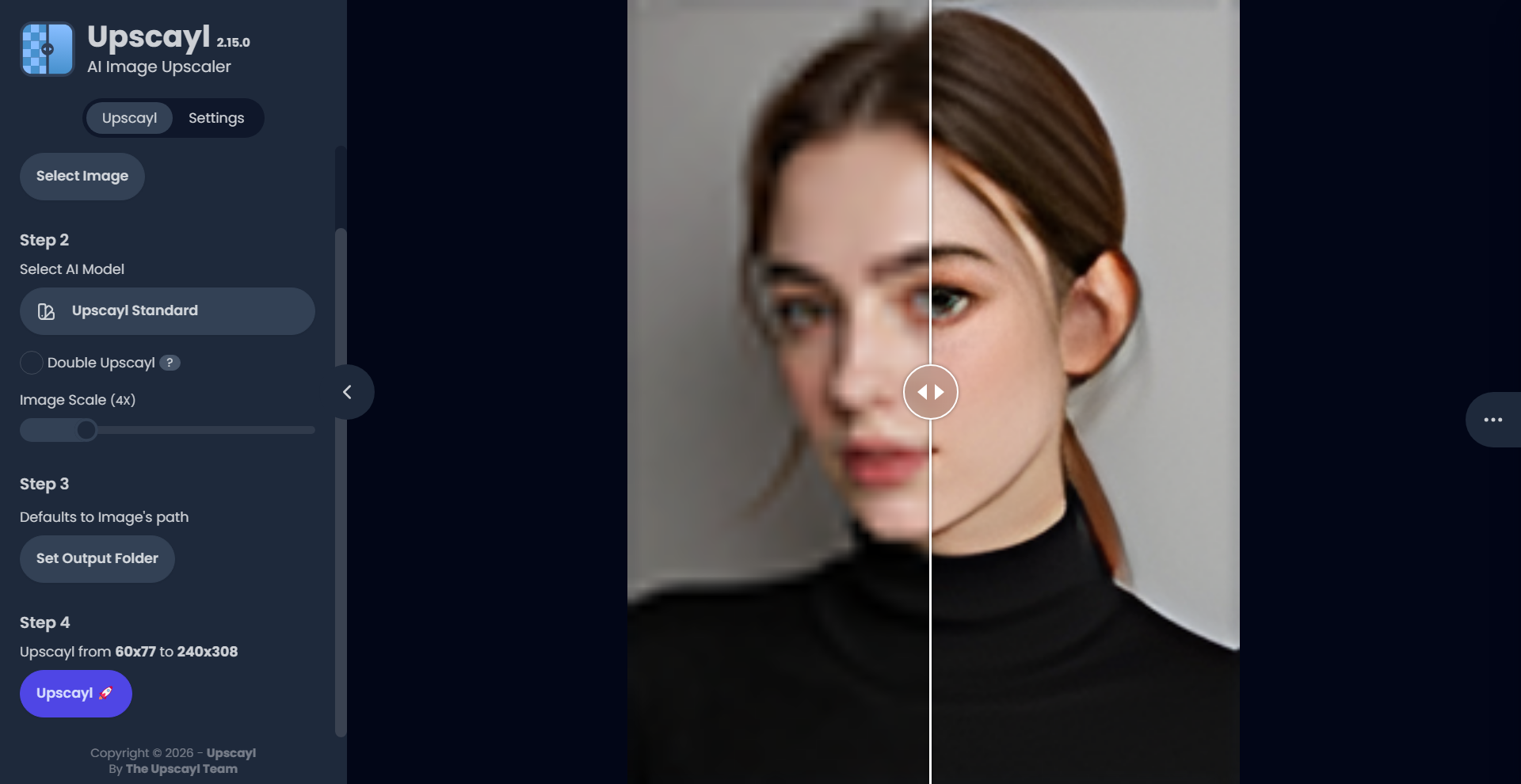
Upscayl is the export cleanup seat: free, open-source desktop AI upscaling so low-res plates, compressed client JPEGs, or soft AI drafts survive a deck or large placement—offline, no account required for the core app.
- Best for: Designers who need enlargement without another SaaS subscription, especially when privacy matters.
- Strongest use: Install → pick a model → upscale (batch if needed) → drop into Canva, Kittl, or Photoshop for final color and crop. Optional Upscayl Cloud only when local GPU or sharing blocks you.
- Don’t use if / Watch outs: Print-critical controllable enhance—compare Topaz in the upscalers guide. Cutout-only jobs—remove.bg or the background-removal shortlist. Weak machines may struggle locally—try Cloud or another host.
- Pricing snapshot: Desktop is free and open-source. Cloud is optional and credit-metered—confirm current Cloud tiers on Upscayl if you need them.
Don’t use this list if…
- Your brief is brand identity (direction → logo → lockup → touchpoints). Start from Best AI Tools for Brand Designers.
- You only need product / listing mockup scenes. Use Best AI Mockup Generators for Designers.
- You only need background removal. Use Best Background Removal Tools for Designers.
- You only need resolution / sharpen. Use Best AI Image Upscalers for Designers—Upscayl appears in both contexts with different jobs.
- Your stack is product UI, wireframes, or Figma handoff. Start from Best AI Tools for UI/Product Designers or the UI / Product Designer Pack.
- You want AI to write the brief and channel specs from zero. The Pack leaves that stage empty on purpose—wrong sizes still mean full rework.
- You’re shopping for generic AI art, not campaign delivery. Wrong aisle.
Use the Pack as the living list
Names and order drift. We keep the curated set by workflow stage here:
The Pack also includes neighbors this overview does not repeat as full seats—Adobe (Firefly inside CC), remove.bg and Photoroom on export / listing cleanup. All six tools above map to real campaign stages even when they are not the only node for that step.
What’s next
- Best AI Mockup Generators for Designers — when the deliverable is product-in-scene, not the layout stack.
- Best Background Removal Tools for Designers — cutout prep before layout.
- Best AI Tools for Brand Designers — identity kickoffs vs campaign graphics.
- How we evaluate AI design tools — same selection bar.
Missing a graphic tool that belongs in real campaign workflows? Submit it.